BeyondERP.Newsletter
Menu

Setup page · Product information management

Hazardous material technical name

A setup page where you define technical names, the commonly used or internal company names that describe each hazardous material.

Used by
Hazardous materials manager, Hazardous materials viewer
Business process
Develop product strategy
Menu item
HMIMTechnicalNameDisplay
Main table
HMIMTechnicalName
Data entity
HMIMTechnicalNameEntity
Setup steps
1 on this page
Show what matters for
PAGE GUIDEWhat the page does and how to use it8 sections. Choose a role to highlight what matters to you.
Everyone

1What it is and why

What it isA setup page where you define technical names, the commonly used or internal company names that describe each hazardous material.
What you do hereUse this page to create technical names, each with a display name and a short description, that can then be selected for hazardous products.
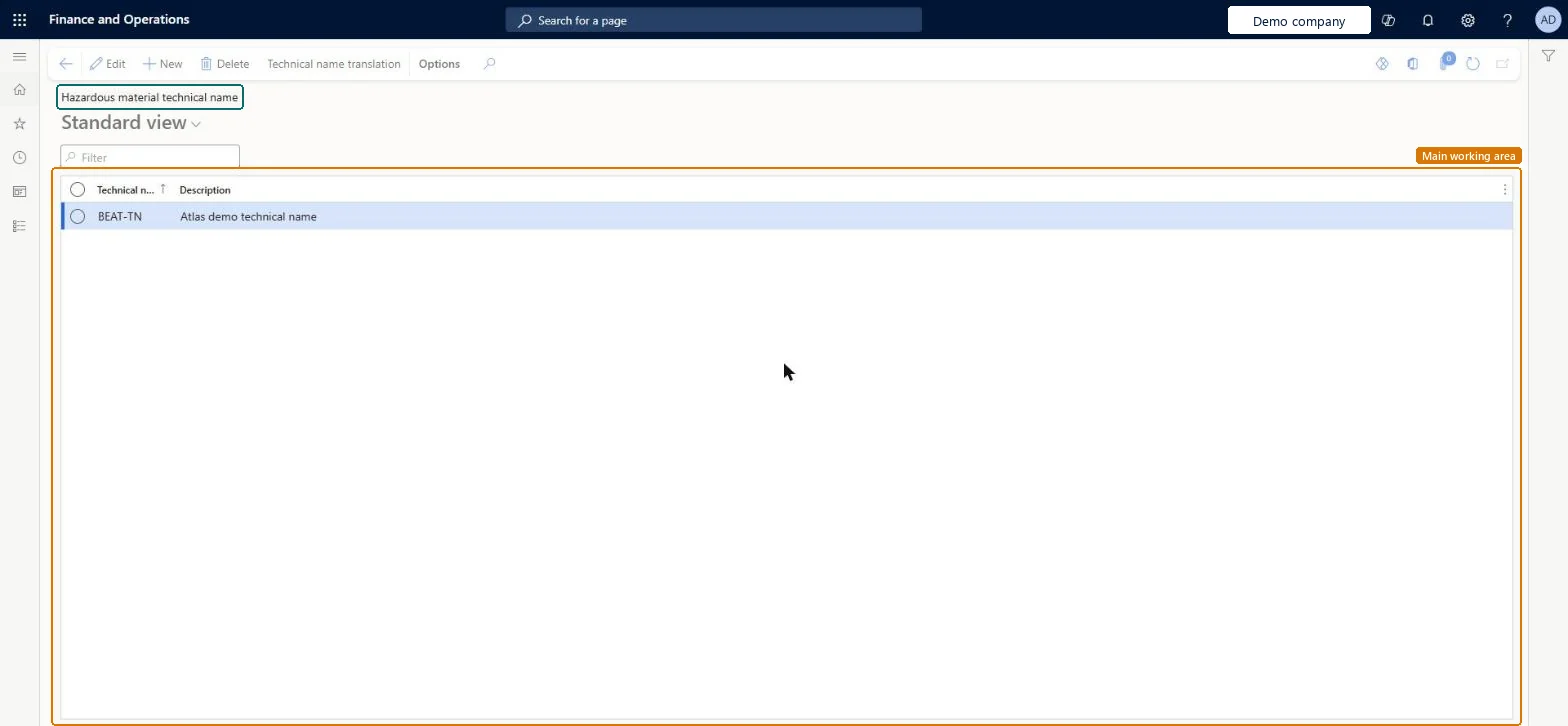
Hazardous material technical name page in Dynamics 365
The page in Dynamics 365. page title tab to open what to set or check
Functional consultant · Solution architect

2Where it fits

Business processDevelop product strategy
Menu pathProduct information management › Setup › Hazardous material shipping documentation › Hazardous material technical name
Used next byReleased products Microsoft Learn
End user · Functional consultant

3How to do it

About the examples: Examples and screenshots in this guide use BEAT, a demo company in a Dynamics 365 test environment. Use your own company's codes and values instead of copying them.

Setup steps on this page

Set up Hazardous material technical name

Use this page to create technical names, each with a display name and a short description, that can then be selected for hazardous products.

Steps from Microsoft

  1. Go to Product information management > Setup > Hazardous material shipping documentation > Hazardous material technical name.
  2. Select New to add a technical name.
  3. Enter the display name for the technical name.
  4. In the Description field, enter a short description.

Source: Microsoft Learn

Test checklist

  1. Create a technical name.
  2. Assign it to a hazardous released item.
  3. Add Technical name to the print setup and print the bill of lading; check it prints next to the proper shipping name.

Source: Microsoft Learn

Functional consultant

4Setup decisions

Setup stepRecommended value and whyDecision, common mistake and test
Set up Hazardous material technical nameThe commonly used or internal company name for each hazardous material, bundled per regulation in material codesTechnical name is the everyday name of the material and is one of the print fields for shipping text.Using the technical name in place of the proper shipping name. They are separate print fields, and the regulation's print setup decides which ones print.
Solution architect

5Design impact

Shared or per companyShared: the same records are used by every legal entity. Microsoft data model
Can it be undoneReversible: Add or edit names at any time; shared by all legal entities. Microsoft Learn
Technical architect

6Technical

Menu itemHMIMTechnicalNameDisplay Checked in Dynamics 365
FormHMIMTechnicalNameList Checked in Dynamics 365
TableHMIMTechnicalNameShown as “TECHNICAL NAME” in Record infoKey field: TechnicalNameCodeChecked in Dynamics 365
Data entitiesHMIMTechnicalNameEntityTechnical name Microsoft data model
Who can open itPrivilegesHazardous material technical name maintain HMIMTechnicalNameDisplayMaintainHazardous material technical name view HMIMTechnicalNameDisplayViewDutiesMaintain Hazardous materials HMIMHazardousMaterialsMaintainView Hazardous materials HMIMHazardousMaterialsView
2 security rolesHazardous materials manager HMIMHazardousMaterialsManagerHazardous materials viewer HMIMHazardousMaterialsViewer
Checked in Dynamics 365
Roles to set it up and use itTo set it up or change itHazardous materials manager HMIMHazardousMaterialsManagerTo use itHazardous materials viewer HMIMHazardousMaterialsViewerGive people one of these roles. On this system, 2 roles can open this page.Checked in Dynamics 365
Actions on the page(Action Pane without tabs): Technical name translationChecked in Dynamics 365
Developer

7Developer

Open it by URLhttps://<your-environment>/?mi=HMIMTechnicalNameDisplay
Integrate withHMIMTechnicalNameEntity data entity Microsoft data model
Data migrationHMIMTechnicalNameEntity (Technical name): shared by all companies.Microsoft Learn
Table definitionHMIMTechnicalName columns and relations Microsoft data model
Everyone

8Sources