About the examples: Examples and screenshots in this guide use BEAT, a demo company in a Dynamics 365 test environment. Use your own company's codes and values instead of copying them.
Setup steps on this page
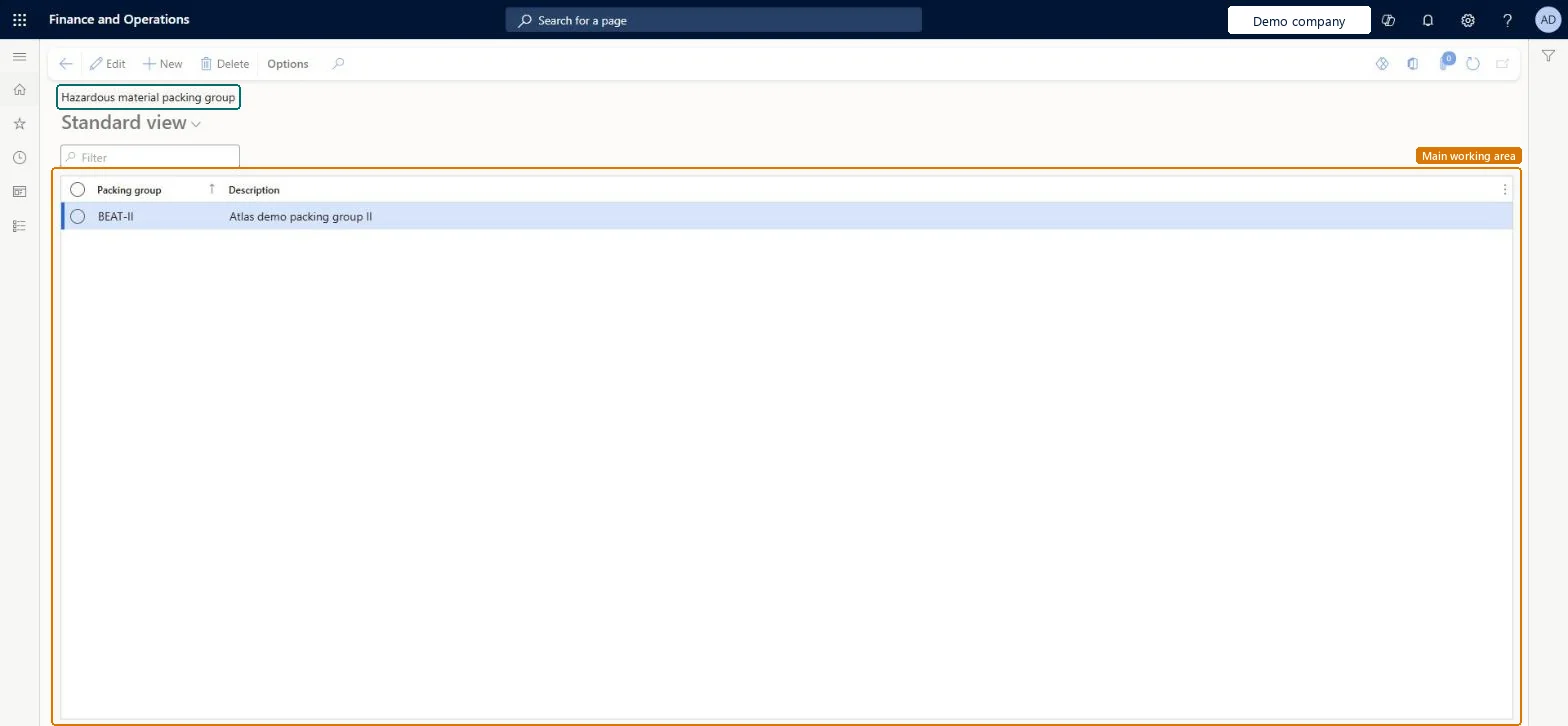
Set up Hazardous material packing group
Use this page to create the packing group codes and descriptions that you later assign to hazardous items on the Item hazardous materials page.
Steps from Microsoft
Go to Product information management > Setup > Hazardous material shipping documentation > Hazardous material packing group.
Select New to add a packing group.
In the Packing group field, enter an identifying code.
In the Description field, enter a short description.
The packing groups your regulations use, then bundled per regulation in material codesMicrosoft recommends material codes to hold the common settings for each specification per regulation, so items get them in one step.
Expecting the code to reach shipping text by itself. It must be assigned on Item hazardous materials and included as Packing group in the regulation's print setup.
PrivilegesHazardous material packing group maintain HMIMPackingGroupListDisplayMaintainHazardous material packing group view HMIMPackingGroupListDisplayViewDutiesMaintain Hazardous materials HMIMHazardousMaterialsMaintainView Hazardous materials HMIMHazardousMaterialsView2 security rolesHazardous materials manager HMIMHazardousMaterialsManagerHazardous materials viewer HMIMHazardousMaterialsViewerChecked in Dynamics 365
Roles to set it up and use it
To set it up or change itHazardous materials manager HMIMHazardousMaterialsManagerTo use itHazardous materials viewer HMIMHazardousMaterialsViewerGive people one of these roles. On this system, 2 roles can open this page.Checked in Dynamics 365