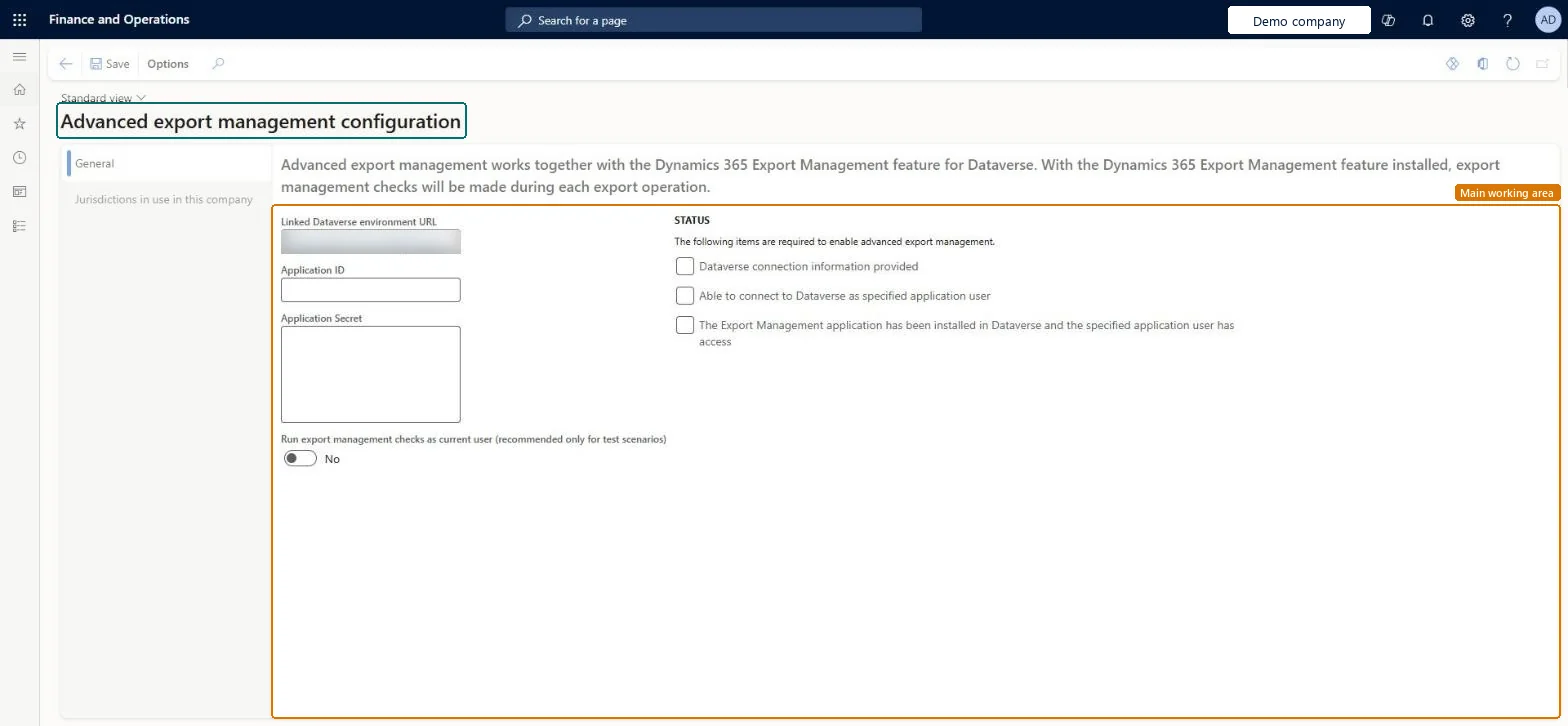
A setup page where you connect Supply Chain Management to the Dynamics 365 Export Management solution in Dataverse and choose the export control jurisdictions that are in use in the current legal entity.
Product information managementSetupCountry of Origin
COOExportControlParameters
Used by
Manage Country of Origin and Dual Use functionality
Business process
Develop product strategy
Menu item
COOExportControlParameters
Main table
COOExportControlParameters
Setup steps
1 on this page
Show what matters for
PAGE GUIDEWhat the page does and how to use it8 sections. Choose a role to highlight what matters to you.
Everyone
1What it is and why
What it is
A setup page where you connect Supply Chain Management to the Dynamics 365 Export Management solution in Dataverse and choose the export control jurisdictions that are in use in the current legal entity.
What you do here
Use this page to enter the application details that allow export management checks against Dataverse, turn on advanced export management, and enable jurisdictions for each legal entity.
The page in Dynamics 365. page title tab to open what to set or check
About the examples: Examples and screenshots in this guide use BEAT, a demo company in a Dynamics 365 test environment. Use your own company's codes and values instead of copying them.
Setup steps on this page
Set up Advanced export management configuration
Use this page to enter the application details that allow export management checks against Dataverse, turn on advanced export management, and enable jurisdictions for each legal entity.
Steps from Microsoft
Go to Product information management > Setup > Country of Origin > Advanced export management configuration.
On the General tab, review the Linked Dataverse environment URL field.
In the Application ID and Application Secret fields, paste the application (client) ID and client secret of the registered app.
Confirm that all three check boxes under Status show a check mark.
Set the Advanced export management functionality enabled, Validate data in Dataverse and Track sales order check history options as required.
Select Synchronize country/region list.
On the Jurisdictions in use in this company tab, add the jurisdictions for the current legal entity and choose whether each one is active.
A read-only field that shows the Dataverse environment linked to Supply Chain Management, where jurisdictions, codes, restrictions, exceptions and licenses are defined.Microsoft Learn
DataverseUrl
Application ID
The application (client) ID of the app registered for export management checks.Microsoft Learn
AzureAppId
Application Secret
The client secret of the app registered for export management checks.Microsoft Learn
AzureAppSecret
Advanced export management functionality enabled
Turns on advanced export management functionality.Microsoft Learn
Validate data in Dataverse
Checks sales orders and shipments against the export rules defined in the Dataverse app.Microsoft Learn
A dedicated Microsoft Entra application per environment; enable the functionality only after all three Status checks pass, and set Validate data in Dataverse to YesChecks run as an application user, so users need no Dataverse access, but Microsoft says the Entra application must not be shared or reused across environments. Validate data in Dataverse is what checks sales orders and shipments against the export rules for each jurisdiction.
Hard to reverse: You can remove jurisdictions with the toolbar on Jurisdictions in use in this company, which brings back dual-use goods in that legal entity. The underlying feature can't be turned off from 10.0.45. Each change to the country/region list needs a new synchronization. Microsoft Learn
If you change it later
When at least one jurisdiction is enabled for a legal entity, the dual-use goods functionality is hidden in that legal entity and advanced export management functionality is shown instead. Each time the country/region code list changes, Synchronize country/region list must be selected again. Microsoft Learn
Technical architect
6Technical
Menu item
COOExportControlParametersChecked in Dynamics 365
Form
COOExportControlParametersChecked in Dynamics 365
Table
COOExportControlParametersShown as “EXPORT MANAGEMENT PARAMETERS” in Record infoChecked in Dynamics 365
Who can open it
PrivilegesAdvanced export management configuration COOMaintainExportControlDutiesMaintain Country of Origin Setup COOMaintain1 security roleManage Country of Origin and Dual Use functionality COOManageChecked in Dynamics 365
Roles to set it up and use it
To set it up or change itManage Country of Origin and Dual Use functionality COOManageGive people one of these roles. On this system, 1 role can open this page.Checked in Dynamics 365