About the examples: Examples and screenshots in this guide use BEAT, a demo company in a Dynamics 365 test environment. Use your own company's codes and values instead of copying them.
Step by step, with screenshots
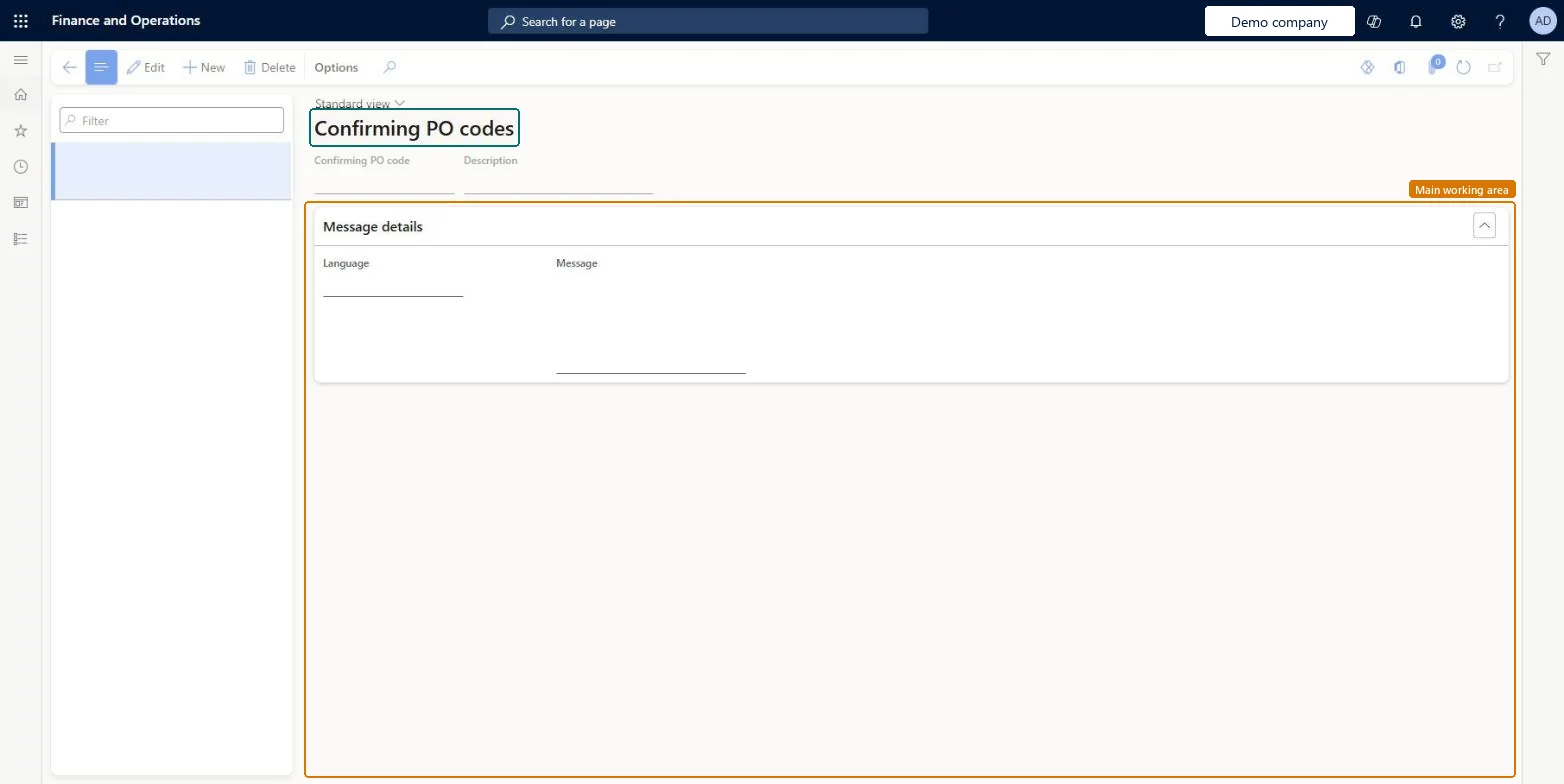
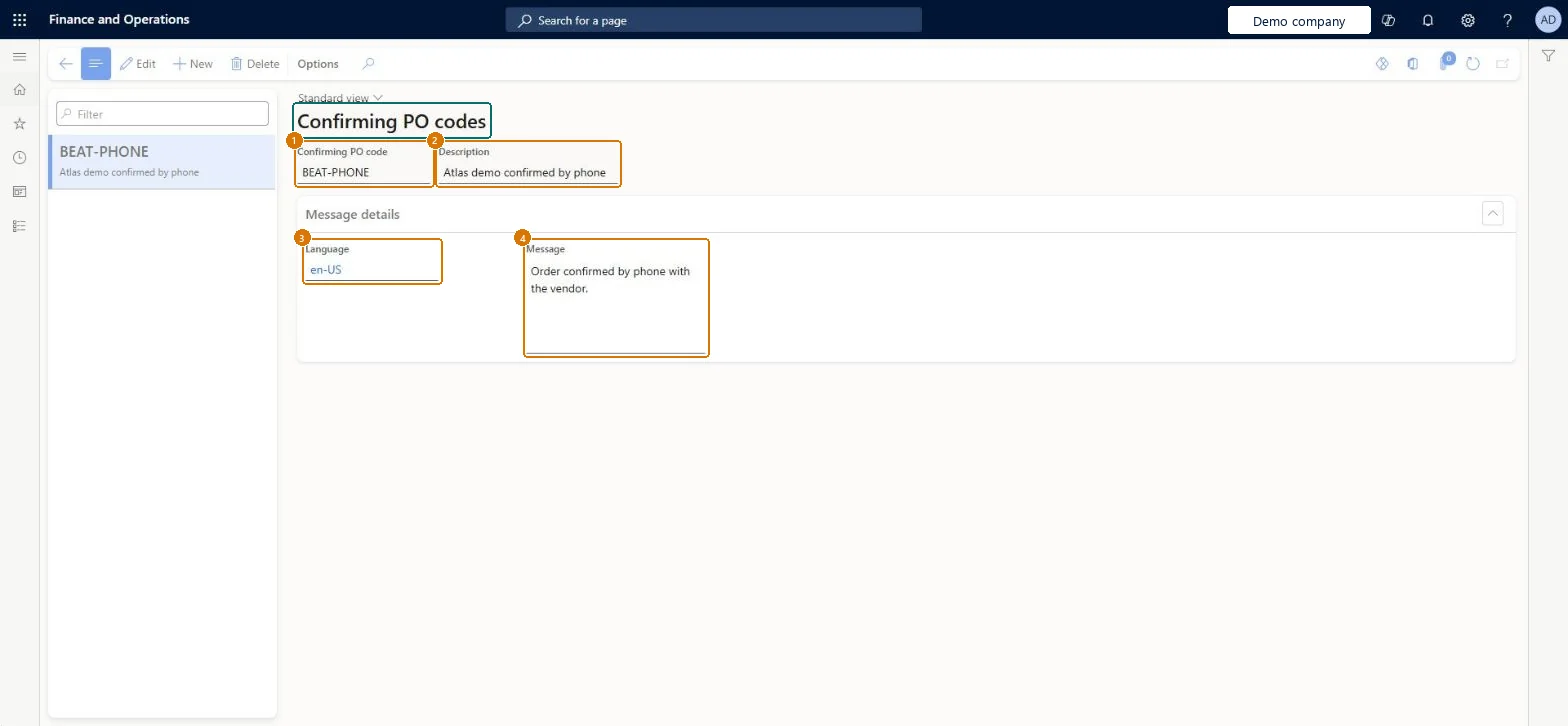
Set up Confirming PO codes1 screen
Use this page to mark unplanned purchases and have the code's message printed at the top of the purchase order.
Screen 1
Create the confirming PO code
Go to Procurement and sourcing > Setup > Purchase orders > Confirming PO codes
Select New
Enter the code and description
Under Message details, choose the language and enter the message
Select Save
1Confirming PO code
BEAT-PHONE
2Description
Confirmed by phone
3Language
en-US
4Message
Order confirmed by phone with the vendor.
Show the full screen page title tab to open what to set or check
How to use it
Go to Procurement and sourcing > Setup > Purchase orders > Confirming PO codes.
Select New to add a code.
Enter the Confirming PO code and its Description.
In Message details, select the Language and enter the Message.
Select a code in the list and select Edit to change it, or Delete to remove it.
Source: Checked in Dynamics 365
Fields on the page
Field
What it means
Example
Table column
Confirming PO code
The short code that identifies the confirming purchase order code.Microsoft Learn
A short, agreed list of codes with their messages, plus a message per language for vendors abroadThe code's message prints at the top of the purchase order, and messages can be kept in several languages for vendors in other countries or regions.
Renaming a code that is already in use. The new code replaces the old one on every purchase order that had it, including posted ones, so the audit trail shows the new code.Test: Confirming PO code message prints on the purchase order
Hard to reverse: New codes and messages can be added at any time, but changing a code that is already assigned rewrites it on every purchase order that had it, posted orders included. Changing it back is possible, but history has already been changed in between. Microsoft Learn
If you change it later
If you change a code that is already assigned, the new code replaces the old one on every purchase order that had it, including posted ones. Microsoft Learn
Technical architect
6Technical
Menu item
ConfirmingPOCodesChecked in Dynamics 365
Form
ConfirmingPOCodesChecked in Dynamics 365
Table
ConfirmingPOShown as “Confirming PO” in Record infoChecked in Dynamics 365
PrivilegesCreate confirming PO codes ConfirmingPOCodesCreateChange confirming PO codes ConfirmingPOCodesEditMaintain confirming PO codes in setup PurchConfirmingPOCodeMaintainView confirming PO codes in setup PurchConfirmingPOCodeViewDutiesEnable purchase order to invoice process for public sector PurchOrderToInvoiceProcessEnable_PSNInquire into purchase order to invoice progress for public sector PurchOrderToInvoiceProgressInquire_PSN5 security rolesProject manager ProjProjectManagerBuying agent TradeBuyingAgentPurchasing manager TradePurchasingManagerAccounts payable clerk VendInvoiceAccountsPayableClerkAccounts payable manager VendInvoiceAccountsPayableManagerChecked in Dynamics 365
Roles to set it up and use it
To set it up or change itPurchasing manager TradePurchasingManagerAccounts payable manager VendInvoiceAccountsPayableManagerTo use itBuying agent TradeBuyingAgentProject manager ProjProjectManagerAccounts payable clerk VendInvoiceAccountsPayableClerkGive people one of these roles. On this system, 5 roles can open this page.Checked in Dynamics 365
Actions on the page
Options: Personalize, Page options, ShareChecked in Dynamics 365
ConfirmingPOEntity (Confirming PO): loaded for each company, in Microsoft's default template 320 - Procurement and sourcing.Load order: Microsoft's default template 320 - Procurement and sourcing loads Confirming PO at execution unit 1, level 30, sequence 20. Lower levels load first, and entities at the same level load in sequence order.Load first: the default templates at lower levels (System setup to General ledger)Microsoft Learn
Checked in a working Dynamics 365 system, version 10.0.49: the menu item, form, table and security, the page, the demo records and the values in the screenshots.