About the examples: Examples and screenshots in this guide use BEAT, a demo company in a Dynamics 365 test environment. Use your own company's codes and values instead of copying them.
Step by step, with screenshots
Set up Multisource policies1 screen
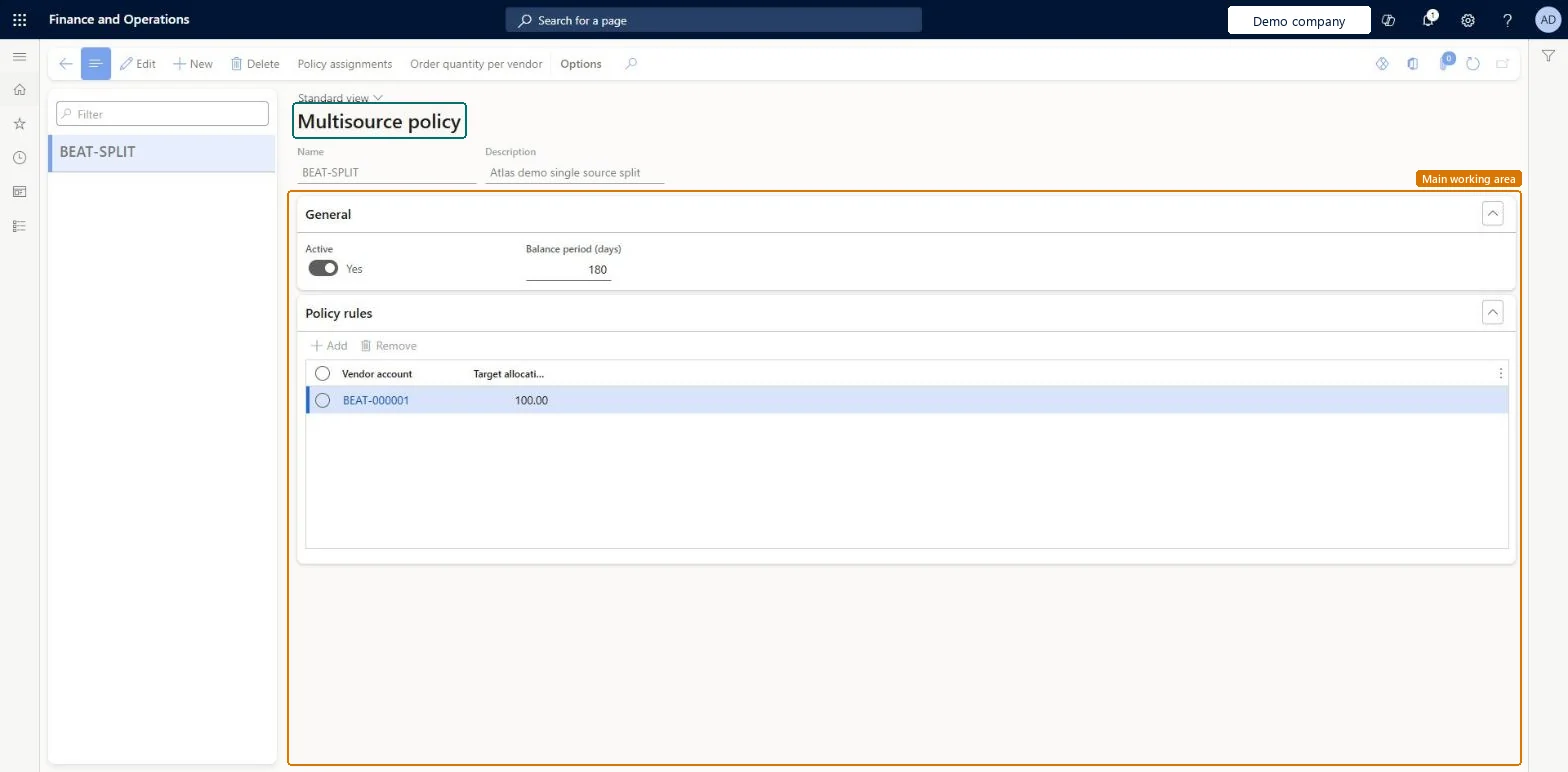
Use this page to let master planning suggest a vendor for each planned purchase order so that, over time, each vendor gets its target share.
Screen 1
Create the multisource policy
Go to Procurement and sourcing > Setup > Policies > Multisource policies
Select New and enter the name and description
Under Policy rules, select Add and enter each vendor and its target allocation
Set Active to Yes so the policy can be assigned
Select Save
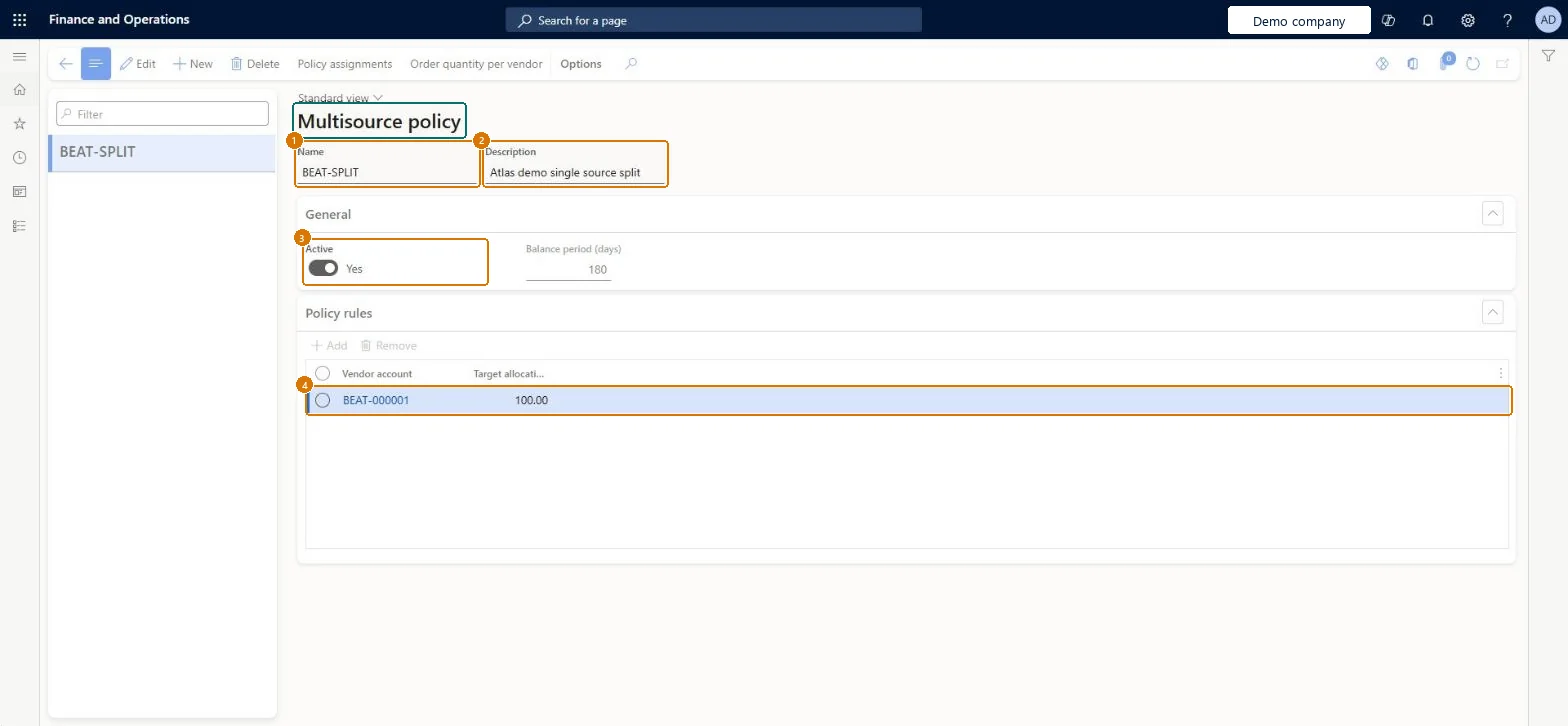
1Name
BEAT-SPLIT
2Description
Single source split
3Active
Yes
Policy rule
BEAT-000001, 100.00
Show the full screen page title tab to open what to set or check
Steps from Microsoft
Go to Procurement and sourcing > Setup > Policies > Multisource policies.
Select New, or select an existing inactive policy and select Edit.
Enter a Name and a Description for the policy.
On the General FastTab, set the Balance period (days).
On the Policy rules FastTab, add a line for each vendor and enter its Target allocation (%), so the lines add up to 100 percent.
Set Active to Yes and select Save, or leave Active set to No to save an unfinished policy.
The share of planned orders that should go to this vendor over time.Microsoft Learn
AllocationPct
Minimum
Under Order quantity per vendor, the minimum quantity per order for a vendor and item; it applies only to planned purchase orders from master planning.Microsoft Learn
Balance period (days): long enough to include recent purchases from the vendors in the policy but not too far back; the default is 180Master planning looks back over the balance period and picks the vendor that brings actual allocation closest to target, and it counts purchases made outside planning too.
Trying to edit an active policy. It must be set to Active No and saved first, and a policy that is assigned to products for the current or a future period can't be deactivated.Test: Master planning follows the vendor split
Feature management and licence
Feature to turn on
Source products and materials from multiple vendors using Planning Optimization (Mandatory, on by default)
Hard to reverse: Only inactive policies can be edited or deleted, and a policy assigned to products for a current or future period can't be deactivated. Microsoft Learn
If you change it later
An active policy must be set to inactive and saved before it can be edited or deleted. Microsoft Learn
Technical architect
6Technical
Menu item
MpsMultiSourcePolicyChecked in Dynamics 365
Form
MpsMultiSourcePolicyChecked in Dynamics 365
Table
MpsMultiSourcePolicyShown as “Multisource policy” in Record infoChecked in Dynamics 365
Data entities
MpsMultiSourcePolicyEntityMultisource policy Checked in Dynamics 365
To set it up or change itPurchasing agent VendPurchasingAgentBuying agent TradeBuyingAgentProduction planner ReqProductionPlannerTo use itPurchasing manager TradePurchasingManagerAccounts payable manager VendInvoiceAccountsPayableManagerAuditor AuditPolicyManagerGive people one of these roles. On this system, 6 roles can open this page.Checked in Dynamics 365
Actions on the page
Options: Personalize, Page options, ShareChecked in Dynamics 365
Checked in a working Dynamics 365 system, version 10.0.49: the menu item, form, table and security, the page, the demo records and the values in the screenshots.