BeyondERP.Newsletter
Menu

Job page · Procurement and sourcing

Post receipts list

A periodic job that posts receipts lists for purchase orders, and can run as a batch job.

Business process
Procure goods and services
Menu item
action:PurchFormLetter_ReceiptsList
Show what matters for
PAGE GUIDEWhat the page does and how to use it7 sections. Choose a role to highlight what matters to you.
Everyone

1What it is and why

What it isA periodic job that posts receipts lists for purchase orders, and can run as a batch job.
What you do hereUse this periodic task to post receipts lists for many purchase orders at once, as part of registering what was received.
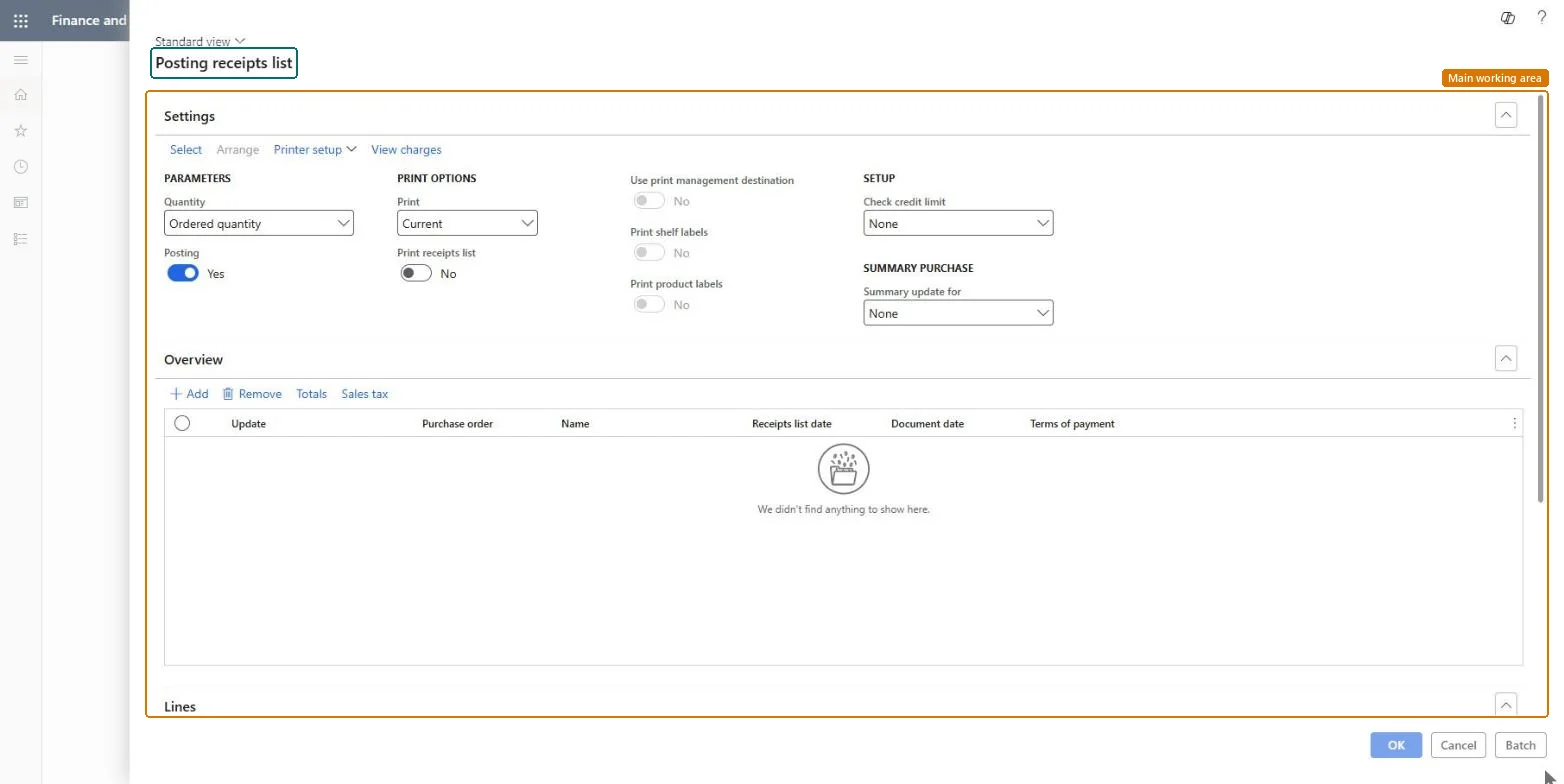
Post receipts list page in Dynamics 365
The page in Dynamics 365. page title tab to open what to set or check
Functional consultant · Solution architect

2Where it fits

Business processProcure goods and services
Menu pathProcurement and sourcing › Purchase orders › Receiving products › Post receipts list
Used next byReceipts list Microsoft Learn
End user · Functional consultant

3How to do it

About the examples: Examples and screenshots in this guide use BEAT, a demo company in a Dynamics 365 test environment. Use your own company's codes and values instead of copying them.

When to run it

When to run itWhen goods are expected or arriving and you record what should be received, before the product receipt is posted.
How oftenOn demand, whenever a group of incoming purchase orders needs receipts lists.
Batch settingsUse a batch job when receipts lists are produced for many purchase orders at a time.
What the output showsA posted receipts list for each selected purchase order, with the quantities and dates you set. A missing order usually wasn't in the selection on the Overview.

Source: Microsoft Learn

Steps from Microsoft

  1. Go to Procurement and sourcing > Purchase orders > Receiving products > Post receipts list.
  2. Under Settings, set the Quantity to post, and the Posting, Print and Check credit limit options for this run.
  3. Select Select, or Add in the Overview section, to choose the purchase orders that should get a receipts list.
  4. In the Overview, review the Purchase order, Receipts list date, Document date and Terms of payment columns of each order before you post.
  5. Run it directly, or select Batch to run it in the background, then open the purchase orders to see the posted receipts list.

Source: Microsoft Learn

Test checklist

  1. Each selected order has a receipts list with the date you set.
  2. The printed list matches the quantities on the order lines.

Source: Microsoft Learn

Solution architect

4Design impact

Can it be undoneNo: A posted receipts list stays in the order history. Review the Overview carefully before you post. Microsoft Learn
If you change it laterRecords a receipts list for each selected purchase order as part of registering what was received. Microsoft Learn
Technical architect

5Technical

Menu itemaction:PurchFormLetter_ReceiptsList Checked in Dynamics 365
FormPurchEditLines Checked in Dynamics 365
Roles to set it up and use itTo use itPurchasing agent VendPurchasingAgentPurchasing Agent - Public Sector VendPurchasingAgent_PSNBuying agent TradeBuyingAgentProject manager ProjProjectManagerRetail service RetailServiceGive people one of these roles. On this system, 11 roles can run this page.Checked in Dynamics 365
Developer

6Developer

Open it by URLhttps://<your-environment>/?mi=action:PurchFormLetter_ReceiptsList
Everyone

7Sources