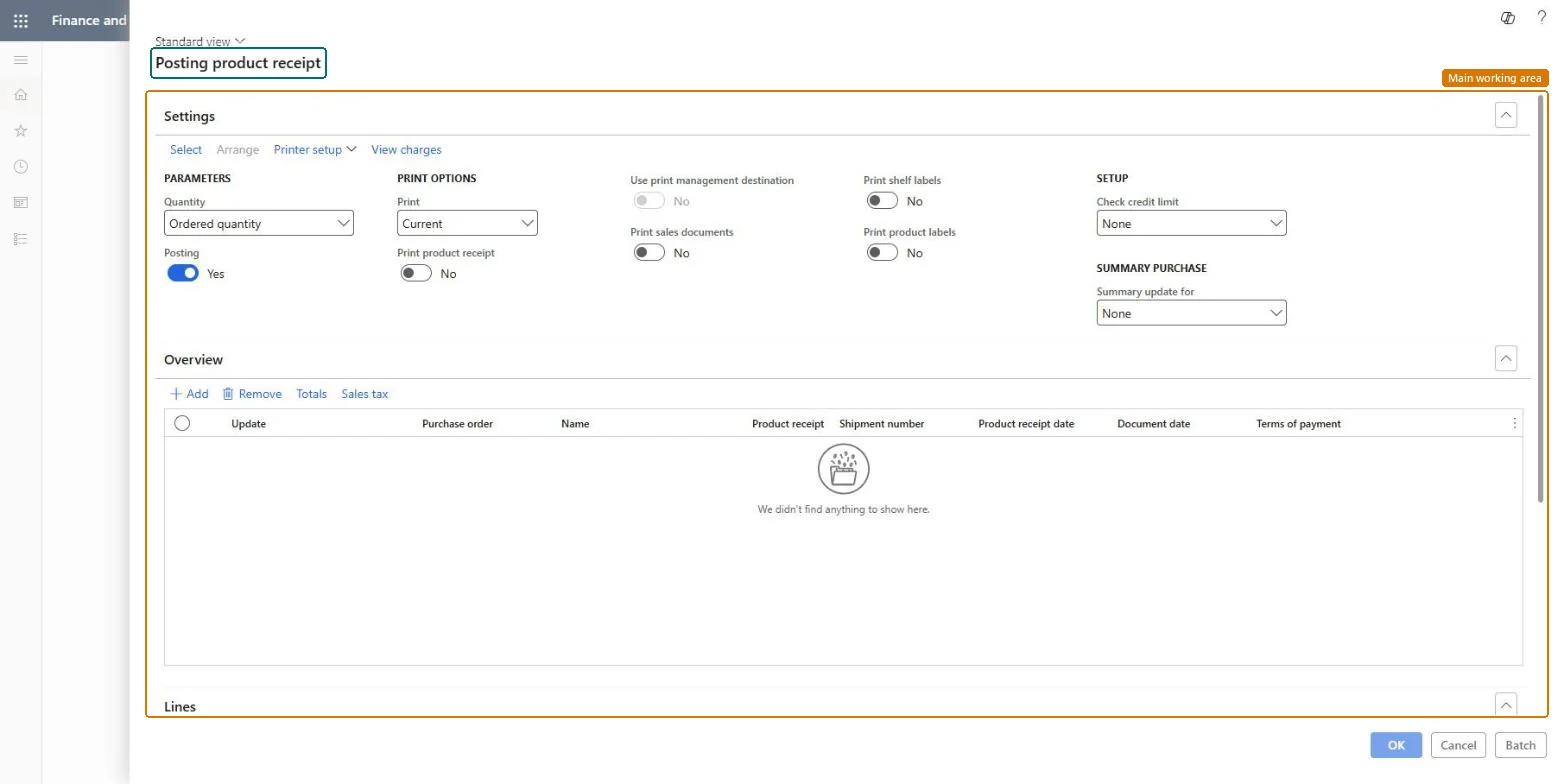
About the examples: Examples and screenshots in this guide use BEAT, a demo company in a Dynamics 365 test environment. Use your own company's codes and values instead of copying them.
When to run it
When to run it
When goods or services have arrived for many purchase orders, for example at the end of a receiving shift.
How often
On demand, whenever a group of deliveries is ready to be posted as received.
Batch settings
Use a batch job when many orders are received at once; each order still needs its own product receipt number.
What the output shows
Posted product receipt journals for the selected purchase orders, with the received quantities, and purchase orders set to Received when all lines are received. An order that stays Open order usually had no product receipt number or no registered quantity.
Go to Procurement and sourcing > Purchase orders > Receiving products > Post product receipt.
On the Settings FastTab toolbar, select Select, and on the Range tab of the Purchase update dialog enter criteria for the purchase orders to receive.
In Quantity, choose what is posted as received: Ordered quantity, Receive now quantity, or Registered quantity when a warehouse arrival process is used.
On the Overview FastTab, enter the Product receipt identifier for each purchase order, usually the supplier's packing slip number; it is required for accounting.
Select Batch to set up the batch job that posts the receipts. Late selection isn't supported for product receipts, because each run needs product receipt numbers.
Afterwards, open the Product receipt journals of the orders; fully received orders get the status Received and can be invoiced.
Partly: You can correct or cancel a product receipt from the Product receipt journal page. A correction can only reduce the quantity; cancellation posts a separate reversal. Microsoft Learn
If you change it later
Updates inventory with the received quantities and, when product receipts post to the ledger, posts the receipt accruals. Microsoft Learn
Technical architect
5Technical
Menu item
action:PurchFormLetter_PackingSlipChecked in Dynamics 365
Form
PurchEditLinesChecked in Dynamics 365
Roles to set it up and use it
To use itBuying agent TradeBuyingAgentProject manager ProjProjectManagerLanded cost agent ITMAgentReceiving clerk InventReceivingClerkGive people one of these roles. On this system, 4 roles can run this page.Checked in Dynamics 365