BeyondERP.Newsletter
Menu

Transaction page · Procurement and sourcing

Planned purchase orders with order date today or overdue

A planned orders list page that focuses on planned purchase orders whose order date is today or already past, so you can review and firm them in time.

Business process
Procure goods and services
Menu item
ReqPoGridViewPurchaseTodayOrOverdue
Show what matters for
PAGE GUIDEWhat the page does and how to use it7 sections. Choose a role to highlight what matters to you.
Everyone

1What it is and why

What it isA planned orders list page that focuses on planned purchase orders whose order date is today or already past, so you can review and firm them in time.
What you do hereUse this page to firm planned purchase orders that are due to be ordered now.
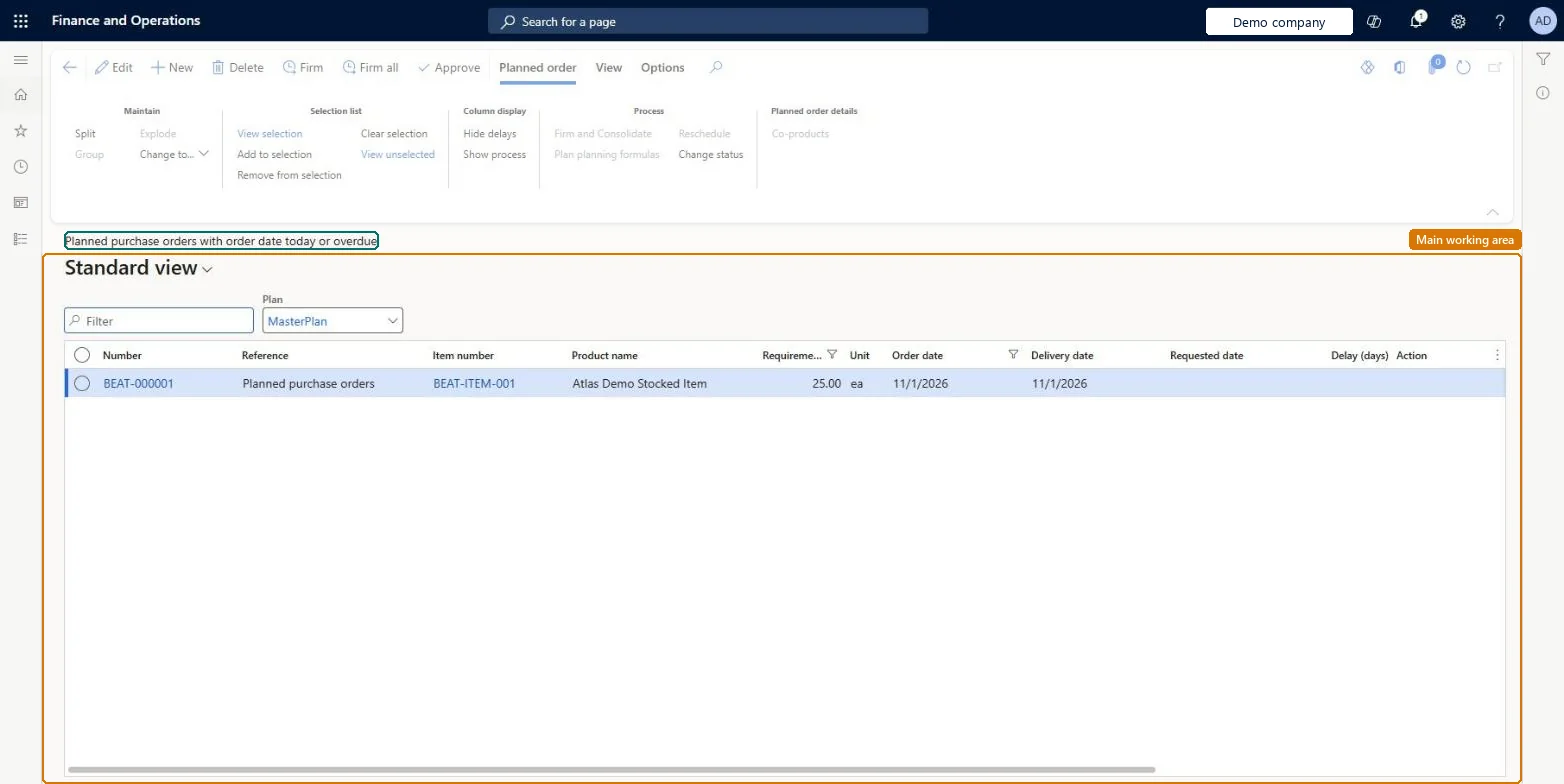
Planned purchase orders with order date today or overdue page in Dynamics 365
The page in Dynamics 365. page title tab to open what to set or check
Functional consultant · Solution architect

2Where it fits

Business processProcure goods and services
Menu pathProcurement and sourcing › Purchase orders › Planned purchase orders › Planned purchase orders with order date today or overdue
Used next byAll purchase orders Microsoft Learn
Related pagesPlanned purchase orders Microsoft Learn
End user · Functional consultant

3How to do it

About the examples: Examples and screenshots in this guide use BEAT, a demo company in a Dynamics 365 test environment. Use your own company's codes and values instead of copying them.

Steps from Microsoft

  1. Go to Procurement and sourcing > Purchase orders > Planned purchase orders > Planned purchase orders with order date today or overdue.
  2. Use the Filter field, the Plan field and the column headings to find the planned orders you want.
  3. Select the check box for each planned order that you want to firm.
  4. On the Action Pane, select Firm, or select Firm all to firm every planned order that matches the current filter.
  5. In the Firming dialog box, on the Parameters FastTab, set options such as Update marking and Group by vendor.
  6. Select OK to create the firmed orders.

Source: Microsoft Learn

Fields on the page

FieldWhat it means
StatusTracks the progress of a planned order as Unprocessed, Completed or Approved; approved orders are kept by later planning runs.Microsoft Learn
Solution architect

4Design impact

If you change it laterChanges to planned orders that aren't approved are overwritten by the next master planning run, so approve any planned order you change. Microsoft Learn
Technical architect

5Technical

Menu itemReqPoGridViewPurchaseTodayOrOverdue
Roles to set it up and use itTo use itPurchasing manager TradePurchasingManagerBuying agent TradeBuyingAgentGive people one of these roles. On this system, 2 roles can open this page.Checked in Dynamics 365
Developer

6Developer

Open it by URLhttps://<your-environment>/?mi=ReqPoGridViewPurchaseTodayOrOverdue
Everyone

7Sources