Procurement and sourcingPurchase ordersIntercompany
action:InterCompanyCheckOrder
Business process
Procure goods and services
Menu item
action:InterCompanyCheckOrder
Show what matters for
PAGE GUIDEWhat the page does and how to use it7 sections. Choose a role to highlight what matters to you.
Everyone
1What it is and why
What it is
A periodic job that checks prices and discounts on intercompany sales orders and purchase orders and lists any differences.
What you do here
Use this periodic task to find intercompany orders whose prices, discounts or charges are out of step between the two legal entities, so they can be synchronized.
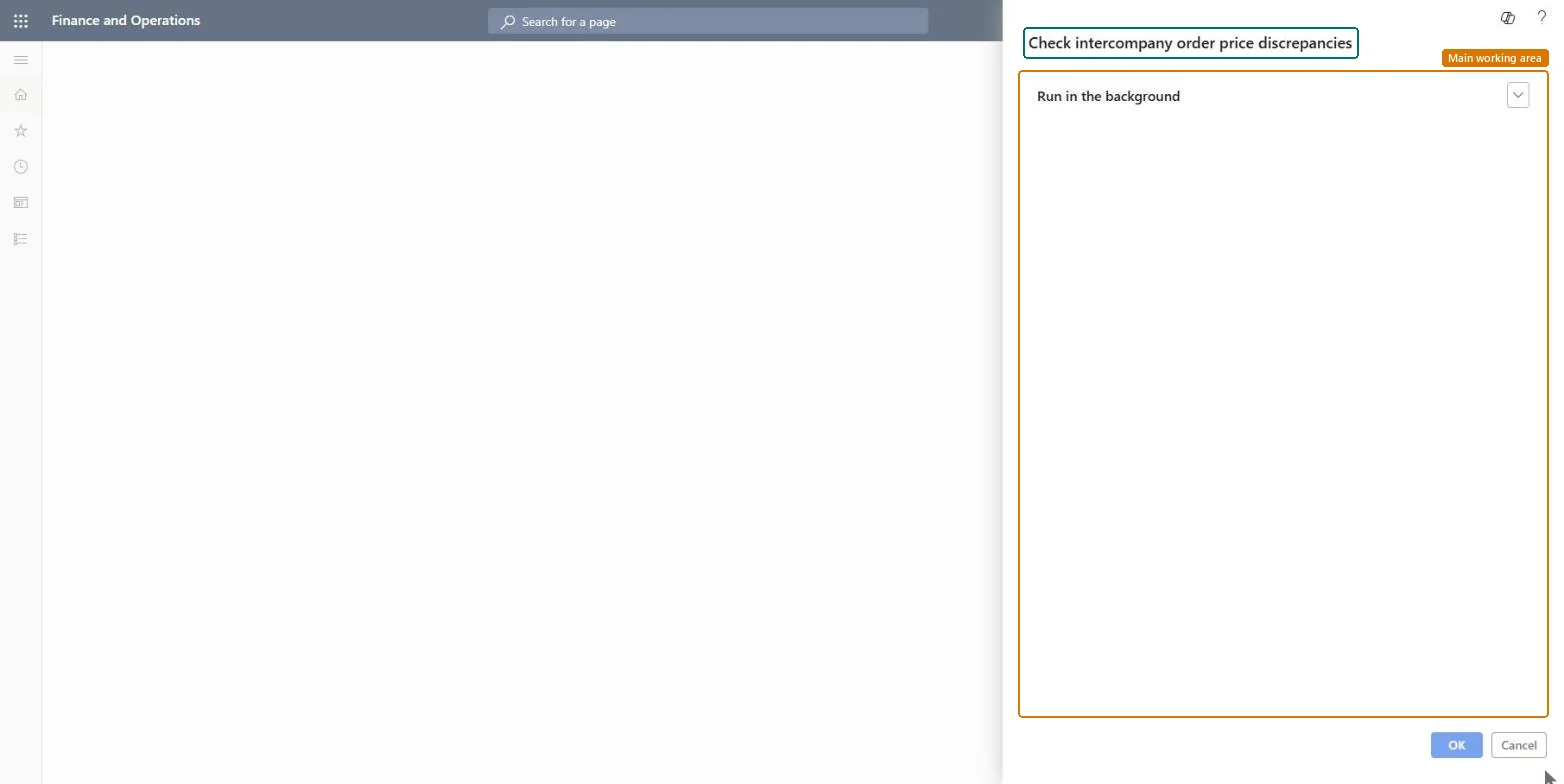
The page in Dynamics 365. page title tab to open what to set or check
About the examples: Examples and screenshots in this guide use BEAT, a demo company in a Dynamics 365 test environment. Use your own company's codes and values instead of copying them.
When to run it
When to run it
Before you invoice intercompany orders, so the purchase and sales sides have the same prices, discounts and charges.
How often
On demand, or on a recurring batch schedule while intercompany orders are open.
Batch settings
Set it up as a batch job when there are many open intercompany orders, then work through the issues it lists.
What the output shows
An informational message listing intercompany orders with price, discount or charge differences, which you can print. Every listed order is out of step; left as is, the intercompany purchase order can't be invoice-posted because the order totals don't match.
Go to Procurement and sourcing > Purchase orders > Intercompany > Check intercompany order price discrepancies.
Run the check, as a batch job if you need it on a schedule. It compares prices and discounts on intercompany sales orders and purchase orders.
In the informational message that lists the issues, select a line to open the order in the current legal entity, then use Intercompany > Intercompany purchase order or Intercompany sales order to open the related order.
Make sure Allow price edit and Allow discount edit are selected in both the purchase order policies and sales order policies on the Intercompany page of the customer, so the orders can be updated.
On the order whose prices you want to keep, change Unit price, Discount and the charges on each line and then change them back. This triggers synchronization to the linked order.
Run the check again until no discrepancies are listed. If the intercompany sales order is already invoiced, set the purchase order lines equal to the customer invoice journal instead.
Nothing to undo: The check only lists differences; no order changes until you edit the lines yourself. Microsoft Learn
If you change it later
Prices can be synchronized this way only while the intercompany sales order isn't invoiced; after that, set them directly on the intercompany purchase order lines. Microsoft Learn
Technical architect
5Technical
Menu item
action:InterCompanyCheckOrderChecked in Dynamics 365
Form
SysOperationTemplateFormChecked in Dynamics 365
Roles to set it up and use it
To use itRetail service RetailServiceProject assistant ProjProjectClerkRental manager RentalManagerRental coordinator agent RentalCoordinatorAgentRental purchasing manager RentalPurchasingManagerGive people one of these roles. On this system, 11 roles can run this page.Checked in Dynamics 365