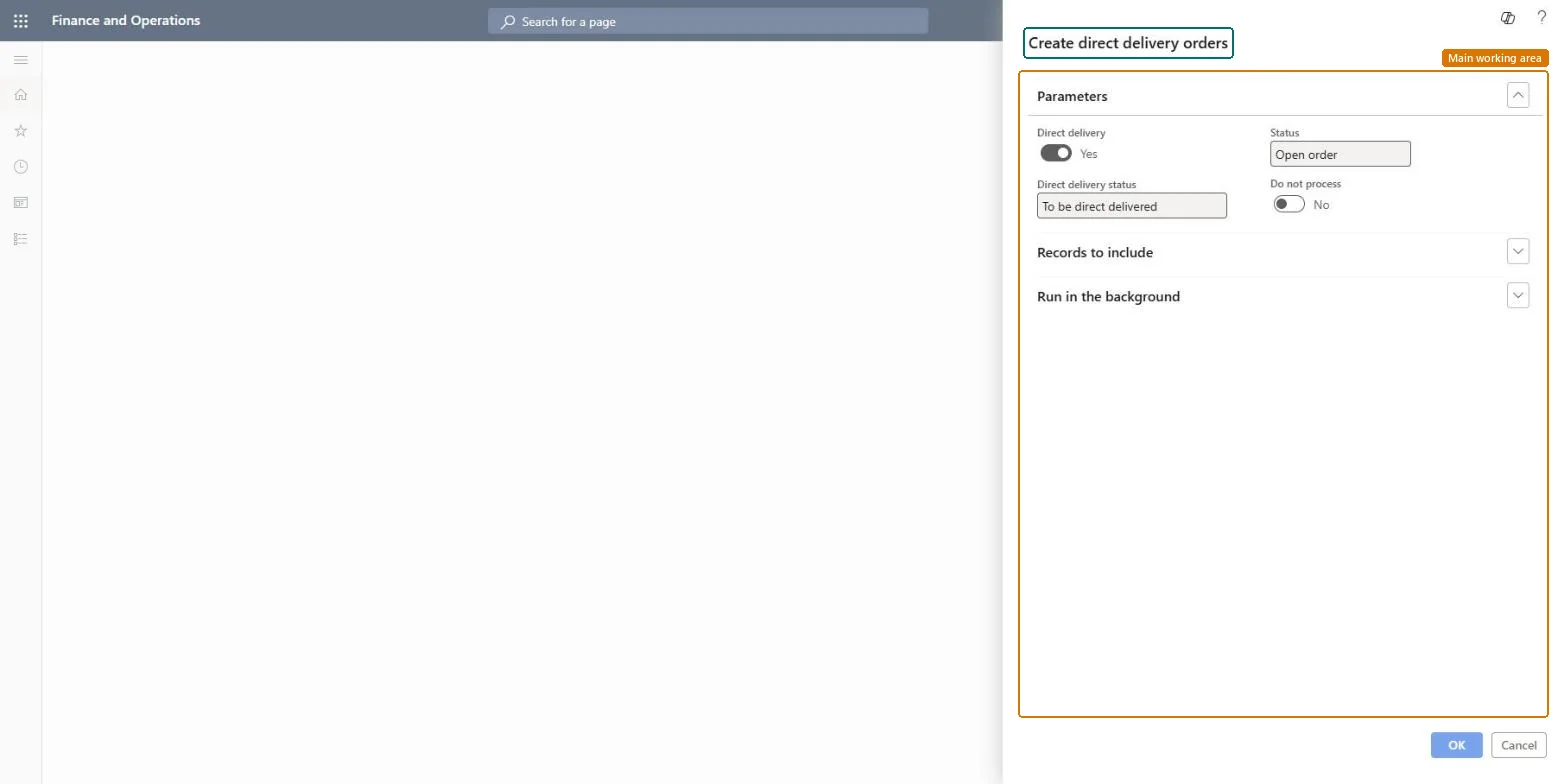
About the examples: Examples and screenshots in this guide use BEAT, a demo company in a Dynamics 365 test environment. Use your own company's codes and values instead of copying them.
When to run it
When to run it
After sales order lines are marked for direct delivery and before the vendors' order cutoff, so purchase orders reach the vendor in time.
How often
On demand or on a recurring batch schedule, depending on how many direct delivery sales orders you take.
Batch settings
Run it as a recurring batch job when direct delivery orders come in throughout the day, so qualifying sales orders can be combined into one purchase order.
What the output shows
Direct delivery purchase orders linked to the qualifying sales order lines, delivered to the customer's address. A sales line that didn't get a purchase order usually has no vendor on the item or was excluded by the parameters.
Go to Procurement and sourcing > Purchase orders > Direct delivery processing > Create direct delivery orders.
Set the Direct delivery, Status and Direct delivery status parameters so that only sales order lines marked for direct delivery and still waiting for a purchase order are picked up.
Use the Do not process parameter to keep back orders you don't want to process in this run.
Use Records to include to limit the run, for example to one customer or vendor whose orders can be combined into one purchase order.
Open the Direct delivery workbench afterwards: the new purchase orders appear on the Confirmation tab, ready to be confirmed.
Yes, before receipt: You can change or cancel the purchase orders before the vendor ships. A partly delivered sales line can't be deleted, nor the purchase lines attached to it. Microsoft Learn
If you change it later
Creates direct delivery purchase orders linked to the sales order lines; the sales order packing slip is later updated through the purchase order's product receipt. Microsoft Learn
Technical architect
5Technical
Menu item
action:MCRDropShipmentBatchChecked in Dynamics 365
Form
DialogChecked in Dynamics 365
Roles to set it up and use it
To use itPurchasing agent VendPurchasingAgentBuying agent TradeBuyingAgentSales manager TradeSalesManagerSales clerk TradeSalesClerkSales representative TradeSalesRepresentativeGive people one of these roles. On this system, 5 roles can run this page.Checked in Dynamics 365