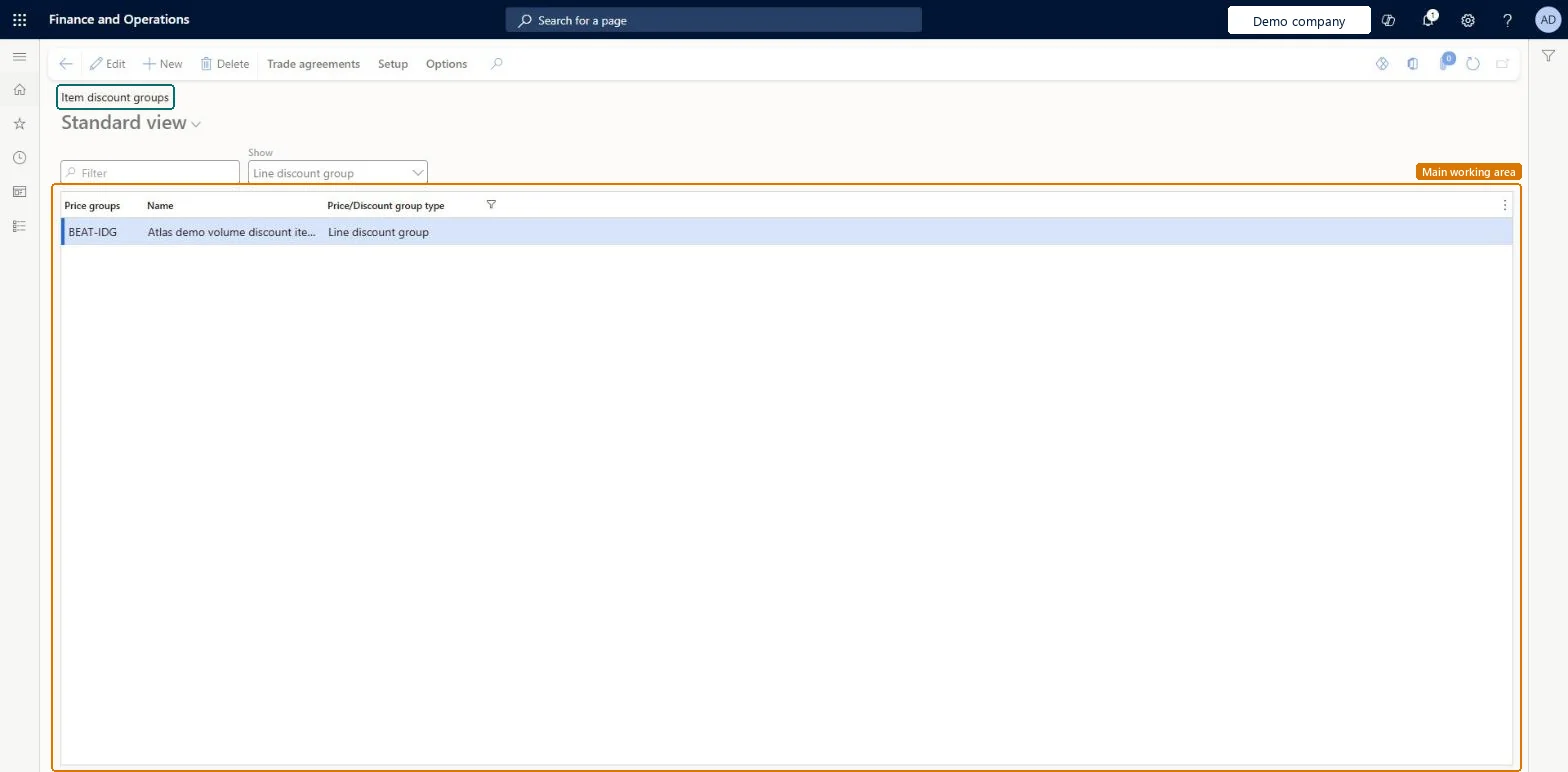
About the examples: Examples and screenshots in this guide use BEAT, a demo company in a Dynamics 365 test environment. Use your own company's codes and values instead of copying them.
Step by step, with screenshots
Set up Item discount groups1 screen
Use this page to group items so that line or multiline discount trade agreements can apply to the whole group.
Screen 1
Create the item discount group
Go to Procurement and sourcing > Prices and discounts > Price/discount groups > Item discount groups
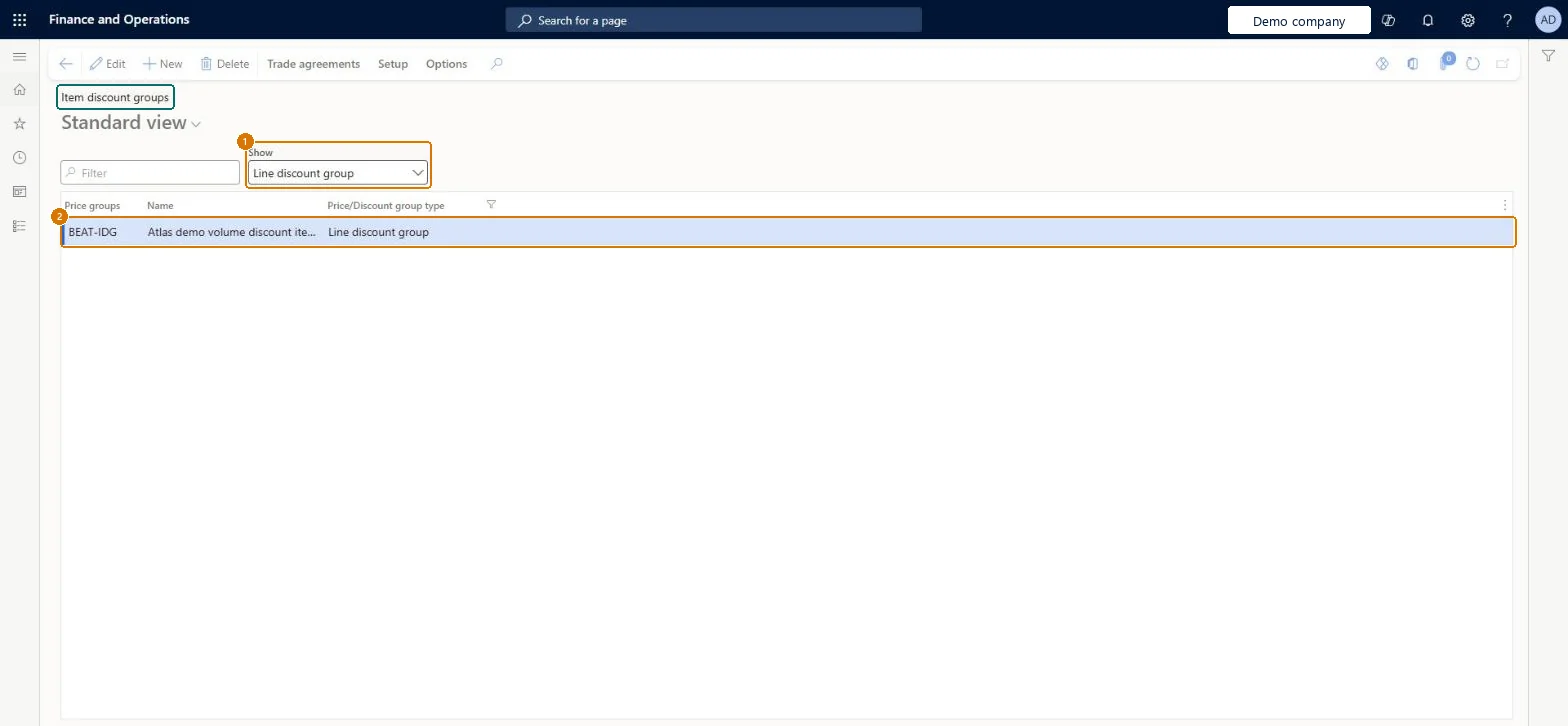
In Show, keep Line discount group
Select New
Enter the group and its name
Select Save
1Show
Line discount group
2Price groups
BEAT-IDG
Show the full screen page title tab to open what to set or check
How to use it
Go to Procurement and sourcing > Prices and discounts > Price/discount groups > Item discount groups.
Select the type of group to list in the Show list.
Select New to add a group, then fill in the Price groups and Name columns.
Select a group, then select Edit to change it.
Select Trade agreements to work with the trade agreements for the selected group.
Line discount groups for items that get the same line discount, and multiline discount groups for items whose quantities should count togetherLine discounts can be activated for items, item line discount groups or all items, while multiline discounts only work for item multiline discount groups or all items and apply when lines in the same group together meet the requirement.
Expecting a multiline discount on items that aren't in the same multiline discount group, or setting both discount types without choosing the Discount rule in the parameters (Line, Multiline, MAX, MIN, Line + Multiline).
Reversible: Item discount groups can be reassigned on the released product at any time; they affect discount lookups on new order lines. Microsoft Learn
Technical architect
6Technical
Menu item
PriceDiscGroup_InventChecked in Dynamics 365
Form
PriceDiscGroupChecked in Dynamics 365
Table
PriceDiscGroupShown as “Price groups” in Record infoKey field: Module, Type, GroupIdChecked in Dynamics 365
Data entities
PriceDiscLineDiscountProductGroupEntityLine discount item groups Microsoft data model PriceDiscMultilineDiscountProductGroupEntityMultiline discount item groups Microsoft data model PriceDiscLineDiscountCustomerGroupEntityLine discount customer groups Microsoft data model PriceDiscLineDiscountVendorGroupEntityLine discount vendor groups Microsoft data model PriceDiscMultilineDiscountCustomerGroupEntityMultiline discount customer groups Microsoft data model PriceDiscTotalDiscountCustomerGroupEntityTotal discount customer groups Microsoft data model PriceDiscTotalDiscountVendorGroupEntityTotal discount vendor groups Microsoft data model PriceDiscMultilineDiscountVendorGroupEntityMultiline discount vendor groups Microsoft data model PriceDiscPriceCustomerGroupEntityPrice customer groups Microsoft data model PriceDiscPriceVendorGroupEntityPrice vendor groups Microsoft data model MCRPostageDiscountCustomerGroupEntityPostage discount customer groups Microsoft data model
Who can open it
PrivilegesMaintain purchase trade agreements elements PriceDiscAdmNamePurchMaintainView purchase trade agreements elements PriceDiscAdmNamePurchViewMaintain sales trade agreements elements PriceDiscAdmNameSalesMaintainView sales trade agreements elements PriceDiscAdmNameSalesViewDutiesEnable purchase order to invoice process PurchOrderToInvoiceProcessEnableInquire into purchase order to invoice reference data PurchOrderToInvoiceReferenceDataInquireEnable quotation to sales order process RentalSalesQuotationToSlsOrdProcessEnableEnable quotation to sales order process SalesQuotationToSalesOrderProcessEnableInquire into quotation to sales order reference data SalesQuotationToSalesOrderRefDataInquir11 security rolesAccounts receivable clerk CustInvoiceAccountsReceivableClerkAccounts receivable manager CustInvoiceAccountsReceivableManagerAccounts receivable centralized payments clerk PaymAccountsReceivableCentralPaymClerkAccounts receivable payments clerk PaymAccountsReceivablePaymentsClerkRental coordinator agent RentalCoordinatorAgentRental manager RentalManagerRental sales manager RentalSalesManagerRetail service RetailServicePurchasing manager TradePurchasingManagerSales manager TradeSalesManagerAccounts payable manager VendInvoiceAccountsPayableManagerChecked in Dynamics 365
Roles to set it up and use it
To set it up or change itPurchasing manager TradePurchasingManagerAccounts payable manager VendInvoiceAccountsPayableManagerRental manager RentalManagerRental coordinator agent RentalCoordinatorAgentRetail service RetailServiceTo use itAccounts receivable centralized payments clerk PaymAccountsReceivableCentralPaymClerkAccounts receivable payments clerk PaymAccountsReceivablePaymentsClerkAccounts receivable clerk CustInvoiceAccountsReceivableClerkGive people one of these roles. On this system, 11 roles can open this page.Checked in Dynamics 365
Actions on the page
Trade agreementsOptions: Personalize, Page options, ShareChecked in Dynamics 365
PriceDiscLineDiscountProductGroupEntity (Line discount item groups): loaded for each company, in Microsoft's default template 300 - Inventory.PriceDiscMultilineDiscountProductGroupEntity (Multiline discount item groups): loaded for each company, in Microsoft's default template 320 - Procurement and sourcing.Load order: Microsoft's default template 300 - Inventory loads Line discount item groups at execution unit 1, level 30, sequence 10. Lower levels load first, and entities at the same level load in sequence order.Load first: the default templates at lower levels (System setup to General ledger)Microsoft Learn
Checked in a working Dynamics 365 system, version 10.0.49: the menu item, form, table and security, the page, the demo records and the values in the screenshots.