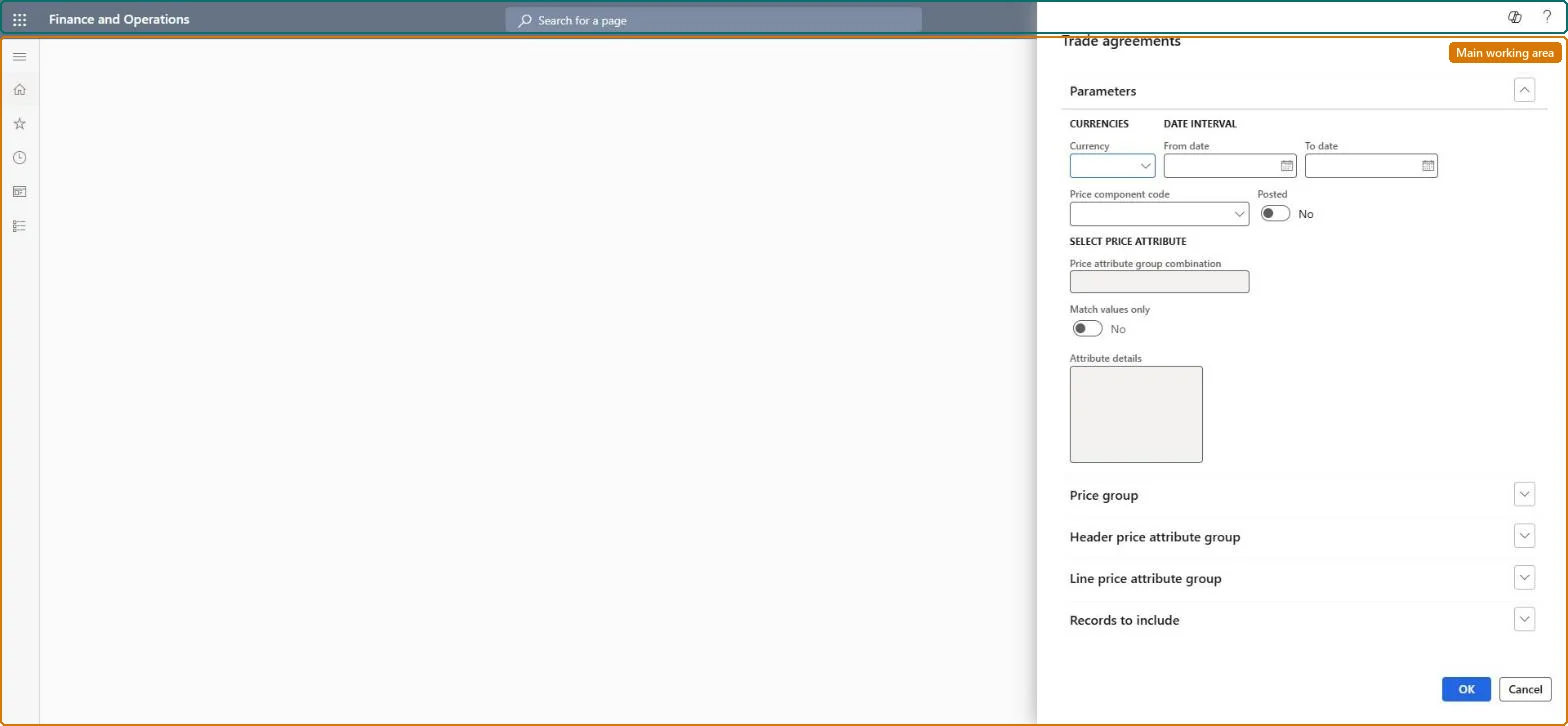
About the examples: Examples and screenshots in this guide use BEAT, a demo company in a Dynamics 365 test environment. Use your own company's codes and values instead of copying them.
When to run it
When to run it
When you need to know which sales trade agreement price applies to a product or customer, for example when a price on an order is questioned.
How often
On demand.
What the output shows
The sales trade agreement price lines that match your criteria. A customer who should have a group price but shows no line usually means Match value only was set to Yes.
Go to Pricing management > Inquiries and reports > Trade agreements.
Enter the criteria for the trade agreement lines you want to find, for example a product or a customer.
Set Posted to Yes to find only posted lines.
Set Match value only to No so lines that apply through a group, such as a customer group, are found too; Yes finds only lines that name the value itself.
Review the lines found, including their quantity range, unit, amount, currency and validity dates.
When set to Yes, only posted trade agreement lines are found.Microsoft Learn
Match value only
An option on the dialog that Microsoft's steps set to No when viewing posted prices.Microsoft Learn
Solution architect
4Design impact
Can it be undone
Nothing to undo: The inquiry only reads trade agreement lines; it changes nothing. Microsoft Learn
Technical architect
5Technical
Menu item
GUPTradeAgreementInquiryChecked in Dynamics 365
Form
GUPPricingSetupInquiryDialogChecked in Dynamics 365
Roles to set it up and use it
To use itRetail service RetailServiceSales manager TradeSalesManagerRetail merchandising manager RetailMerchandisingManagerSales clerk TradeSalesClerkRetail operations manager RetailOperationsManagerGive people one of these roles. On this system, 11 roles can run this page.Checked in Dynamics 365