PAGE GUIDEWhat the page does and how to use it8 sections. Choose a role to highlight what matters to you.
Everyone
1What it is and why
What it is
A page where you build a simulated sales transaction and see the prices that the pricing engine returns, without creating a sales order.
What you do here
Use this page to test pricing rules before you commit to a sales order and to see which trade agreements, discounts, and price adjustments the engine applied to each line.
Example
For example, change a line attribute value and check the prices again to confirm that the rule you expect is the one that applies.
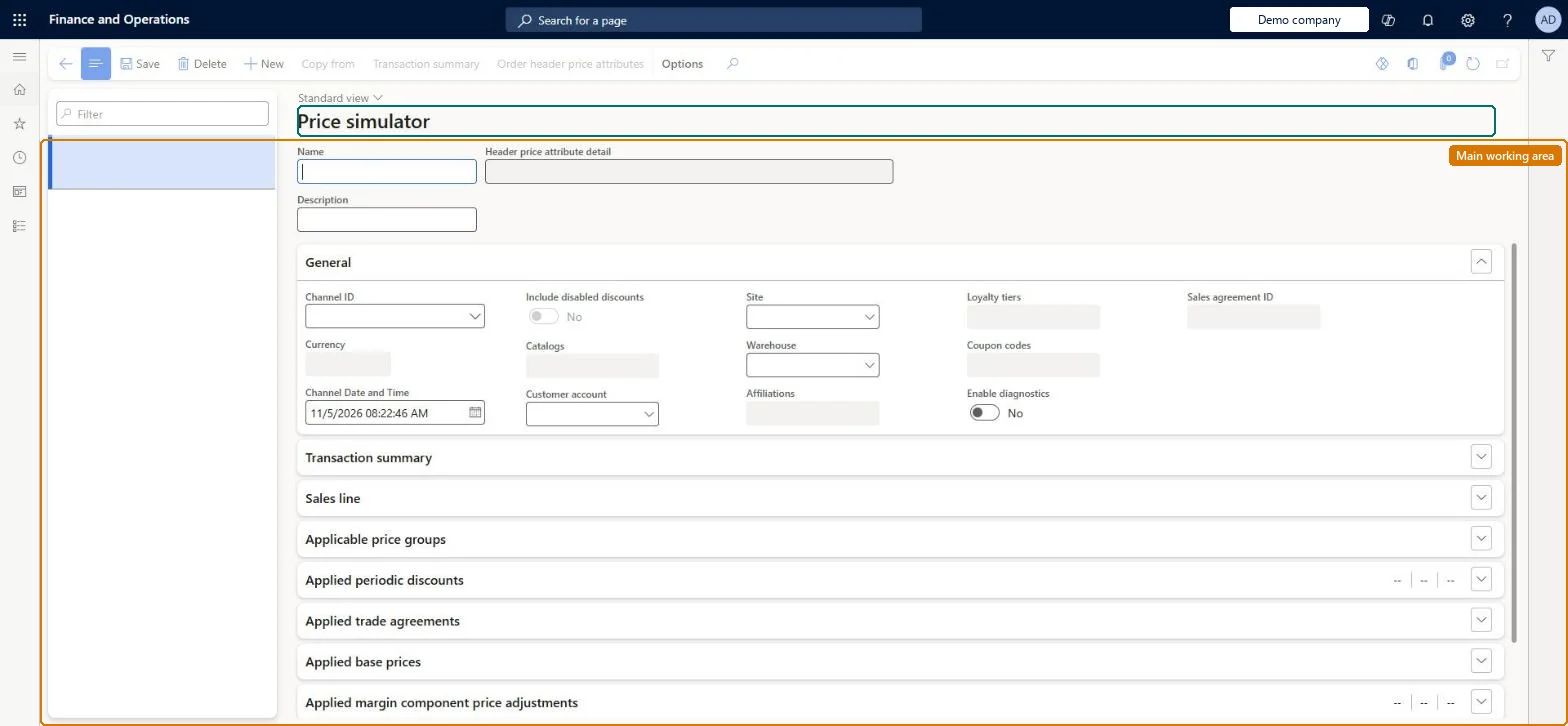
The page in Dynamics 365. page title tab to open what to set or check
About the examples: Examples and screenshots in this guide use BEAT, a demo company in a Dynamics 365 test environment. Use your own company's codes and values instead of copying them.
Steps from Microsoft
Go to Pricing management > During-sales pricing > Price simulator > Price simulator.
On the Action Pane, select New.
In the header, enter a Name and Description for the simulation.
On the General FastTab, select the customer, currency, site, and other scenario details.
On the Sales line FastTab, add a line for each product and set the quantity and unit.
Select a line, select Retail attributes, and set the attribute values to test.
The sales trade agreement prices applied, with the attribute values each one matched.Microsoft Learn
Applied base prices
The base prices found for the line before adjustments and discounts.Microsoft Learn
Applied margin component price adjustments
The margin component price adjustments that the engine applied.Microsoft Learn
Enable diagnostics
Shows the Pricing diagnostics FastTab with detailed pricing engine output.Microsoft Learn
Test checklist
Select New, enter a name and choose a customer, currency and site on the General FastTab.
Add a sales line with quantity and unit.
Set Order header price attributes and the line's Retail attributes to match the rule you are testing.
Check the price on the Sales line FastTab and the rule under Applied trade agreements, Applied periodic discounts or Applied margin component price adjustments.
Select Enable diagnostics and check the Pricing diagnostics FastTab appears.
Reversible: The simulator builds a transaction but never saves it as a sales order, so nothing posts and no pricing data changes. Microsoft Learn
Technical architect
6Technical
Menu item
GUPPricingSimulatorV2Checked in Dynamics 365
Form
RetailPricingSimulatorV2Checked in Dynamics 365
Table
RetailPricingSimulatorSaShown as “PRICING SIMULATOR SALES TRANSACTION HEADER” in Record infoChecked in Dynamics 365
Who can open it
PrivilegesEnable price simulator to simulate product prices and discounts GUPPriceSimulatorProcessDutiesEnable price simulator to simulate product prices and discounts GUPPriceSimulatorMaintainMaintain retail campaign discounts RetailDiscountOfferMaintain3 security rolesRetail merchandising manager RetailMerchandisingManagerRetail service RetailServiceSales manager TradeSalesManagerChecked in Dynamics 365
Roles to set it up and use it
To set it up or change itRetail service RetailServiceSales manager TradeSalesManagerRetail merchandising manager RetailMerchandisingManagerGive people one of these roles. On this system, 3 roles can open this page.Checked in Dynamics 365
Actions on the page
(Action Pane without tabs): New, Copy from, Transaction summary, Order header price attributesChecked in Dynamics 365