Retail merchandising manager, Retail operations manager, Retail service and 3 more roles
Business process
Set product prices
Menu item
GUPMixAndMatchLineGroupSetup
Main table
RetailMixAndMatchLineGroupSetup
Data entity
RetailMixAndMatchLineGroupSetupEntity
Setup steps
1 on this page
Show what matters for
PAGE GUIDEWhat the page does and how to use it8 sections. Choose a role to highlight what matters to you.
Everyone
1What it is and why
What it is
A setup page where you define the line groups used in mix-and-match discounts and the default number of products needed from each.
What you do here
Use this page to create the line groups that set which item groups and purchase thresholds qualify for a mix-and-match discount, before you assign them to discount rules.
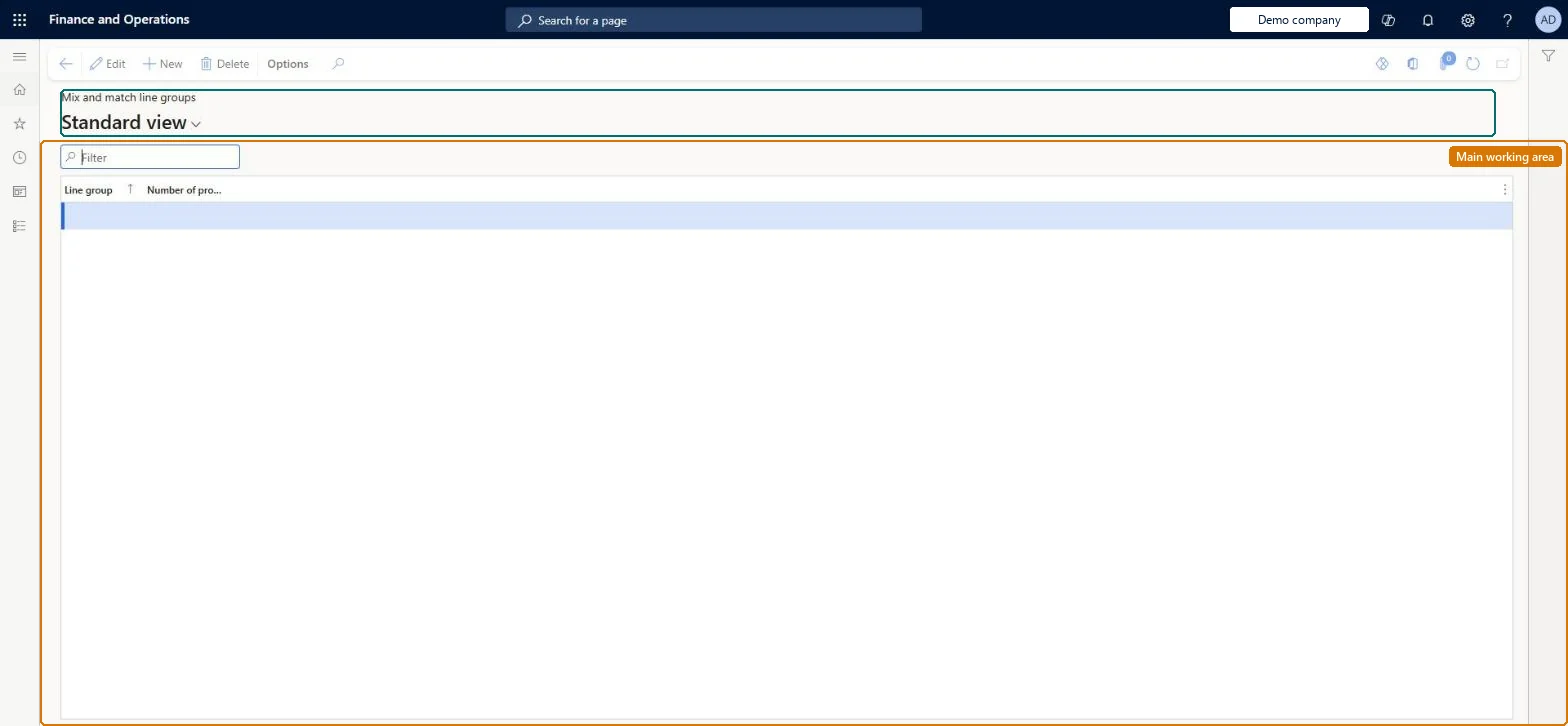
The page in Dynamics 365. page title tab to open what to set or check
About the examples: Examples and screenshots in this guide use BEAT, a demo company in a Dynamics 365 test environment. Use your own company's codes and values instead of copying them.
Setup steps on this page
Set up Mix and match line group setup
Use this page to create the line groups that set which item groups and purchase thresholds qualify for a mix-and-match discount, before you assign them to discount rules.
Steps from Microsoft
Go to Pricing management > During-sales pricing > Discounts > Mix and match line group setup.
Review the existing line groups.
Select New on the Action Pane to add a line group.
Enter a unique identifier in the Line group field.
Set the most common Number of products needed on each line group as its default, and override it per discount only where a promotion differsThe value here is a default copied each time the line group is selected for a discount pricing rule, and it can be overridden for each rule.
Changing the default here and expecting existing discounts to follow. Rules that already use the line group keep their own value.
Solution architect
5Design impact
Can it be undone
Reversible: The default is copied when the line group is selected for a rule; existing rule assignments keep their value. Microsoft Learn
If you change it later
The number of products needed is a default that is copied each time the line group is selected for a discount rule; existing rules can hold their own value. Microsoft Learn
Technical architect
6Technical
Menu item
GUPMixAndMatchLineGroupSetupChecked in Dynamics 365
Form
RetailMixAndMatchLineGroupSetupChecked in Dynamics 365
Table
RetailMixAndMatchLineGroupSetupShown as “MIX AND MATCH LINE GROUP SETUP” in Record infoChecked in Dynamics 365
Data entities
RetailMixAndMatchLineGroupSetupEntityMix and match line group setup Checked in Dynamics 365
Who can open it
PrivilegesMaintain pricing service sales discount records GUPDiscountRecordMaintainView pricing service discount agreements and records GUPDiscountRecordViewDutiesInquiries into pricing service discount agreements and records GUPDiscountInquiryMaintain pricing service sales discount records GUPDiscountMaintainMaintain pricing service sales discount records GUPDiscountRecordMaintainMaintain coupons MCRCouponMaintainMaintain retail coupons RetailCouponsMaintainMaintain retail campaign discounts RetailDiscountOfferMaintainMaintain retail campaign discounts RetailDiscountOfferView7 security rolesMCRTestUserRoleRetail merchandising manager RetailMerchandisingManagerRetail operations manager RetailOperationsManagerRetail service RetailServiceRetail store manager RetailStoreManagerSales clerk TradeSalesClerkSales manager TradeSalesManagerChecked in Dynamics 365
Roles to set it up and use it
To set it up or change itRetail service RetailServiceSales manager TradeSalesManagerRetail merchandising manager RetailMerchandisingManagerTo use itSales clerk TradeSalesClerkRetail operations manager RetailOperationsManagerRetail store manager RetailStoreManagerGive people one of these roles. On this system, 6 roles can open this page.Checked in Dynamics 365