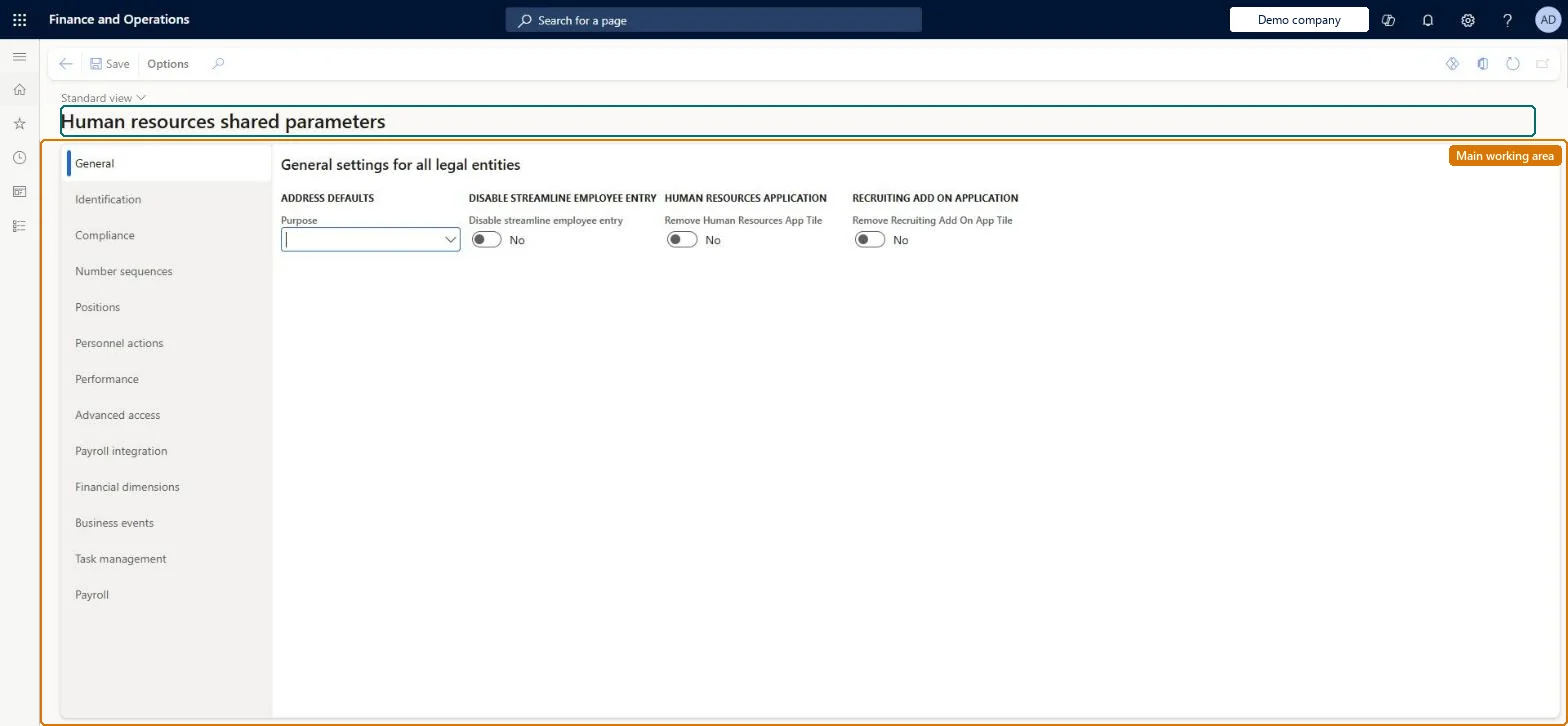
A setup page for Human resources parameters that apply across all legal entities, such as identification types, number sequences, position availability and advanced access settings.
Chief executive officer, Compensation and benefits manager, Human resource assistant and 6 more roles
Business process
Develop people strategy
Menu item
HcmSharedParameters
Main table
HcmSharedParameters
Data entity
HcmSharedParametersEntity
Setup steps
1 on this page
Show what matters for
PAGE GUIDEWhat the page does and how to use it8 sections. Choose a role to highlight what matters to you.
Everyone
1What it is and why
What it is
A setup page for Human resources parameters that apply across all legal entities, such as identification types, number sequences, position availability and advanced access settings.
What you do here
Use this page to set parameters for records shared across companies, such as positions, and to restrict who can see worker information.
Example
For example, set new positions to be available for assignment Always so that workers can be assigned as soon as the position is created.
The page in Dynamics 365. page title tab to open what to set or check
About the examples: Examples and screenshots in this guide use BEAT, a demo company in a Dynamics 365 test environment. Use your own company's codes and values instead of copying them.
Setup steps on this page
Set up Human resources shared parameters
Use this page to set parameters for records shared across companies, such as positions, and to restrict who can see worker information.
How to use it
Go to Payroll > Setup > Parameters > Human resources shared parameters.
On the General tab, set the address purpose default, Disable streamline employee entry, and the Human Resources app and Recruiting add-on tile options; these apply to all legal entities.
Use the Identification, Compliance, Number sequences, Positions, Personnel actions, Performance, Advanced access, Payroll integration, Financial dimensions, Business events, Task management and Payroll tabs for their settings.
Select Save.
Source: Checked in Dynamics 365
Fields on the page
Field
What it means
Table column
Identification
The identification types that represent the identification numbers on the page.Microsoft Learn
Number sequences
Sequences for personnel numbers, positions, applicants, benefit IDs, personnel actions and similar records.Microsoft Learn
Positions
Whether new positions are available for assignment by default (Always or Never).Microsoft Learn
Restrict access to worker information
Limits users to employee information for the legal entities they have access to.Microsoft Learn
Enable cross-company compensation view
Shows compensation for each legal entity of employment in self service without changing company.Microsoft Learn
Enable task management upgrade
Lets checklists use tasks that are edited in the task library.Microsoft Learn
EnableTaskManagementUpgrade
Test checklist
Check the Number sequences tab has codes for Personnel number and Position.
Create a position and check whether it can take a worker straight away (Positions = Always) or needs an Available for assignment date (Never).
Assign a worker to the position and assign a pay cycle on the position's Payroll tab.
Positions = Never when positions are approved before they are filled, otherwise Always; Restrict access to worker information = Yes when HR users work for one legal entity only, with organizations assigned on every role of each user.Never leaves Available for assignment empty until HR enters it, so no worker is placed in a position that isn't open yet; restricted access limits users to employees employed in the legal entities they can access.
BEAT uses number sequence Admi_1. Checked in Dynamics 365
I-9 document
Shared
BEAT uses number sequence Huma_51. Checked in Dynamics 365
Applicant
Shared
BEAT uses number sequence Huma_52. Checked in Dynamics 365
Discussion
Shared
BEAT uses number sequence Huma_53. Checked in Dynamics 365
Personnel action
Shared
BEAT uses number sequence Huma_54. Checked in Dynamics 365
Benefit ID
Shared
BEAT uses number sequence Huma_55. Checked in Dynamics 365
Goal
Shared
BEAT uses number sequence Huma_56. Checked in Dynamics 365
Employment
Shared
BEAT uses number sequence Huma_50. Checked in Dynamics 365
Personnel number
Shared
BEAT uses number sequence Huma_57. Checked in Dynamics 365
Position
Shared
BEAT uses number sequence Huma_58. Checked in Dynamics 365
Process ID
Shared
BEAT uses number sequence Huma_59. Checked in Dynamics 365
Solution architect
5Design impact
Can it be undone
Reversible: Shared parameters can be changed at any time. The Personnel number and Position number sequences and the Positions default affect only records created afterwards. Microsoft Learn
If you change it later
Choosing Never for positions means each new position must be opened and given an Available for assignment date before a worker can be assigned; restricting worker access also requires assigning organizations to each user role. Microsoft Learn
Technical architect
6Technical
Menu item
HcmSharedParametersChecked in Dynamics 365
Form
HcmSharedParametersChecked in Dynamics 365
Table
HcmSharedParametersShown as “SHARED HUMAN RESOURCES PARAMETERS” in Record infoChecked in Dynamics 365
Data entities
HcmSharedParametersEntityShared human resources parameters Checked in Dynamics 365DimensionParametersEntityDimension parameters Checked in Dynamics 365
Who can open it
PrivilegesMaintain shared Human resources parameters HcmSharedParametersMaintainView shared Human resources parameters HcmSharedParametersViewDutiesInquire into absence process HcmAbsenceProcessInquireInquire into benefits process HcmBenefitInquireInquire into compensation process HcmCompensationInquireEnable human resource process HcmHREnableInquire into organizational process HcmOrganizationalProcessInquireInquire into performance process HcmPerformanceProcessInquireInquire into recruitment process HcmRecruitmentProcessInquireInquire into training process HcmTrainingProcessInquireInquire into workforce management process HcmWorkforceProcessInquire9 security rolesChief executive officer CompanyChiefExecutiveOfficerCompensation and benefits manager HcmCompensationAndBenefitsManagerHuman resource assistant HcmHumanResourceAssistantHuman resource manager HcmHumanResourceManagerPayroll administrator HcmPayrollAdministratorPayroll manager HcmPayrollManagerRecruiter HcmRecruiterTraining manager HcmTrainingManagerAccounting manager LedgerAccountingManagerChecked in Dynamics 365
Roles to set it up and use it
To set it up or change itHuman resource manager HcmHumanResourceManagerTo use itPayroll administrator HcmPayrollAdministratorPayroll manager HcmPayrollManagerCompensation and benefits manager HcmCompensationAndBenefitsManagerRecruiter HcmRecruiterHuman resource assistant HcmHumanResourceAssistantGive people one of these roles. On this system, 9 roles can open this page.Checked in Dynamics 365