BeyondERP.Newsletter
Menu

Page · Payroll

Pay statements to recalculate

A list page that shows pay statements that were changed after calculation and must be recalculated.

Used by
Payroll administrator, Payroll manager
Business process
Pay employees
Menu item
PayrollPayStatementRecalculate
Main table
PayrollPayStatement
Data entity
PayrollPayStatementHeaderEntity
Show what matters for
PAGE GUIDEWhat the page does and how to use it8 sections. Choose a role to highlight what matters to you.
Everyone

1What it is and why

What it isA list page that shows pay statements that were changed after calculation and must be recalculated.
What you do hereUse this page to find pay statements that need recalculation before they can be submitted for payment or posted.
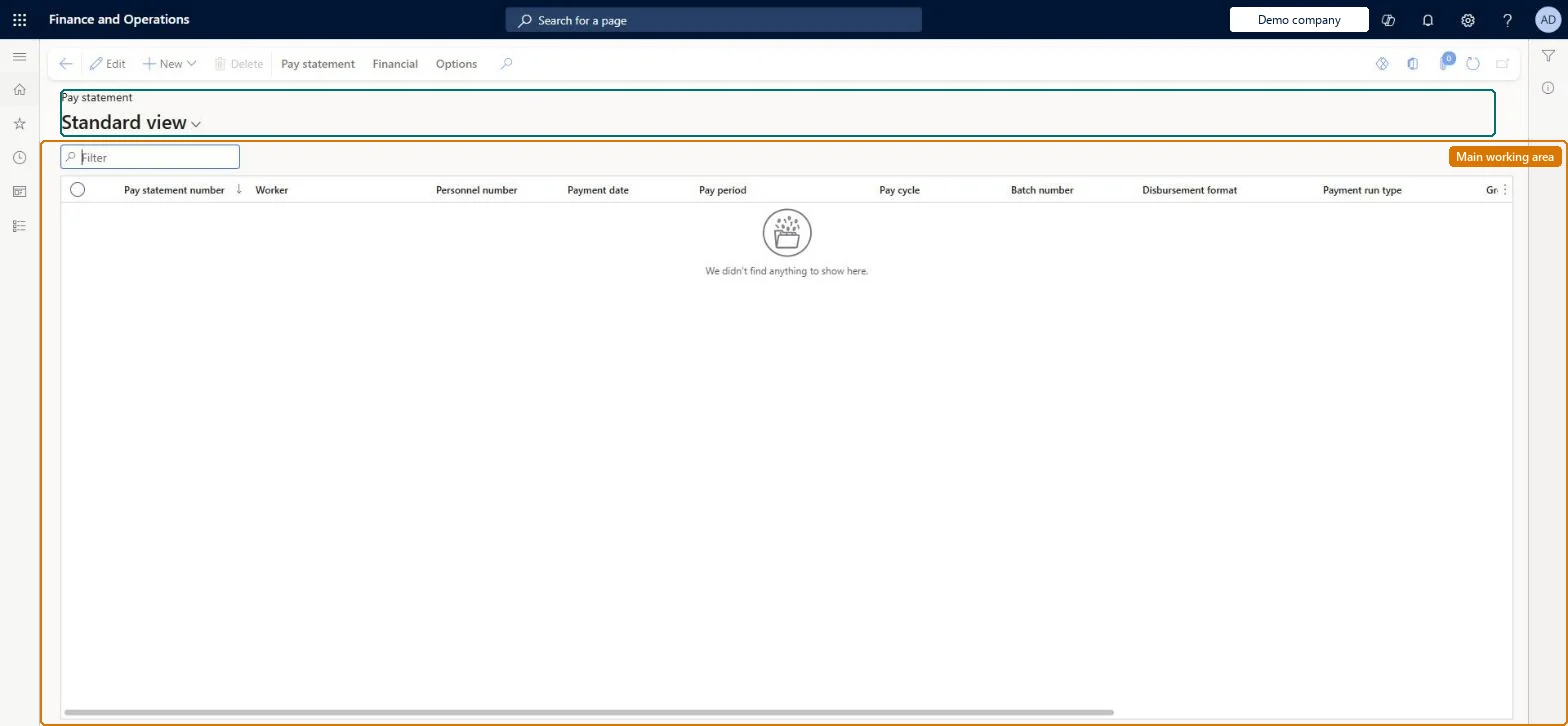
Pay statements to recalculate page in Dynamics 365
The page in Dynamics 365. page title tab to open what to set or check
Functional consultant · Solution architect

2Where it fits

Business processManage compensation and benefits › Pay employees
Menu pathPayroll › Pay statements › Pay statements to recalculate
Used next byCalculated pay statements Microsoft Learn
Related pagesAll pay statements Microsoft Learn
End user · Functional consultant

3How to do it

About the examples: Examples and screenshots in this guide use BEAT, a demo company in a Dynamics 365 test environment. Use your own company's codes and values instead of copying them.

Steps from Microsoft

  1. Go to Payroll > Pay statements > Pay statements to recalculate.
  2. Open the pay statement.
  3. In the message bar, select Recalculate.
  4. Close the page.

Source: Microsoft Learn

Fields on the page

FieldWhat it meansTable column
Payment dateThe date the payment is scheduled to be issued to the worker.Microsoft Learn PaymentDate
Disbursement formatWhether the worker is paid by check or electronic payment.Microsoft Learn PaymentMethodType
Pay cycleThe pay cycle that includes the pay period the statement covers.Microsoft Learn PayPeriod
Pay periodThe pay period the pay statement covers.Microsoft Learn PayPeriod
Personnel numberThe worker the pay statement is for.Microsoft Learn Worker
Pay statement numberThe ID given by the pay statement number sequence.Microsoft Learn DocumentNumber
Batch numberThe generation run that created the pay statement.Microsoft Learn BatchNumber
Payment run typeThe kind of run (Primary, Additional, Gross up or Manual) the statement was created in.Microsoft Learn PaymentType

Test checklist

  1. Open a calculated pay statement, select Edit, and remove one earning line.
  2. Check the pay statement now appears here.
  3. Select Recalculate in the message bar.
  4. Check it has left this list and can be submitted for payment.

Source: Microsoft Learn

Functional consultant

4Setup decisions

Number sequences

ReferenceShared or per companyNote
Pay statement numberPer companyNew records on this page take their Pay statement number from the PayrollPayStatementId reference; BEAT uses number sequence Payr_7. Checked in Dynamics 365
Solution architect

5Design impact

Can it be undoneReversible: Removing earning lines or changing benefit or tax lines puts the pay statement here. Select Recalculate to clear it; it must be recalculated before it can be submitted or posted. Microsoft Learn
If you change it laterRemoving earning lines or adding, removing or changing benefit or tax lines puts the pay statement into a state where it must be recalculated. Microsoft Learn
Technical architect

6Technical

Menu itemPayrollPayStatementRecalculate Checked in Dynamics 365
FormPayrollPayStatement Checked in Dynamics 365
TablePayrollPayStatementShown as “PAY STATEMENTS” in Record infoKey field: DocumentNumberChecked in Dynamics 365
Data entitiesPayrollPayStatementHeaderEntityPay statement header Microsoft data model PayrollEssPayStatementEntityPay statements Microsoft data model
Who can open itPrivilegesMaintain pay statements PayrollPayStatementMaintainView pay statements PayrollPayStatementViewDutiesInquire into payroll payments PayrollPayStatementGenerationInquireMaintain pay statements PayrollPayStatementGenerationMaintain
2 security rolesPayroll administrator HcmPayrollAdministratorPayroll manager HcmPayrollManager
Checked in Dynamics 365
Roles to set it up and use itTo set it up or change itPayroll administrator HcmPayrollAdministratorTo use itPayroll manager HcmPayrollManagerGive people one of these roles. On this system, 2 roles can open this page.Checked in Dynamics 365
Actions on the pagePay statement: Process, Print, LoggingFinancial: Accounting, Budget(Action Pane without tabs): New, DeleteChecked in Dynamics 365
Developer

7Developer

Open it by URLhttps://<your-environment>/?mi=PayrollPayStatementRecalculate
Integrate withPayrollPayStatementHeaderEntity data entity Microsoft data model
Data migrationPayrollPayStatementHeaderEntity (Pay statement header): shared by all companies.Microsoft Learn
Table definitionPayrollPayStatement columns and relations Microsoft data model
Everyone

8Sources

KEEP EXPLORING

More in Payroll.

Open the other pages and setup steps in this module, or go back to the Atlas Hub to search every page.