BeyondERP.Newsletter
Menu

Page · Payroll

Payroll positive pay file summary

An inquiry page that lists the payroll positive pay files that were generated and their status.

Used by
Payroll administrator, Payroll manager
Business process
Manage cash
Menu item
PayrollPositivePayTableInquiry
Main table
BankPositivePayTable
Show what matters for
PAGE GUIDEWhat the page does and how to use it7 sections. Choose a role to highlight what matters to you.
Everyone

1What it is and why

What it isAn inquiry page that lists the payroll positive pay files that were generated and their status.
What you do hereUse this page to confirm a payroll positive pay file with the bank's confirmation number, or to recall it.
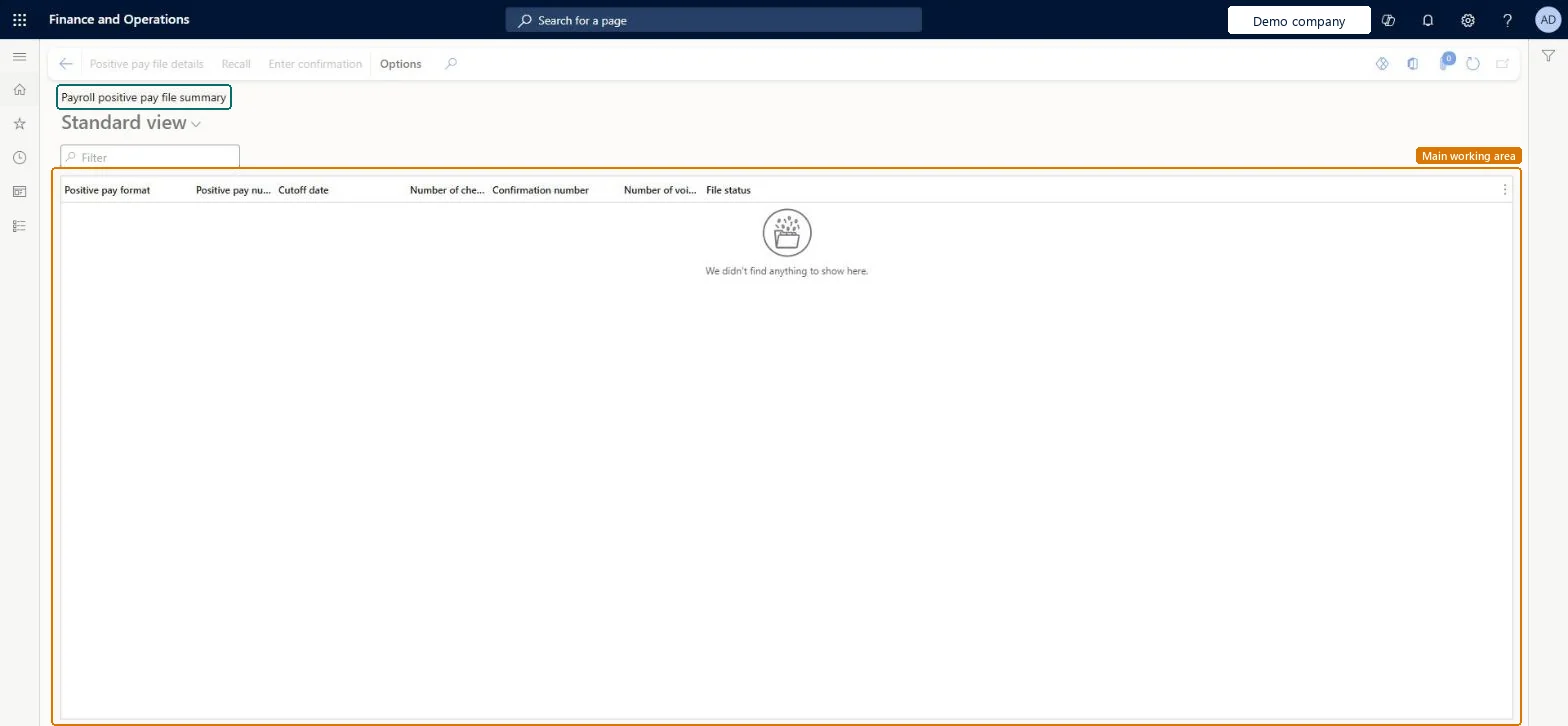
Payroll positive pay file summary page in Dynamics 365
The page in Dynamics 365. page title tab to open what to set or check
Functional consultant · Solution architect

2Where it fits

Business processManage cash
Menu pathPayroll › Pay statement processing › Payroll positive pay file summary
Set up firstPayroll positive pay Microsoft Learn
End user · Functional consultant

3How to do it

About the examples: Examples and screenshots in this guide use BEAT, a demo company in a Dynamics 365 test environment. Use your own company's codes and values instead of copying them.

Steps from Microsoft

  1. Open the Payroll positive pay file summary page.
  2. Select a payroll positive pay file that has the status Created.
  3. Select Confirmation.
  4. Enter the confirmation number from the bank, and then select OK.

Source: Microsoft Learn

Test checklist

  1. Generate payroll checks for a pay period, then run Payroll positive pay with a cut-off date after the check date.
  2. Open Payroll positive pay file summary and check the new file has status Created.
  3. Select Recall and check you can create a new positive pay file that includes the same checks.
  4. Select the new file, choose Confirmation and enter the bank's confirmation number.

Source: Microsoft Learn

Solution architect

4Design impact

Shared or per companyShared: the same records are used by every legal entity. Microsoft data model
Can it be undoneHard to reverse: A file with status Created can be recalled, which resets the positive pay flag on each of its checks so a new file can be created. Learn describes Recall only for files with status Created, so recall before you confirm the file with the bank's confirmation number. Microsoft Learn
If you change it laterRecalling a payroll positive pay file resets the flag on each of its checks, so you can create a new file. Microsoft Learn
Technical architect

5Technical

Menu itemPayrollPositivePayTableInquiry Checked in Dynamics 365
FormBankPositivePaySummary Checked in Dynamics 365
TableBankPositivePayTableShown as “BANK POSITIVE PAYMENT TABLE” in Record infoChecked in Dynamics 365
Who can open itPrivilegesMaintain payroll positive pay information PayrollPositivePayProcessView payroll positive pay information PayrollPositivePayViewDutiesInquire into payroll positive payments PayrollPositivePayInquireMaintain payroll positive payments PayrollPositivePayMaintain
2 security rolesPayroll administrator HcmPayrollAdministratorPayroll manager HcmPayrollManager
Checked in Dynamics 365
Roles to set it up and use itTo use itPayroll administrator HcmPayrollAdministratorPayroll manager HcmPayrollManagerGive people one of these roles. On this system, 2 roles can open this page.Checked in Dynamics 365
Actions on the page(Action Pane without tabs): Positive pay file details, Recall, Enter confirmationChecked in Dynamics 365
Developer

6Developer

Open it by URLhttps://<your-environment>/?mi=PayrollPositivePayTableInquiry
Table definitionBankPositivePayTable columns and relations Microsoft data model
Everyone

7Sources

KEEP EXPLORING

More in Payroll.

Open the other pages and setup steps in this module, or go back to the Atlas Hub to search every page.