BeyondERP.Newsletter
Menu

Report page · Payroll

Worker payment register report

A payroll report that lists the payments made to workers from pay statements for a selected pay cycle and range of pay periods.

Business process
Pay employees
Menu item
PayrollWorkerPaymentRegister
Show what matters for
PAGE GUIDEWhat the page does and how to use it7 sections. Choose a role to highlight what matters to you.
Everyone

1What it is and why

What it isA payroll report that lists the payments made to workers from pay statements for a selected pay cycle and range of pay periods.
What you do hereUse this page to check payroll payment data every pay period and to sign off on pay runs as part of good audit practice.
ExampleFor example, after a weekly pay run a payroll supervisor runs the report for that pay period, filtered by payment run type, before approving the run.
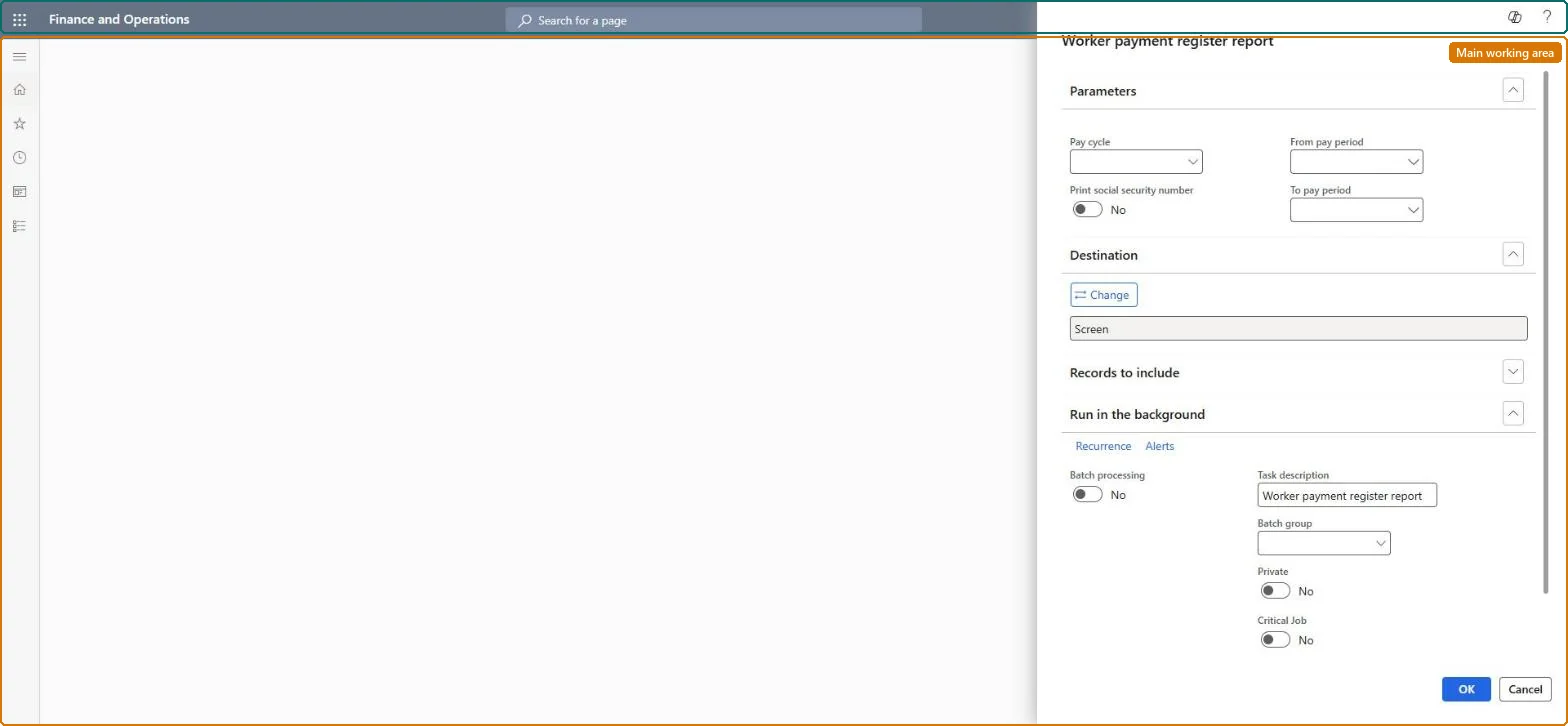
Worker payment register report page in Dynamics 365
The page in Dynamics 365. page title tab to open what to set or check
Functional consultant · Solution architect

2Where it fits

Business processManage compensation and benefits › Pay employees
Menu pathPayroll › Inquiries and reports › Worker payment register report
Set up firstPay cycles and pay periods Microsoft Learn
Related pagesTax register Microsoft Learn Benefit register Microsoft Learn
End user · Functional consultant

3How to do it

About the examples: Examples and screenshots in this guide use BEAT, a demo company in a Dynamics 365 test environment. Use your own company's codes and values instead of copying them.

When to run it

When to run itAfter payments for a pay run are issued, so the payroll team can review the payment data and sign off on the run.
How oftenEvery pay period.
What the output showsThe payments made to workers from pay statements in the pay cycle and range of periods, per worker. A payment missing or doubled usually means a pay statement was reversed, submitted twice, or belongs to another payment run type.

Source: Microsoft Learn

Steps from Microsoft

  1. Go to Payroll > Inquiries and reports > Worker payment register report.
  2. Select the Pay cycle, and the From pay period and To pay period the register should cover.
  3. Filter on Payment run type, Batch number or Payment date to see one run, for example only Manual payments or one pay statement generation run.
  4. Leave Print social security number cleared unless it is needed; Microsoft advises against printing it.
  5. Run the report and sign off the pay run when the worker payments match the payment journal.

Source: Microsoft Learn

Fields on the page

FieldWhat it means
Pay cycleThe pay cycle that the report is run for.Microsoft Learn
From pay period / To pay periodThe first and last pay period in the range the report covers.Microsoft Learn
Print social security numberWhether workers' Social Security Numbers are printed on the report; Microsoft advises against it where possible.Microsoft Learn
Payment run typeLimits the report to payments from pay statements of the selected payment run types.Microsoft Learn
Batch numberLimits the report to payments from the selected pay statement generation runs.Microsoft Learn
Payment dateLimits the report to payments from pay statements with the selected payment dates.Microsoft Learn
Solution architect

4Design impact

Can it be undoneNothing to undo: The worker payment register only reads payment data; it changes nothing. Microsoft Learn
Technical architect

5Technical

Menu itemPayrollWorkerPaymentRegister Checked in Dynamics 365
FormSysOperationTemplateForm Checked in Dynamics 365
Roles to set it up and use itTo use itPayroll administrator HcmPayrollAdministratorPayroll manager HcmPayrollManagerGive people one of these roles. On this system, 2 roles can run this page.Checked in Dynamics 365
Developer

6Developer

Open it by URLhttps://<your-environment>/?mi=PayrollWorkerPaymentRegister
Everyone

7Sources

KEEP EXPLORING

More in Payroll.

Open the other pages and setup steps in this module, or go back to the Atlas Hub to search every page.