BeyondERP.Newsletter
Menu

Setup page · Organization administration

Signing limit policies

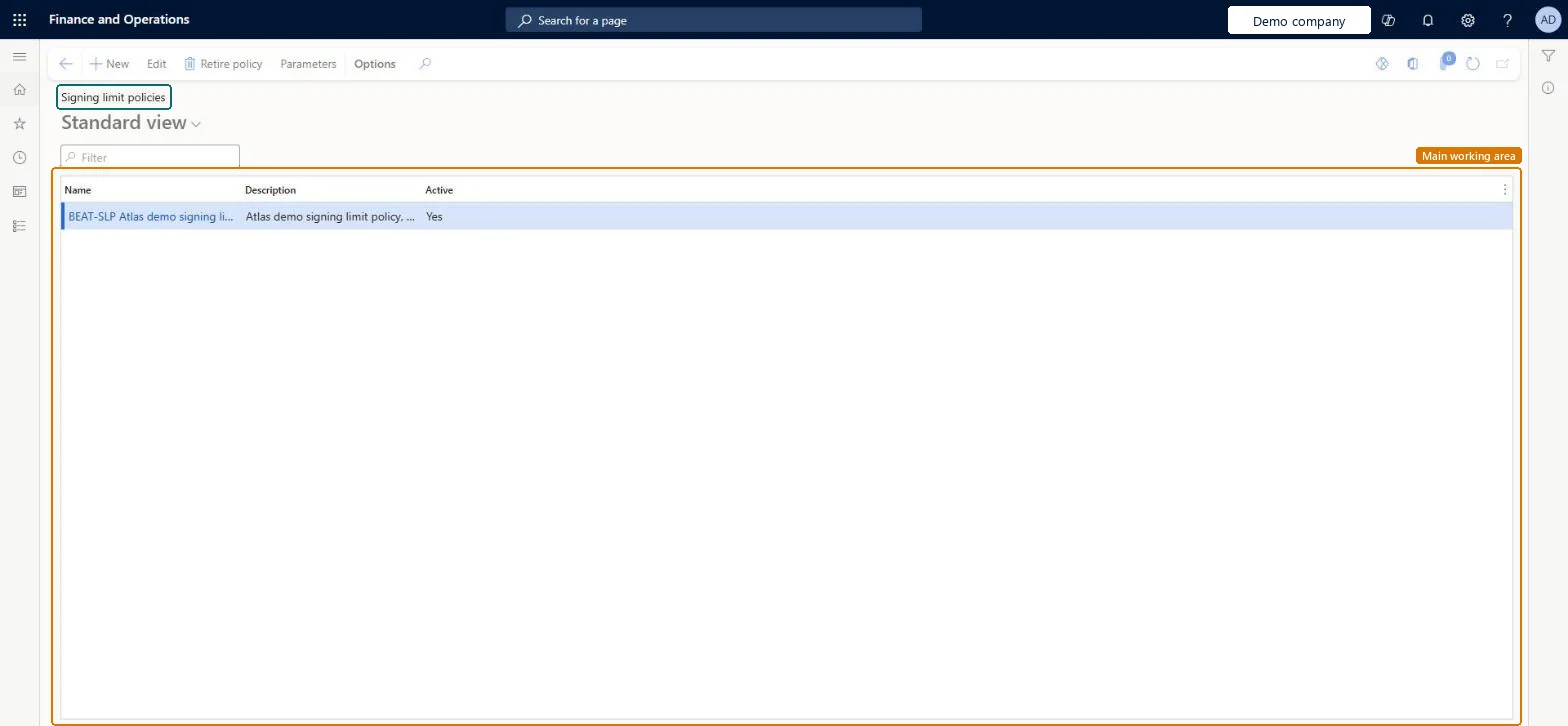
A list page of signing limit policies, where each policy sets default spending and approval limits, limit agreements and currency rules for parts of the organization.

Used by
Accounts payable manager
Business process
Administer system features
Menu item
HRPLimitPolicyListPage
Main table
SysPolicy
Data entity
PurchPurchasingPolicyEntity
Setup steps
1 on this page
Show what matters for
PAGE GUIDEWhat the page does and how to use it7 sections. Choose a role to highlight what matters to you.
Everyone

1What it is and why

What it isA list page of signing limit policies, where each policy sets default spending and approval limits, limit agreements and currency rules for parts of the organization.
What you do hereUse this page to create policies that set how much workers can spend and approve for each type of business document.
ExampleFor example, a policy can give a project manager's job a default spending limit of USD 500 for purchases.
Signing limit policies page in Dynamics 365
The page in Dynamics 365. page title tab to open what to set or check
Functional consultant · Solution architect

2Where it fits

Business processAdminister system features
Menu pathOrganization administration › Setup › Signing limits › Signing limit policies
Set up firstSigning limit parameters Microsoft Learn Set up Signing limit parameters
End user · Functional consultant

3How to do it

About the examples: Examples and screenshots in this guide use BEAT, a demo company in a Dynamics 365 test environment. Use your own company's codes and values instead of copying them.

Setup steps on this page

Set up Signing limit policies

Use this page to create policies that set how much workers can spend and approve for each type of business document.

Steps from Microsoft

  1. Go to Organization administration > Setup > Signing limits > Signing limit policies.
  2. On the Action Pane, in the New group, select Policy.
  3. On the General FastTab, enter a name and description.
  4. On the Policy organizations FastTab, select an organization hierarchy and the organization nodes the policy applies to.
  5. On the Policy rules FastTab, select a rule type: Default signing limit, Limit agreement or Limit currency.
  6. Select Create policy rule, and enter the effective date and expiration date.
  7. Select New, and for each document type and job or compensation level, enter the default approval and spending limits.

Source: Microsoft Learn

Fields on the page

FieldWhat it means
Select organization hierarchyThe organization hierarchy whose nodes the policy applies to. A policy can use only one hierarchy.Microsoft Learn
Policy rule typeThe kind of rule to set up: Default signing limit, Limit agreement or Limit currency.Microsoft Learn
Solution architect

4Design impact

Shared or per companyShared: the same records are used by every legal entity. Microsoft data model
Technical architect

5Technical

Menu itemHRPLimitPolicyListPage Checked in Dynamics 365
FormSysPolicyListPage Checked in Dynamics 365
TableSysPolicyShown as “Policy” in Record infoChecked in Dynamics 365
Data entitiesPurchPurchasingPolicyEntityPurchasing policies Microsoft data model SysPolicyEntityPolicies Microsoft data model
Who can open itPrivilegesMaintain signing limit policies HRPLimitPolicyListPageMaintainView signing limit policies HRPLimitPolicyListPageViewDutiesEnable signing limit process ProcSigningLimitProcessEnable
1 security roleAccounts payable manager VendInvoiceAccountsPayableManager
Checked in Dynamics 365
Roles to set it up and use itTo set it up or change itAccounts payable manager VendInvoiceAccountsPayableManagerGive people one of these roles. On this system, 1 role can open this page.Checked in Dynamics 365
Actions on the pageOptions: Personalize, Page options, ShareChecked in Dynamics 365
Developer

6Developer

Open it by URLhttps://<your-environment>/?mi=HRPLimitPolicyListPage
Integrate withPurchPurchasingPolicyEntity data entity Microsoft data model
Data migrationPurchPurchasingPolicyEntity (Purchasing policies): shared by all companies.SysPolicyEntity (Policies): shared by all companies.Microsoft Learn
Table definitionSysPolicy columns and relations Microsoft data model
Everyone

7Sources