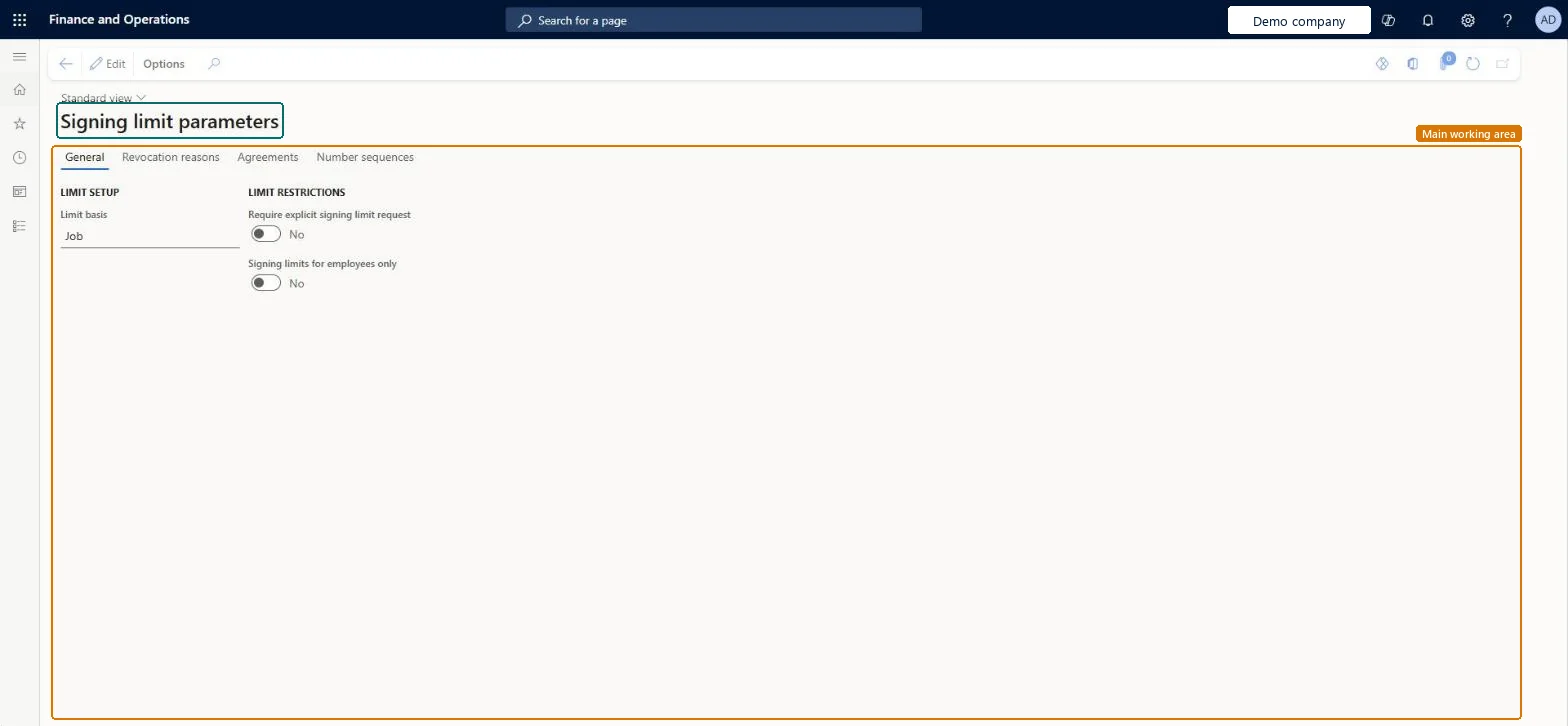
A setup page where you choose what signing limits are based on, who can get them, the reasons for revoking them and the limit agreements workers must accept.
PAGE GUIDEWhat the page does and how to use it8 sections. Choose a role to highlight what matters to you.
Everyone
1What it is and why
What it is
A setup page where you choose what signing limits are based on, who can get them, the reasons for revoking them and the limit agreements workers must accept.
What you do here
Use this page to set up the basic signing limit rules that signing limit policies are then built on.
Example
For example, if an employee abuses their spending privilege or resigns, a manager can revoke their signing limit with a predefined revocation reason.
The page in Dynamics 365. page title tab to open what to set or check
About the examples: Examples and screenshots in this guide use BEAT, a demo company in a Dynamics 365 test environment. Use your own company's codes and values instead of copying them.
Step by step, with screenshots
Set up Signing limit parameters1 screen
Use this page to set up the basic signing limit rules that signing limit policies are then built on.
Screen 1
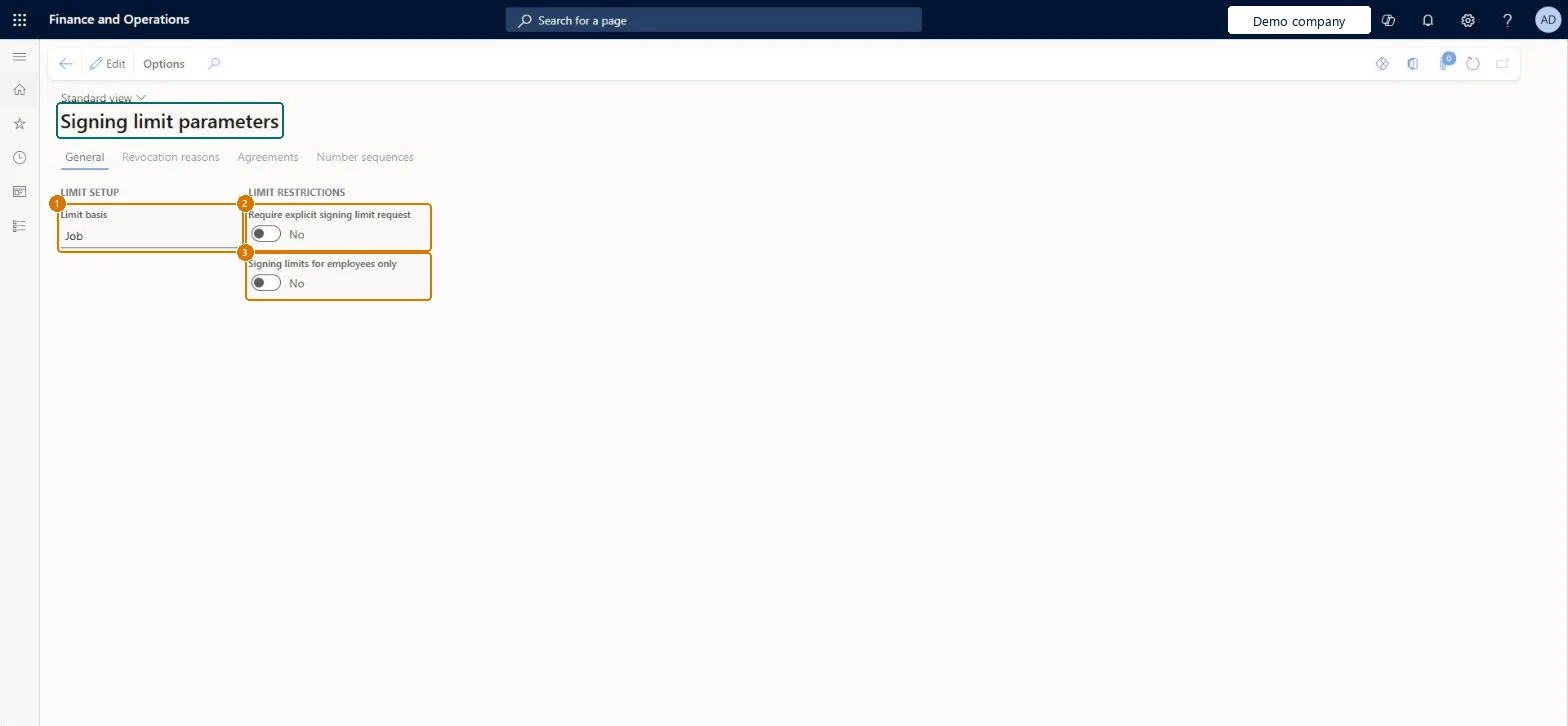
Check the signing limit parameters
Go to Organization administration > Setup > Signing limits > Signing limit parameters
On the General tab, check whether limits are based on Job or Compensation level
Check whether workers must request a signing limit explicitly
Select Edit only to change them
1Limit basis
Job
2Require explicit signing limit request
No
3Signing limits for employees only
No
Show the full screen page title tab to open what to set or check
Steps from Microsoft
Go to Organization administration > Setup > Signing limits > Signing limit parameters.
Select Job or Compensation level as the basis for signing limits.
Select Require explicit signing limit request if workers must request a limit.
Select Signing limits for employees only if contractors shouldn't get signing limits.
On the Revocation reasons FastTab, select Add, and enter a reason code and a description.
On the Agreements FastTab, select Add, and enter the agreement name and URL.
In the Duration of agreement (in months) field, enter how long a worker's acceptance stays valid.
PrivilegesMaintain limit policy parameters HRPLimitPolicyControlsMaintainView signing limit parameters HRPLimitPolicyControlsViewDutiesEnable signing limit process ProcSigningLimitProcessEnableInquire into signing limit policies ProcSigningLimitProcessInquire1 security roleAccounts payable manager VendInvoiceAccountsPayableManagerChecked in Dynamics 365
Roles to set it up and use it
To set it up or change itAccounts payable manager VendInvoiceAccountsPayableManagerGive people one of these roles. On this system, 1 role can open this page.Checked in Dynamics 365
Actions on the page
Options: Personalize, Page options, ShareChecked in Dynamics 365
Checked in a working Dynamics 365 system, version 10.0.49: the menu item, form, table and security, the page, the demo records and the values in the screenshots.