PAGE GUIDEWhat the page does and how to use it7 sections. Choose a role to highlight what matters to you.
Everyone
1What it is and why
What it is
A page that records detailed logs of what goes into and comes out of the scheduling engine, so you can investigate how specific orders were scheduled.
What you do here
Use this page to turn scheduling logging on and off and to download the log files for troubleshooting.
Example
For example, you can turn on logging, schedule one production order, turn logging off, and download a .zip file with the engine log, model and result files.
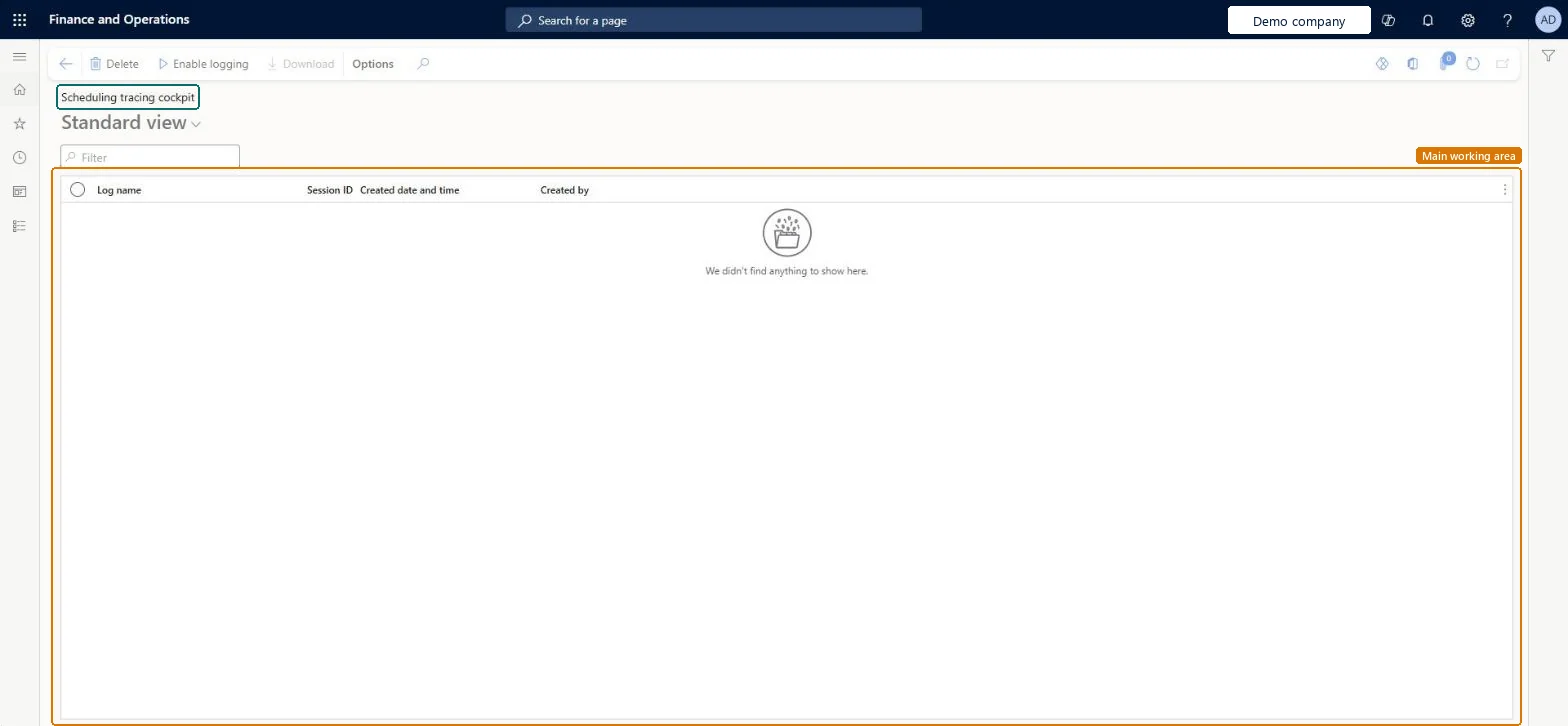
The page in Dynamics 365. page title tab to open what to set or check
About the examples: Examples and screenshots in this guide use BEAT, a demo company in a Dynamics 365 test environment. Use your own company's codes and values instead of copying them.
Steps from Microsoft
Go to Organization administration > Setup > Scheduling > Scheduling tracing cockpit.
On the Action Pane, select Enable logging.
Run scheduling for the production order.
Return to the Scheduling tracing cockpit page and select Disable logging.
Reversible: Enable logging and Disable logging switch tracing on and off. Leave it off normally: tracing adds significant overhead and, during a master planning run, quickly reaches its size limit and stops. Microsoft Learn
If you change it later
Logging slows scheduling down a lot, so use it only for a few orders. During a master planning run it quickly reaches its size limit and stops. Microsoft Learn
Technical architect
5Technical
Menu item
WrkCtrSchedulingCockpitChecked in Dynamics 365
Form
WrkCtrSchedulingCockpitChecked in Dynamics 365
Table
WrkCtrSchedulingLogChecked in Dynamics 365
Who can open it
PrivilegesMaintain scheduling parameters WrkCtrSchedulingParametersMaintainDutiesEnable resource management process WrkCtrResourceManagementProcessEnable2 security rolesProduction manager ProdProductionManagerProject manager ProjProjectManagerChecked in Dynamics 365
Roles to set it up and use it
To set it up or change itProduction manager ProdProductionManagerProject manager ProjProjectManagerGive people one of these roles. On this system, 2 roles can open this page.Checked in Dynamics 365
Actions on the page
Options: Personalize, Page options, ShareChecked in Dynamics 365