About the examples: Examples and screenshots in this guide use BEAT, a demo company in a Dynamics 365 test environment. Use your own company's codes and values instead of copying them.
Step by step, with screenshots
Set up Scheduling parameters1 screen
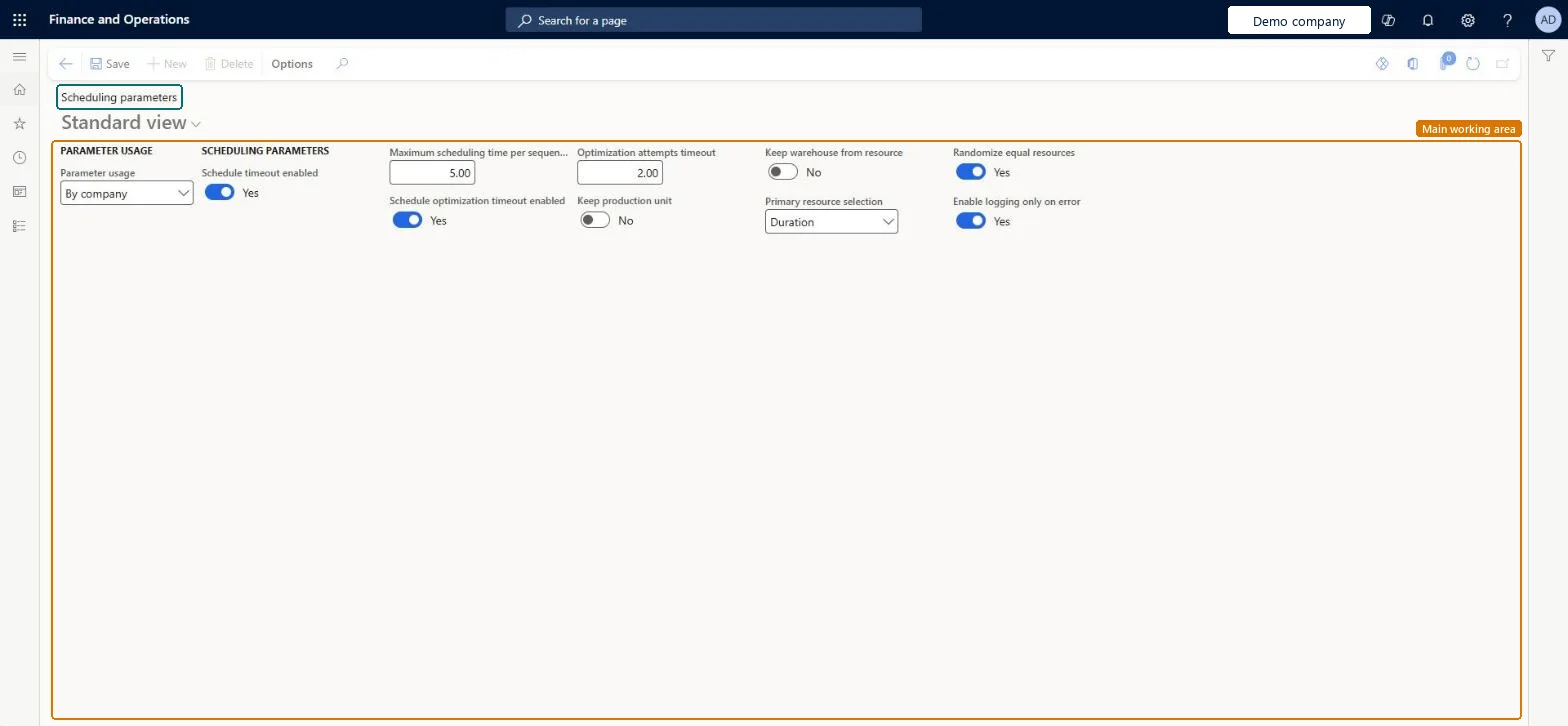
Use this page to tune how production orders and planned orders are scheduled, including time limits that stop scheduling from running too long.
Screen 1
Check the scheduling parameters
Go to Organization administration > Setup > Scheduling > Scheduling parameters
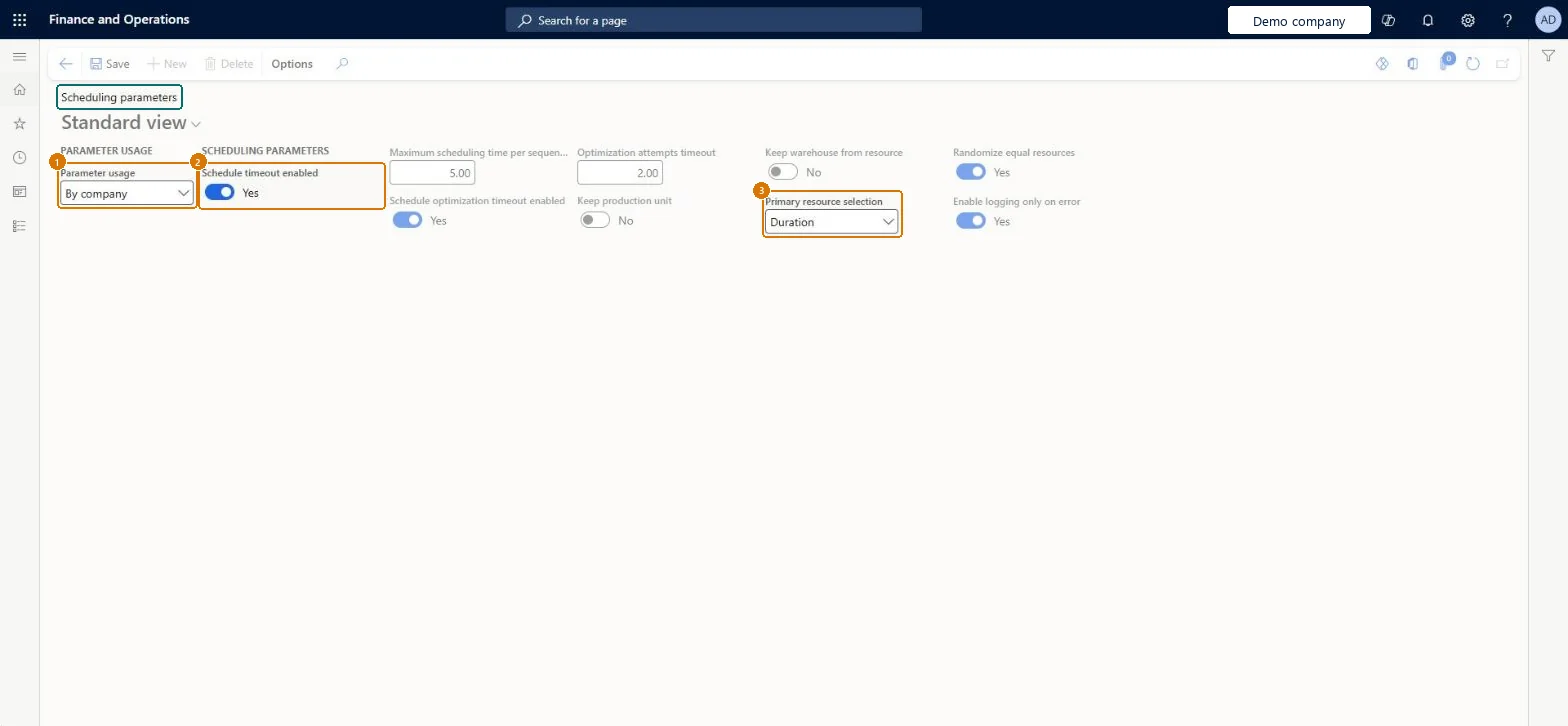
Check Parameter usage: By company uses this page, By site uses Scheduling parameters by site
Check the timeout settings and how the primary resource is selected
Select Save after any change
1Parameter usage
By company
2Schedule timeout enabled
Yes
3Primary resource selection
Duration
Maximum scheduling time per sequence
5.00
Show the full screen page title tab to open what to set or check
How to use it
Go to Organization administration > Setup > Scheduling > Scheduling parameters.
In the Parameter usage list, choose how the parameters apply.
Under Scheduling parameters, turn Schedule timeout enabled and Schedule optimization timeout enabled on or off.
Enter the time limits in the Maximum scheduling time per sequence and Optimization attempts timeout fields.
Set Keep production unit, Keep warehouse from resource, Randomize equal resources and Enable logging only on error, and choose a Primary resource selection.
Select Save.
Source: Checked in Dynamics 365
Fields on the page
Field
What it means
Example
Table column
Scheduling timeout enabled
Limits how long scheduling can run. Keep it set to Yes so scheduling can't run endlessly.Microsoft Learn
Scheduling optimization timeout enabled
Limits how long the engine searches for a better schedule. Keep it set to Yes.Microsoft Learn
Maximum scheduling time per sequence
The most seconds the engine spends finding a solution for one sequence, which is usually one order.Microsoft Learn
5.00
SequenceScheduleRuntimeLimit
Optimization attempts timeout
The most seconds the engine spends looking for a better solution. It matters only for routes with parallel operations.Microsoft Learn
SequenceOptimizationRuntimeLimit
Primary resource selection
Choose Duration to pick the resource with the shortest lead time, or Priority to pick the resource with the highest priority.Microsoft Learn
Duration
PrimaryResourceSelection
Parameter usage
By company
Schedule timeout enabled
Yes
SequenceScheduleTimeoutEnabled
Test checklist
Set Scheduling timeout enabled and Scheduling optimization timeout enabled to Yes, and Maximum scheduling time per sequence to about 30 seconds.
On Scheduling tracing cockpit, select Enable logging.
Job-schedule a released production order with parallel operations.
Disable logging, download the trace and check the time between the first and last line of Log.txt stays within the timeout.
Reversible: Timeouts can be changed at any time. They apply to the next scheduling of released production orders and to planned orders in master planning. Microsoft Learn
If you change it later
The timeout values apply to released production orders and to planned orders in master planning, so very high values can make master planning runs much longer. Microsoft Learn
Technical architect
5Technical
Menu item
WrkCtrSchedulingParametersChecked in Dynamics 365
Form
WrkCtrSchedulingParametersChecked in Dynamics 365
Table
WrkCtrParametersShown as “Resource parameters” in Record infoChecked in Dynamics 365
Who can open it
PrivilegesMaintain scheduling parameters WrkCtrSchedulingParametersMaintainView scheduling parameters WrkCtrSchedulingParametersViewDutiesInquire into resource management policies WrkCtrResourceManagementPoliciesInquireEnable resource management process WrkCtrResourceManagementProcessEnable2 security rolesProduction manager ProdProductionManagerProject manager ProjProjectManagerChecked in Dynamics 365
Roles to set it up and use it
To set it up or change itProduction manager ProdProductionManagerProject manager ProjProjectManagerGive people one of these roles. On this system, 2 roles can open this page.Checked in Dynamics 365
Actions on the page
Options: Personalize, Page options, Edit, ShareChecked in Dynamics 365
Checked in a working Dynamics 365 system, version 10.0.49: the menu item, form, table and security, the page, the demo records and the values in the screenshots.