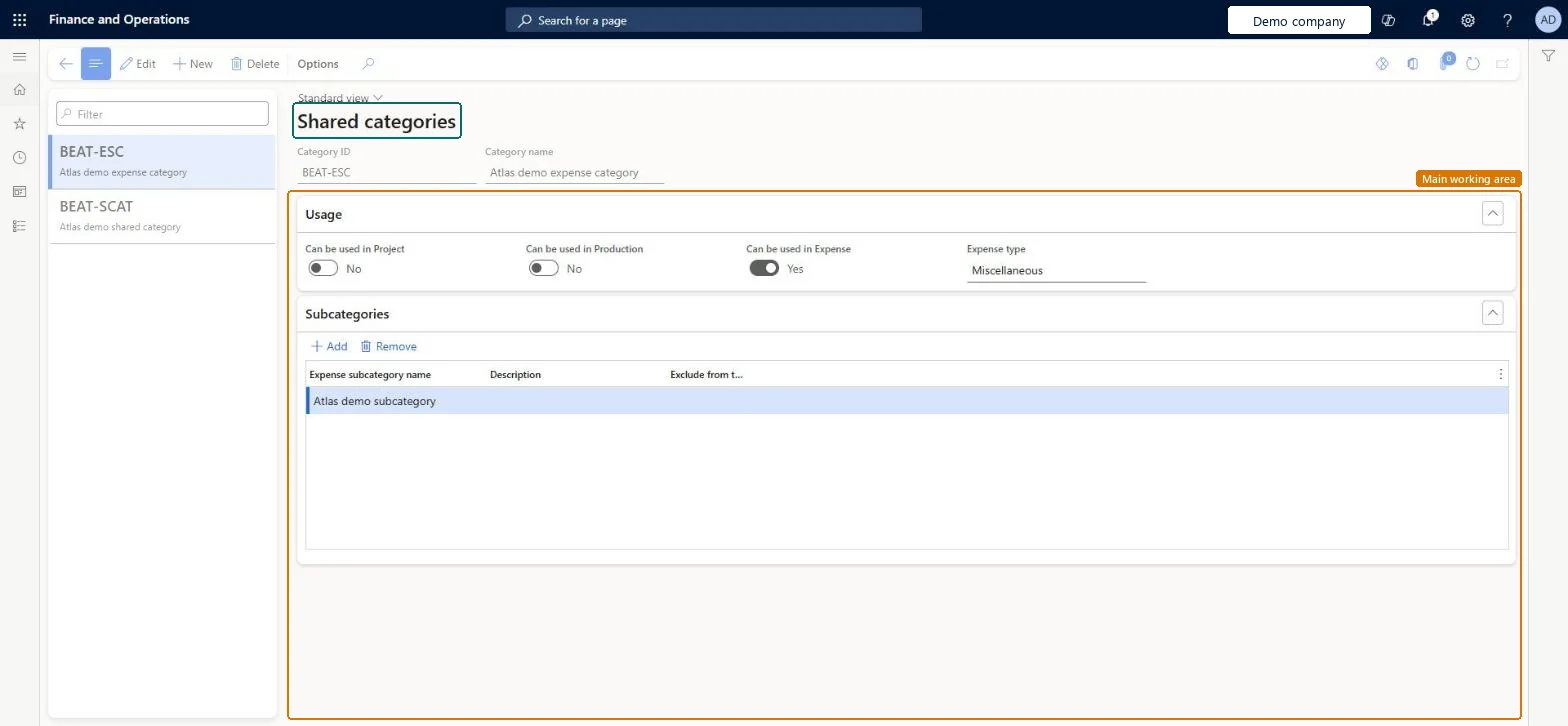
A setup page where you maintain shared categories, the parent categories that expense and project categories are built on and that can be shared across modules.
PAGE GUIDEWhat the page does and how to use it8 sections. Choose a role to highlight what matters to you.
Everyone
1What it is and why
What it is
A setup page where you maintain shared categories, the parent categories that expense and project categories are built on and that can be shared across modules.
What you do here
Use this page to create and adjust the shared categories that Expense management and Project management and accounting use as the basis for their own categories.
Example
For example, when you create a transaction category such as Training in Project Operations, the system creates related shared categories for hours, expense, fees, item and on-account.
The page in Dynamics 365. page title tab to open what to set or check
About the examples: Examples and screenshots in this guide use BEAT, a demo company in a Dynamics 365 test environment. Use your own company's codes and values instead of copying them.
Step by step, with screenshots
Set up Shared categories1 screen
Use this page to create and adjust the shared categories that Expense management and Project management and accounting use as the basis for their own categories.
Screen 1
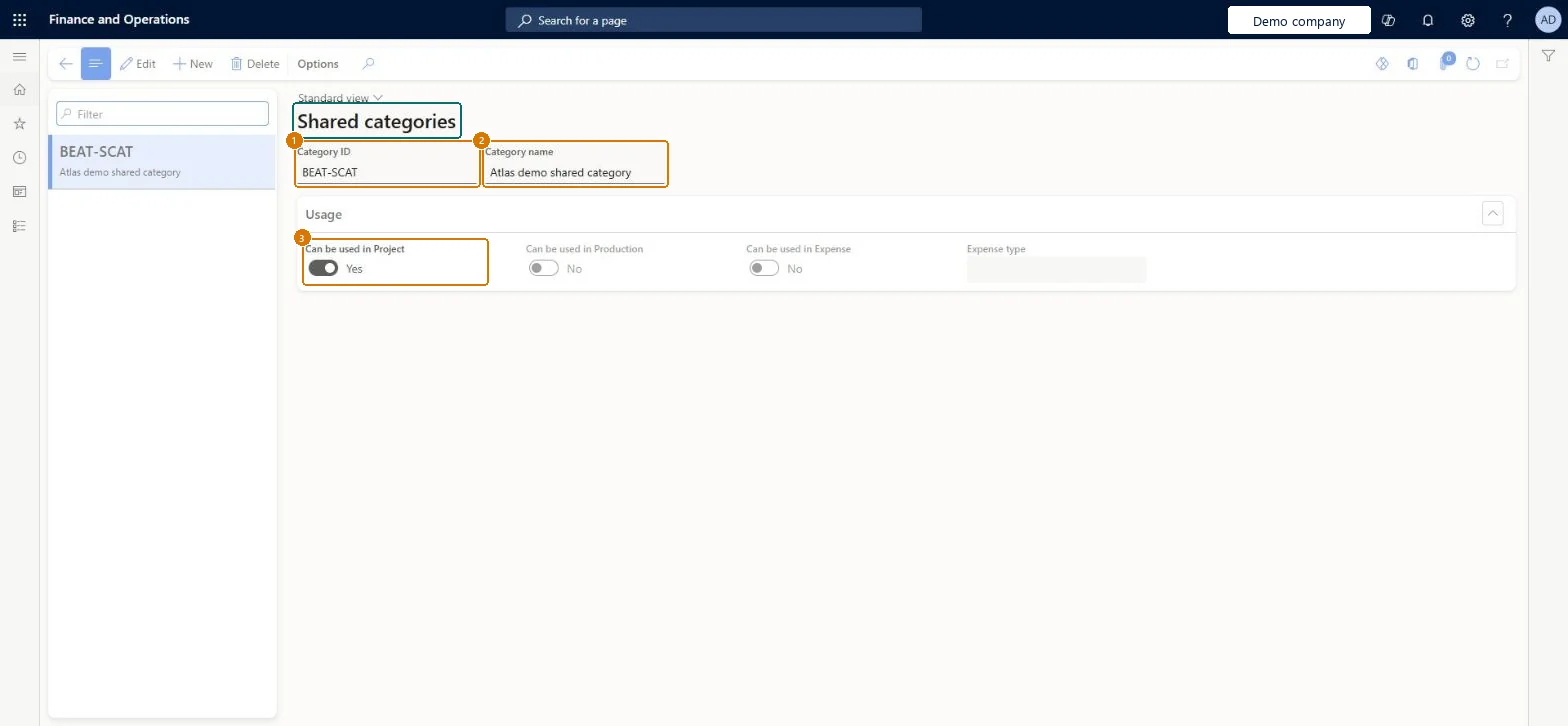
Create a shared category
Go to Organization administration > Setup > Categories > Shared categories
Select New
Enter the category ID and name
Turn on where the category can be used, here Can be used in Project
Select Save
1Category ID
BEAT-SCAT
2Category name
Shared category
3Can be used in Project
Yes
Show the full screen page title tab to open what to set or check
Steps from Microsoft
Go to Organization administration > Setup > Categories > Shared categories.
Select a shared category that has the Expense transaction class.
Set the Can be used in Expense option to Yes.
Select the expense type to use.
Save the record, and then use the shared category to create an expense category.
Decide per category whether it's shared between Project and Expense or Project and Production, and set Can be used in Expense / Can be used in Project to matchShared categories are the parent for expense and project categories in every legal entity, and they can be shared between Project and Expense or Project and Production, but not between Expense and Production.
Which modules can each shared category be used in?Creating project categories before the shared category exists. A shared category must exist before a project category can be created in any legal entity that uses it. With Project Operations, shared categories are created from Dataverse transaction categories, so create the transaction category there first.
Hard to reverse: Shared across all legal entities and the parent of company-level expense and project categories, so changes ripple into every company that uses the category. Microsoft Learn
Technical architect
6Technical
Menu item
TrvSharedCategoryChecked in Dynamics 365
Form
GlobalCategoryChecked in Dynamics 365
Table
SharedCategoryShown as “Shared category” in Record infoChecked in Dynamics 365
To set it up or change itInformation technology manager SysServerITManagerAccounting manager LedgerAccountingManagerBusiness Performance Planning app role BPPBudgetPlanningAppRoleData management migration user DataManagementMigrationUserDemand planning app role ScpDemandPlanningAppRoleTo use itProject manager ProjProjectManagerInventory accountant clerk InventCostCostClerkInventory accountant InventCostAccountantEmployee HCMEmployeeProject accountant ProjProjectAccountantGive people one of these roles. On this system, 16 roles can open this page.Checked in Dynamics 365
Actions on the page
Options: Personalize, Page options, ShareChecked in Dynamics 365
SharedCategoryEntity (Shared category): shared by all companies, in Microsoft's default template 410 - Production control.Load order: Microsoft's default template 410 - Production control loads Shared category at execution unit 1, level 20, sequence 10. Lower levels load first, and entities at the same level load in sequence order.Load first: the default templates at lower levels (System setup to Global address book)Microsoft Learn
Checked in a working Dynamics 365 system, version 10.0.49: the menu item, form, table and security, the page, the demo records and the values in the screenshots.