BeyondERP.Newsletter
Menu

Job page · Organization administration

Delete inactivated addresses

A periodic job that deletes many historical (deactivated) postal addresses in one run.

Business process
Manage data
Menu item
action:DirPartyPostalAddressDeactivateDeleteV2Job
Show what matters for
PAGE GUIDEWhat the page does and how to use it7 sections. Choose a role to highlight what matters to you.
Everyone

1What it is and why

What it isA periodic job that deletes many historical (deactivated) postal addresses in one run.
What you do hereUse this periodic task to clean up old addresses in bulk instead of deleting them one party at a time.
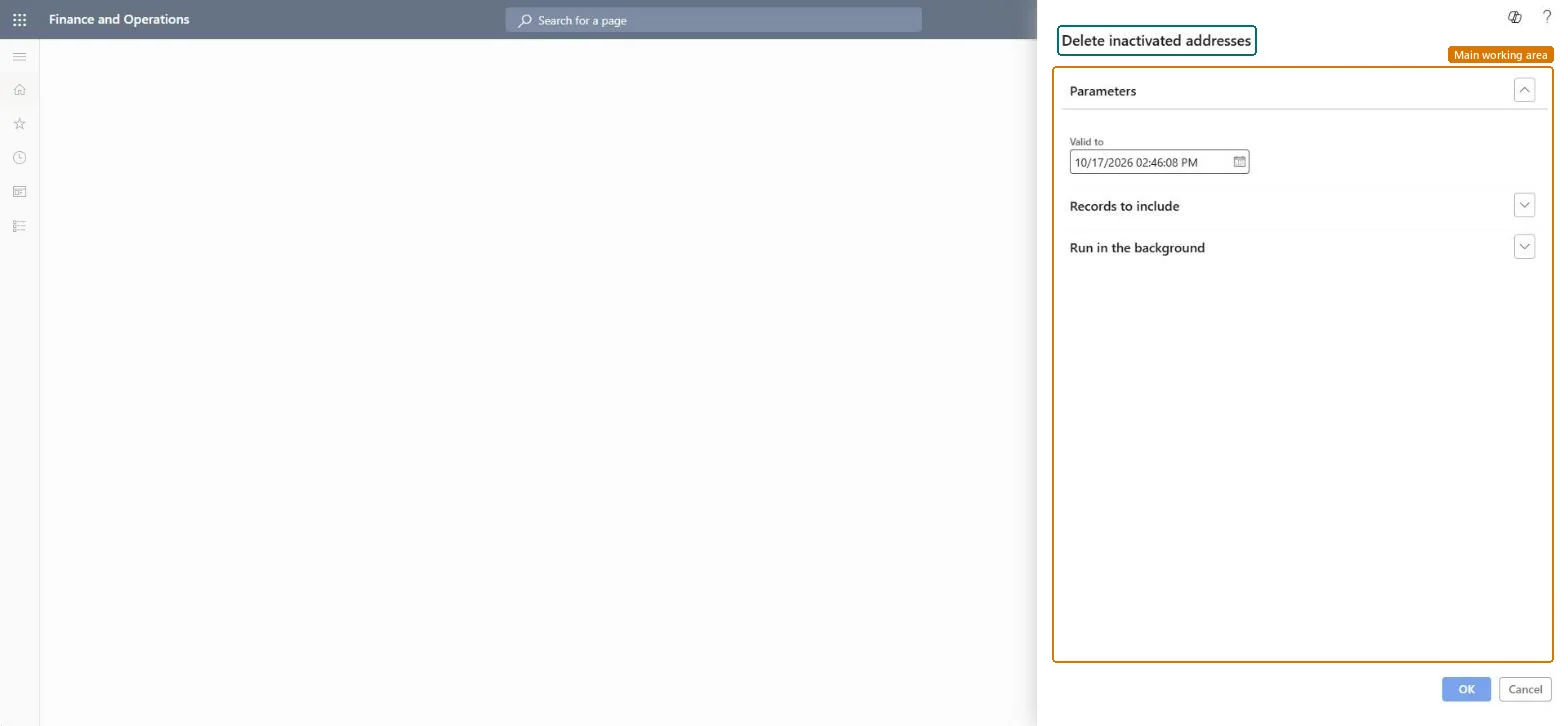
Delete inactivated addresses page in Dynamics 365
The page in Dynamics 365. page title tab to open what to set or check
Functional consultant · Solution architect

2Where it fits

Business processManage data
Menu pathOrganization administration › Periodic › Delete inactivated addresses
Set up firstAdvanced address maintenance feature Microsoft Learn
Related pagesGlobal address book Microsoft Learn
End user · Functional consultant

3How to do it

About the examples: Examples and screenshots in this guide use BEAT, a demo company in a Dynamics 365 test environment. Use your own company's codes and values instead of copying them.

When to run it

When to run itWhen historical (deactivated) postal addresses have built up and are no longer needed.
How oftenOn demand, for example after a cleanup of customer, vendor or party addresses.
Batch settingsIt runs as a batch job; run it outside working hours when many parties have historical addresses.
What the output showsHistorical postal addresses deleted in bulk, with a notification of success or failure. Addresses that are still linked to another record aren't deleted and give an error message instead.

Source: Microsoft Learn

Steps from Microsoft

  1. Go to Organization administration > Periodic > Delete inactivated addresses.
  2. Make sure the Advanced address maintenance feature is turned on in Feature management; it's available from version 10.0.32.
  3. Decide whether to delete historical addresses in bulk here, or for a single party from Global address book under Addresses > More options > Advanced.
  4. Start the job, then read the notification that tells you whether it succeeded or failed.

Source: Microsoft Learn

Test checklist

  1. The History tab of a sample party shows no deactivated addresses.
  2. Active addresses are unchanged.
  3. Addresses that are linked to other records are still there and are named in the error message.

Source: Microsoft Learn

Solution architect

4Design impact

Can it be undoneNo: Deleted addresses can't be restored. Make sure the historical addresses aren't needed for documents or audit before you run it. Microsoft Learn
If you change it laterAn address that is still linked to another record can't be deleted; you get an error message instead. Microsoft Learn
Technical architect

5Technical

Menu itemaction:DirPartyPostalAddressDeactivateDeleteV2Job Checked in Dynamics 365
FormSysOperationTemplateForm Checked in Dynamics 365
Roles to set it up and use itTo use itInformation technology manager SysServerITManagerHuman resource manager HcmHumanResourceManagerCollections manager CollectionLetterCollectionsManagerLogistics manager TMSLogisticsManagerGive people one of these roles. On this system, 4 roles can run this page.Checked in Dynamics 365
Developer

6Developer

Open it by URLhttps://<your-environment>/?mi=action:DirPartyPostalAddressDeactivateDeleteV2Job
Everyone

7Sources