Material handling equipment interfacePeriodic tasksCleanup
WMHEOutboundQueueCleanup
Business process
Manage warehouse operations
Menu item
WMHEOutboundQueueCleanup
Setup steps
1 on this page
Show what matters for
PAGE GUIDEWhat the page does and how to use it8 sections. Choose a role to highlight what matters to you.
Everyone
1What it is and why
What it is
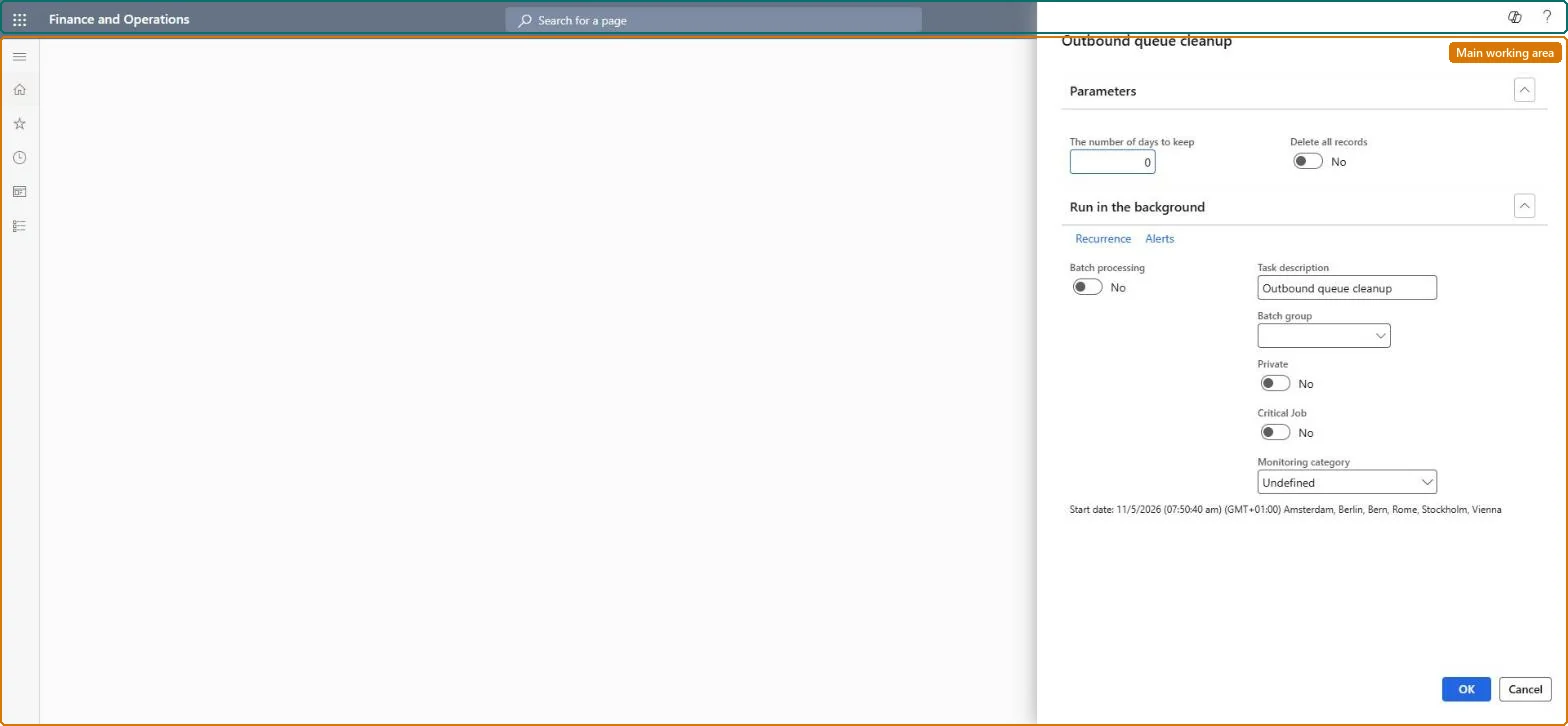
A periodic cleanup task that removes outbound queue items that have already been sent.
What you do here
Use this page to remove sent items so that the outbound queue doesn't keep filling up.
Example
For example, you schedule the job weekly on Sunday at 02:30 with The number of days to keep = 30 and Delete all records = No, so outbound events already sent more than 30 days ago are removed and Ready events stay for the material handling system.
The page in Dynamics 365. page title tab to open what to set or check
About the examples: Examples and screenshots in this guide use BEAT, a demo company in a Dynamics 365 test environment. Use your own company's codes and values instead of copying them.
When to run it
When to run it
When the outbound queue fills up with items that were already sent to the material handling system.
How often
Regularly, as a recurring batch job.
Batch settings
Run it in the background as a recurring job outside peak warehouse hours.
What the output shows
Sent outbound items older than the days you entered are deleted, or all outbound records if Delete all records is Yes. Ready items that the material handling system hadn't read yet disappearing means Delete all records was used.
Recurring batch job with a retention agreed with the warehouse (for example 30 days) and Delete all records = No.The queues keep every outbound event until they are cleaned up; deleted items can't be restored.
The Material handling equipment interface configuration key (System administration > Setup > License configuration > Trade > Warehouse and Transportation management) must be on; it is turned on in maintenance mode. No Feature management feature is needed. In this system 1 role can open this page, among them Material handling manager.
Per company: the job cleans the outbound queue of the current company. Checked in Dynamics 365
Can it be undone
No: Deleted outbound items can't be restored, and the material handling system can't retrieve them any more. Microsoft Learn
If you change it later
Deletes sent outbound queue items, or every outbound record when Delete all records is Yes. Microsoft Learn
Technical architect
6Technical
Menu item
WMHEOutboundQueueCleanupChecked in Dynamics 365
Form
SysOperationTemplateFormChecked in Dynamics 365
Roles to set it up and use it
To use itMaterial handling manager WMHEMaterialHandlingManagerGive people one of these roles. On this system, 1 role can run this page.Checked in Dynamics 365
Load order: The Outbound queue cleanup job has no data entity in Data management, so it can't be loaded from a file or a configuration template. It only deletes outbound queue records; there is nothing to load.Checked in Dynamics 365