BeyondERP.Newsletter
Menu

Setup page · Landed cost

Exporters

A setup page where you record the vendors or exporters that can be named as the exporter for a voyage or on a folio.

Used by
Landed cost manager
Business process
Manage freight and transportation
Menu item
ITMExporterTable
Main table
ITMExporterTable
Data entity
ITMExporterTableEntity
Setup steps
1 on this page
Show what matters for
PAGE GUIDEWhat the page does and how to use it7 sections. Choose a role to highlight what matters to you.
Everyone

1What it is and why

What it isA setup page where you record the vendors or exporters that can be named as the exporter for a voyage or on a folio.
What you do hereUse this page to create exporter records that you associate with voyages and use for reporting.
ExampleFor example, when you send a purchase order to one company but the goods are shipped by another company, you record that exporter on the folio for customs tracking and documentation.
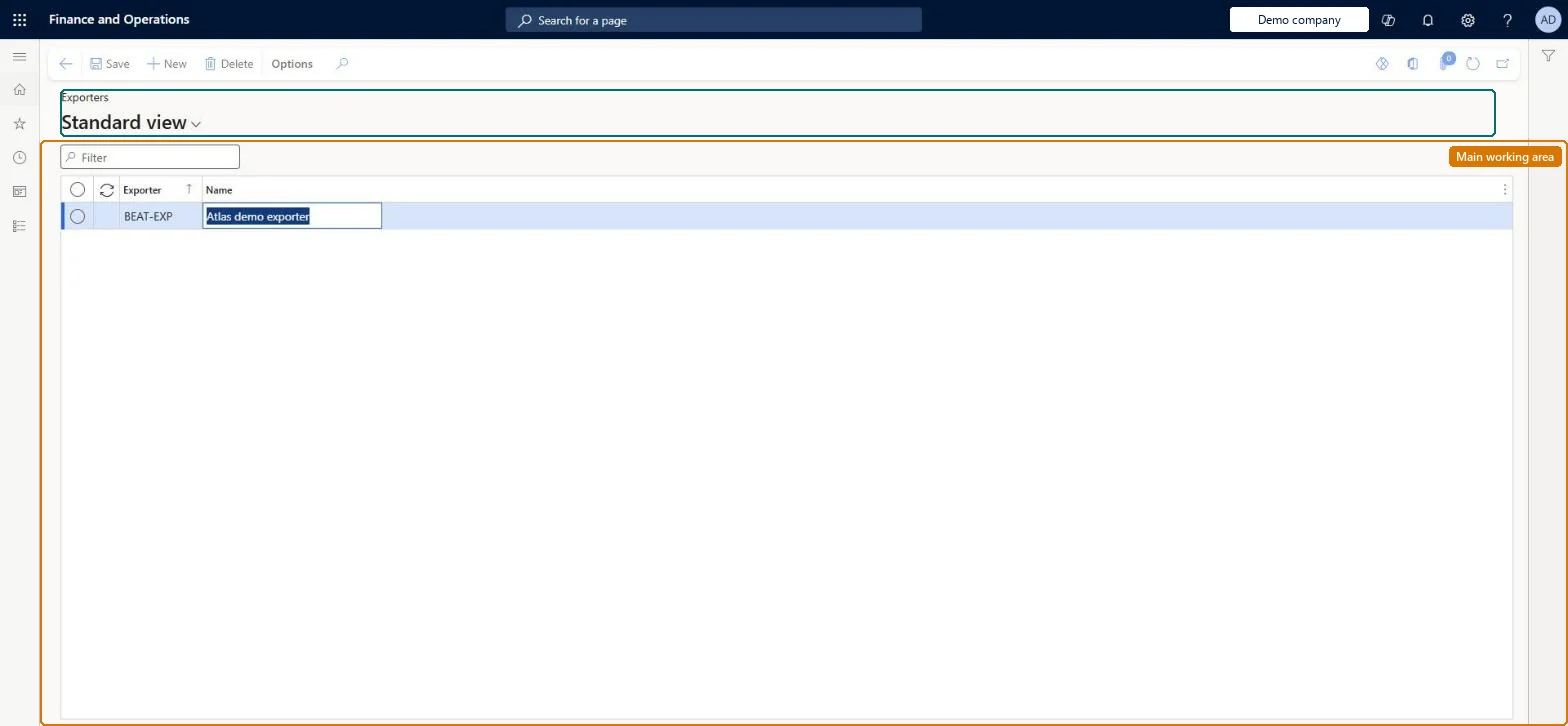
Exporters page in Dynamics 365
The page in Dynamics 365. page title tab to open what to set or check
Functional consultant · Solution architect

2Where it fits

Business processManage freight and transportation
Menu pathLanded cost › Shipping information setup › Exporters
Used next byAll folios Microsoft Learn
End user · Functional consultant

3How to do it

About the examples: Examples and screenshots in this guide use BEAT, a demo company in a Dynamics 365 test environment. Use your own company's codes and values instead of copying them.

Setup steps on this page

Set up Exporters

Use this page to create exporter records that you associate with voyages and use for reporting.

How to use it

  1. Go to Landed cost > Shipping information setup > Exporters.
  2. Use the Filter box to find an exporter.
  3. Select New and enter the Exporter code and its Name.
  4. Select Save, or select an exporter and choose Delete to remove it.

Source: Checked in Dynamics 365

Fields on the page

FieldWhat it meansTable column
ExporterA unique ID for the exporter.Microsoft Learn ShipExporterId
DescriptionA description, usually the full name of the shipping company or agent.Microsoft Learn

Test checklist

  1. Create an exporter with the full name of the shipping company or agent in Description.
  2. Open a folio and select the exporter on the Export FastTab.
  3. Check the exporter Name is shown on the folio.

Source: Microsoft Learn

Solution architect

4Design impact

Can it be undoneReversible: Exporter records identify the exporter on voyages and folios and for reporting, so they can be maintained at any time. Microsoft Learn
Technical architect

5Technical

Menu itemITMExporterTable Checked in Dynamics 365
FormITMExporterTable Checked in Dynamics 365
TableITMExporterTableShown as “EXPORTERS” in Record infoKey field: ShipExporterIdChecked in Dynamics 365
Data entitiesITMExporterTableEntityExporters Checked in Dynamics 365
Who can open itPrivilegesMaintain exporters ITMExporterTableMaintainDutiesMaintain Landed cost setup ITMSetupMaintain
1 security roleLanded cost manager ITMManager
Checked in Dynamics 365
Roles to set it up and use itTo set it up or change itLanded cost manager ITMManagerGive people one of these roles. On this system, 1 role can open this page.Checked in Dynamics 365
Developer

6Developer

Open it by URLhttps://<your-environment>/?mi=ITMExporterTable
Integrate withITMExporterTableEntity data entity Checked in Dynamics 365
Everyone

7Sources

KEEP EXPLORING

More in Landed cost.

Open the other pages and setup steps in this module, or go back to the Atlas Hub to search every page.