BeyondERP.Newsletter
Menu

Report page · Landed cost

Shipping container receipts list

A report page that lists every quantity not yet received on a shipping container that is due on or before a chosen expected date.

Business process
Plan inbound transportation loads in Dynamics 365 Supply Chain Management
Show what matters for
PAGE GUIDEWhat the page does and how to use it6 sections. Choose a role to highlight what matters to you.
Everyone

1What it is and why

What it isA report page that lists every quantity not yet received on a shipping container that is due on or before a chosen expected date.
What you do hereUse this page to see which goods are expected on each shipping container and to check them off manually as they are received.
ExampleFor example, warehouse staff run the list before a container is unloaded and use it to confirm each item as it comes off the container.
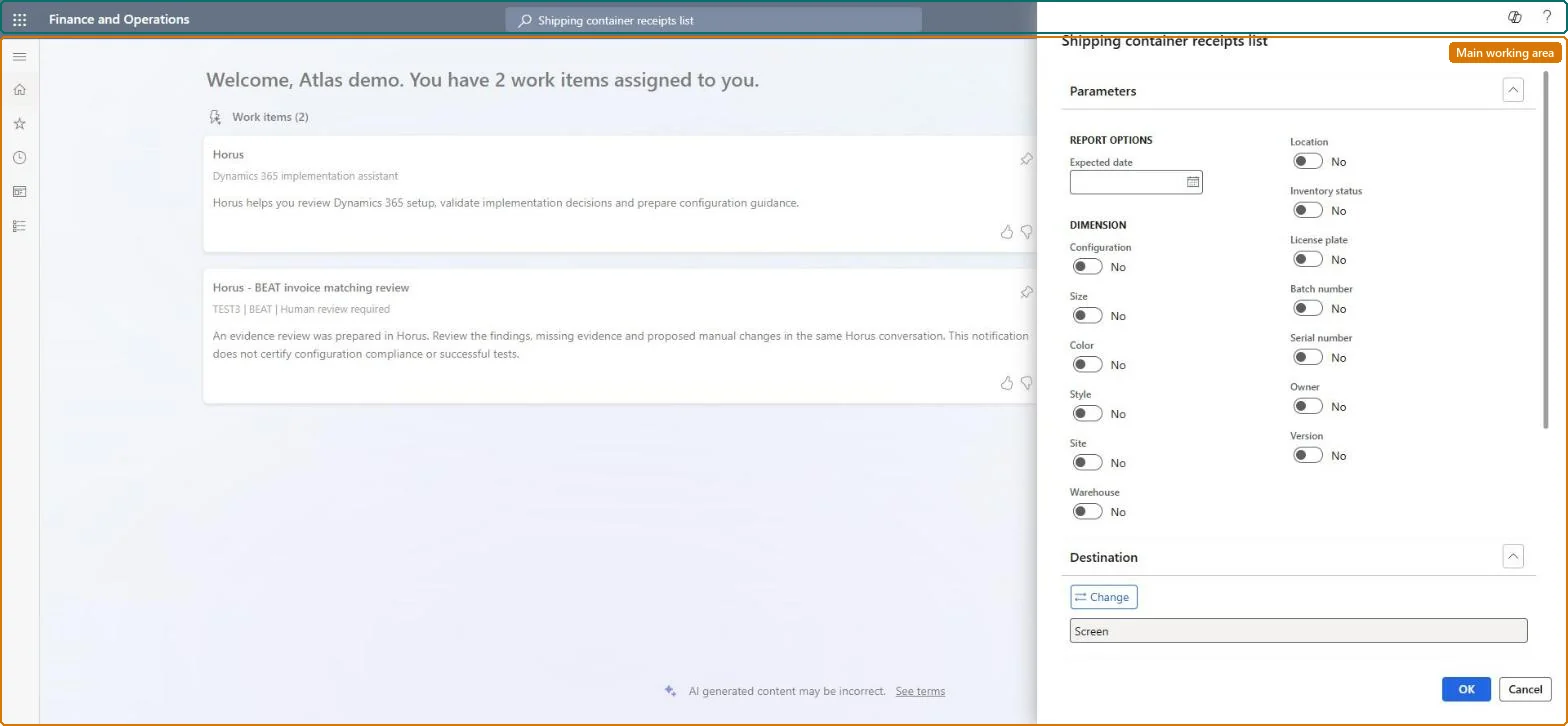
Shipping container receipts list page in Dynamics 365
The page in Dynamics 365. page title tab to open what to set or check
Functional consultant · Solution architect

2Where it fits

Business processManage freight and transportation › Plan loads › Plan inbound transportation loads in Dynamics 365 Supply Chain Management
Menu pathLanded cost › Reports › Tracking › Shipping container receipts list
Related pagesExpected delivery Microsoft Learn
End user · Functional consultant

3How to do it

About the examples: Examples and screenshots in this guide use BEAT, a demo company in a Dynamics 365 test environment. Use your own company's codes and values instead of copying them.

When to run it

When to run itBefore a shipping container arrives, so warehouse staff know which goods to expect and can check them off as they're received.
How oftenOn demand, for each expected container arrival.
What the output showsEvery quantity on a shipping container that isn't received yet and is due on or before the expected date. A line that stays on the list after unloading means that quantity hasn't been received in the system.
Source: Microsoft Learn

Steps from Microsoft

  1. Go to Landed cost > Reports > Tracking > Shipping container receipts list.
  2. In Expected date, enter the date up to which unreceived quantities should be listed.
  3. In the Dimensions section, choose the inventory dimensions to show as columns on the list.
  4. On Records to include, limit the list to one voyage or shipping container if the warehouse needs a separate list per container, then select OK.
  5. Give the list to the warehouse team to check off the goods as they're unloaded from the shipping container.

Source: Microsoft Learn

Fields on the page

FieldWhat it means
Expected dateThe cut-off date; any quantity still unreceived on or before this date appears on the report.Microsoft Learn
DimensionsThe inventory dimensions to show as columns on the report.Microsoft Learn
Solution architect

4Design impact

Can it be undoneNothing to undo: The report only reads voyage lines; it changes nothing. Microsoft Learn
Technical architect

5Technical

FormSysOperationTemplateForm Checked in Dynamics 365
Everyone

6Sources

KEEP EXPLORING

More in Landed cost.

Open the other pages and setup steps in this module, or go back to the Atlas Hub to search every page.