PAGE GUIDEWhat the page does and how to use it8 sections. Choose a role to highlight what matters to you.
Everyone
1What it is and why
What it is
A setup page where you define the reasons that can be recorded for an over-received or under-received quantity, each linked to a movement journal.
What you do here
Use this page to maintain the over-delivery and under-delivery reasons that receivers select on the receiving line when goods arrive with a quantity difference.
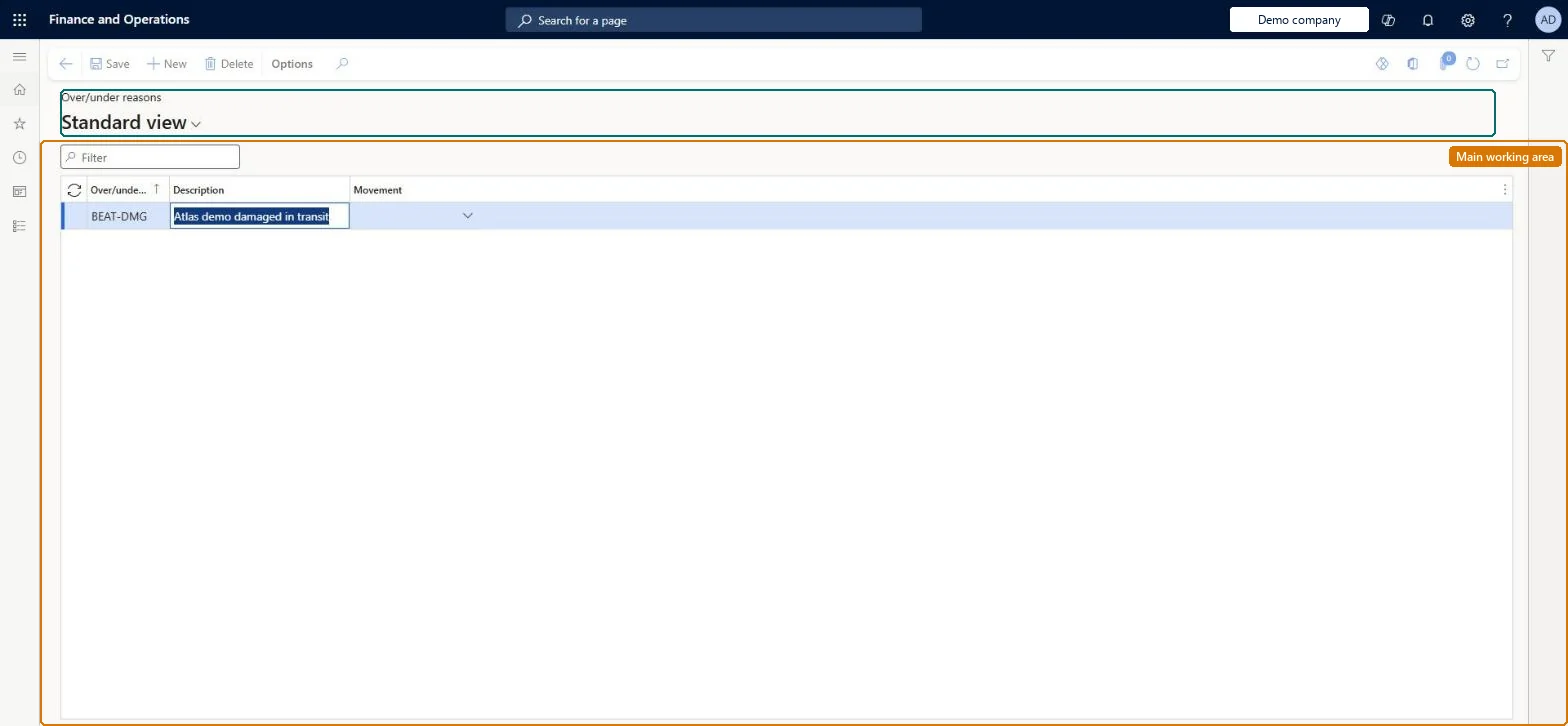
The page in Dynamics 365. page title tab to open what to set or check
About the examples: Examples and screenshots in this guide use BEAT, a demo company in a Dynamics 365 test environment. Use your own company's codes and values instead of copying them.
Setup steps on this page
Set up Over/under reasons
Use this page to maintain the over-delivery and under-delivery reasons that receivers select on the receiving line when goods arrive with a quantity difference.
How to use it
Go to Landed cost > Over/under setup > Over/under reasons.
Use the Filter box to find a reason.
Select New and enter the Over/under reason code and its Description.
Select the Movement the reason applies to.
Select Save, or select a reason and choose Delete to remove it.
One reason per cause of difference, each linked to an inventory journal name of type MovementReceivers select the reason on the receiving line, and the Movement field links the reason to a movement journal name.
Resolving under-deliveries with manual movement or counting journals. Learn says to use the Over/under transactions page instead.
Solution architect
5Design impact
Can it be undone
Reversible: Reasons and their journal links can be changed at any time; transactions already recorded keep their reason. Microsoft Learn
Technical architect
6Technical
Menu item
ITMOverUnderReasonTableChecked in Dynamics 365
Form
ITMOverUnderReasonTableChecked in Dynamics 365
Table
ITMOverUnderReasonTableShown as “OVER/UNDER REASONS” in Record infoKey field: ReasonIdChecked in Dynamics 365
Data entities
ITMOverUnderDeliveryReasonEntityOver/under reasons Checked in Dynamics 365
To set it up or change itLanded cost manager ITMManagerGive people one of these roles. On this system, 1 role can open this page.Checked in Dynamics 365