PAGE GUIDEWhat the page does and how to use it8 sections. Choose a role to highlight what matters to you.
Everyone
1What it is and why
What it is
A setup page where you define how samples are classified and processed.
What you do here
Use this page to make sure samples are managed according to their own requirements, with the right inspection method, label layout and lifecycle states.
Example
For example, sample types can be named Inline or Continuous.
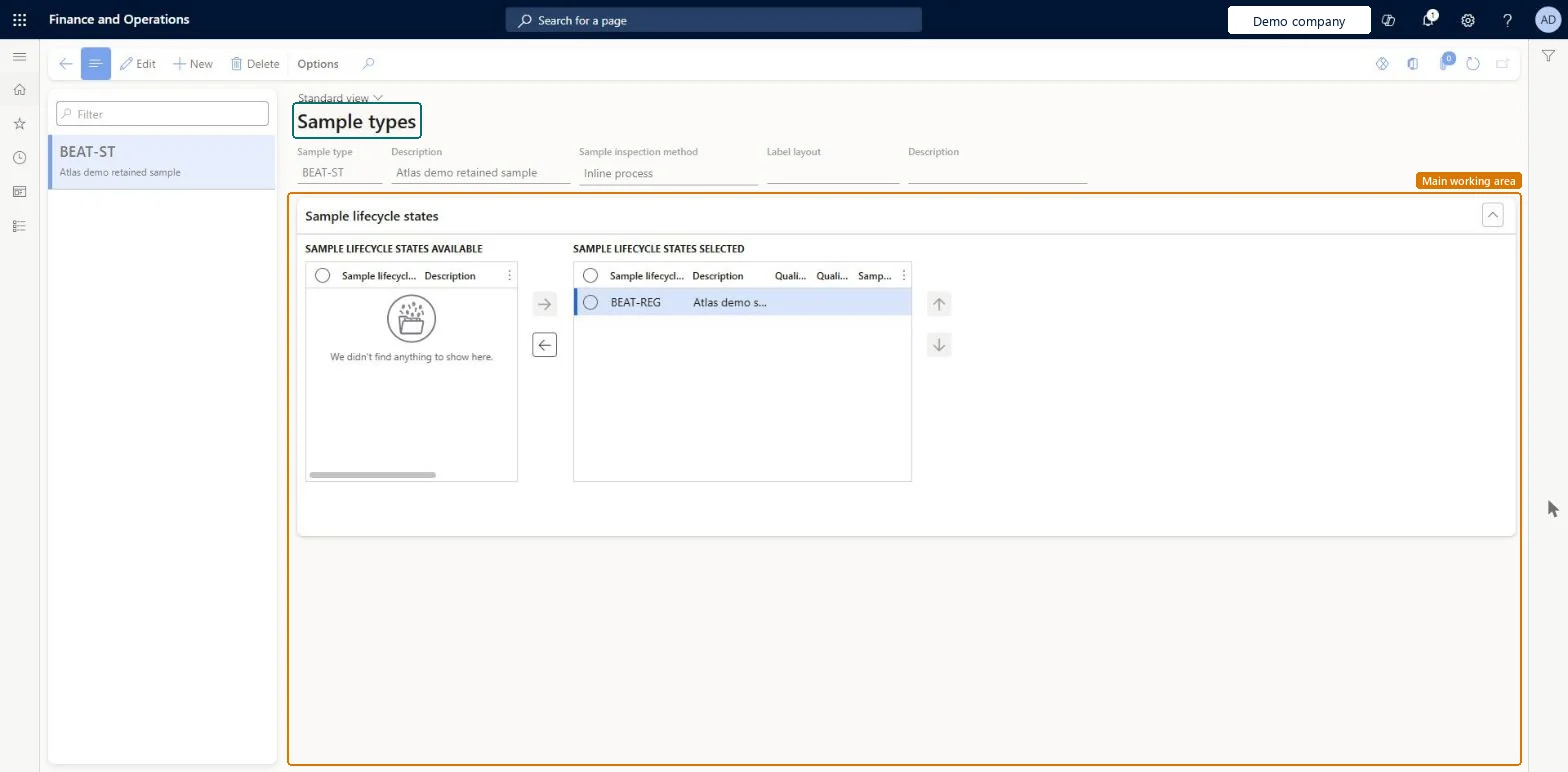
The page in Dynamics 365. page title tab to open what to set or check
About the examples: Examples and screenshots in this guide use BEAT, a demo company in a Dynamics 365 test environment. Use your own company's codes and values instead of copying them.
Step by step, with screenshots
Set up Sample types1 screen
Use this page to make sure samples are managed according to their own requirements, with the right inspection method, label layout and lifecycle states.
Screen 1
Create a sample type
Go to Inventory management > Setup > Sample management > Sample types
Select New
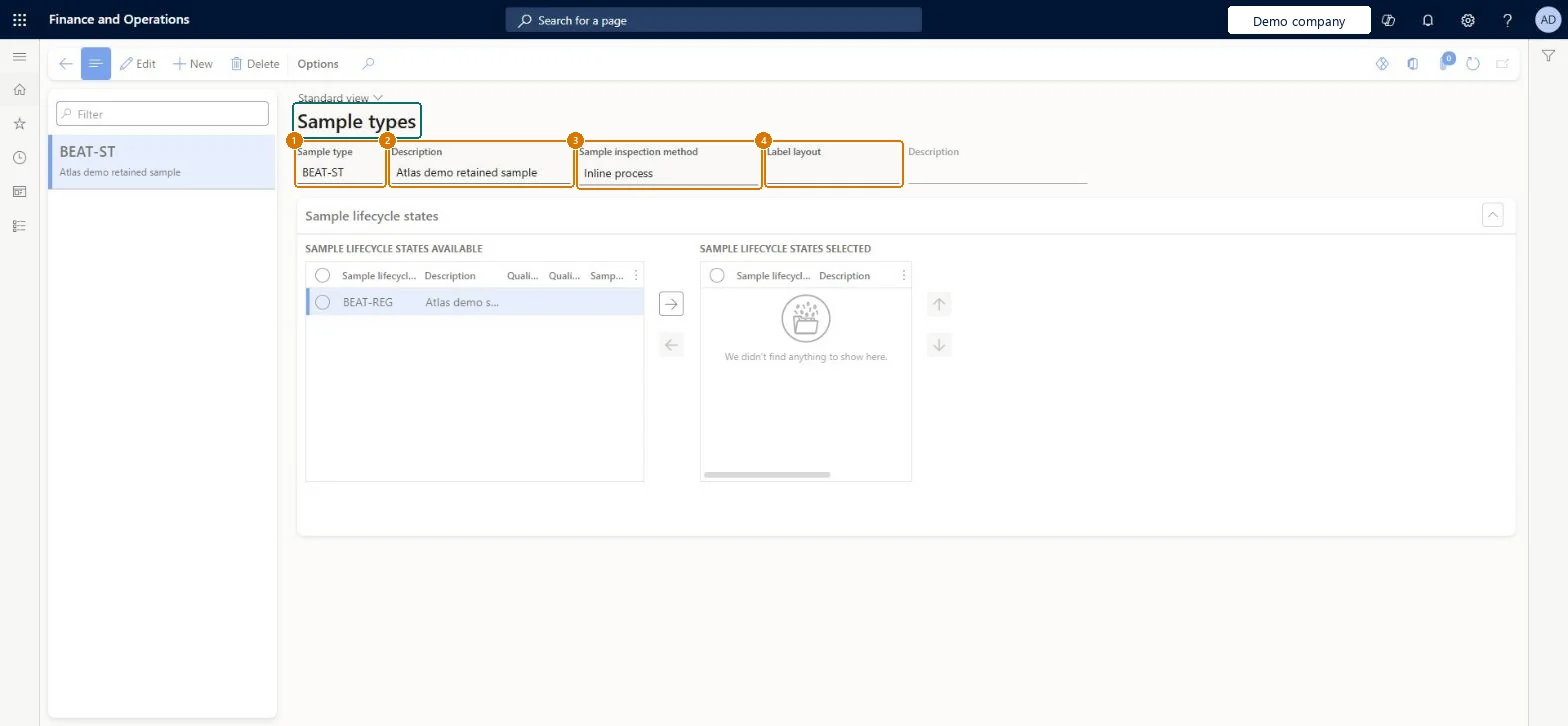
Enter the sample type code and a description
Choose the sample inspection method: Inline process, Continuous process or Both
Optionally select the label layout used to print sample labels
Select Save
Under Sample lifecycle states, move the states this sample type uses from Available to Selected and put them in order
1Sample type
BEAT-ST
2Description
Retained sample
3Sample inspection method
Inline process
4Label layout
(blank)
Show the full screen page title tab to open what to set or check
Steps from Microsoft
Go to Inventory management > Setup > Sample management > Sample types.
Create a new sample type, or select one to edit.
Enter the Sample type and a Description.
Select the Sample inspections method: Inline process, Continuous process or Both.
Select the Label layout.
On the Action Pane, select Save.
On the Sample lifecycle states FastTab, move the relevant states to the Selected list, and save again.
Separate sample types for inline and continuous sampling, each with its inspection method and the lifecycle states it usesThe sample type governs the inspection method and lifecycle states for samples, and sample associations select one type for inline and one for continuous.
Leaving the Sample lifecycle states FastTab empty, so samples of that type don't follow the automatic state changes on quality order creation and validation.
Feature management and licence
Feature to turn on
Advanced quality management (Mandatory, on by default)Sample management (Must be on)
Reversible: Sample types can be edited or deleted. A label layout set here overrides the default sample label layout from the parameters. Microsoft Learn
If you change it later
A label layout set on a sample type overrides the default sample label layout set in the parameters. Microsoft Learn
Technical architect
6Technical
Menu item
QMSSampleTypeChecked in Dynamics 365
Form
QMSSampleTypeChecked in Dynamics 365
Table
QMSSampleTypeShown as “Sample types” in Record infoChecked in Dynamics 365
Data entities
QMSSampleTypeEntityQuality sample types Checked in Dynamics 365
Who can open it
PrivilegesMaintain sample procedure types QMSSampleTypeMaintainView sample procedure type QMSSampleTypeViewDutiesInquire into quality control master InventQualityControlMasterInquireEnable quality control process InventQualityControlProcessEnable2 security rolesQuality control clerk InventQualityControlClerkQuality control manager InventQualityControlManagerChecked in Dynamics 365
Roles to set it up and use it
To set it up or change itQuality control manager InventQualityControlManagerTo use itQuality control clerk InventQualityControlClerkGive people one of these roles. On this system, 2 roles can open this page.Checked in Dynamics 365
Actions on the page
OptionsChecked in Dynamics 365
Developer
7Developer
Open it by URL
https://<your-environment>/?mi=QMSSampleType
Integrate with
QMSSampleTypeEntity data entity Checked in Dynamics 365
Checked in a working Dynamics 365 system, version 10.0.49: the menu item, form, table and security, the page, the demo records and the values in the screenshots.