About the examples: Examples and screenshots in this guide use BEAT, a demo company in a Dynamics 365 test environment. Use your own company's codes and values instead of copying them.
Step by step, with screenshots
Set up Counting reason code policies1 screen
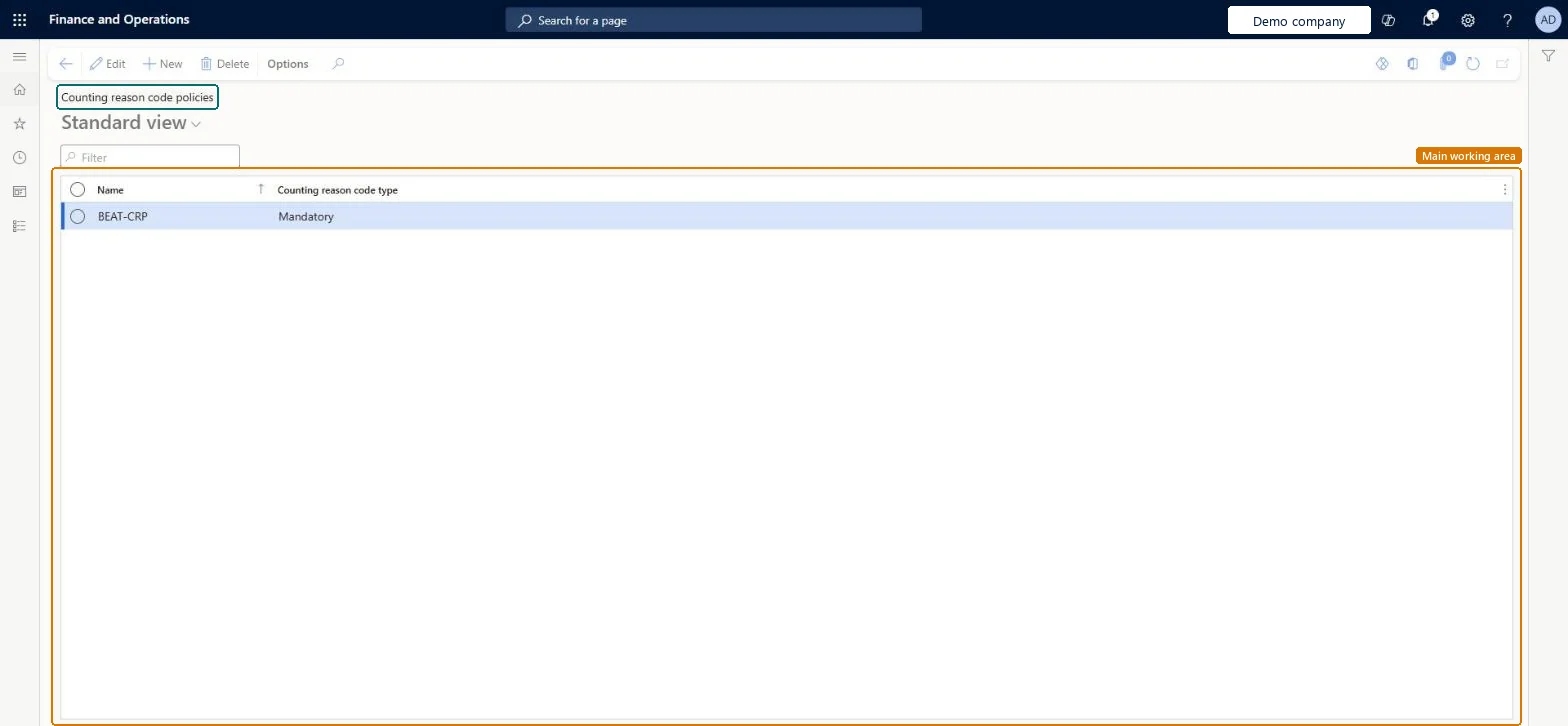
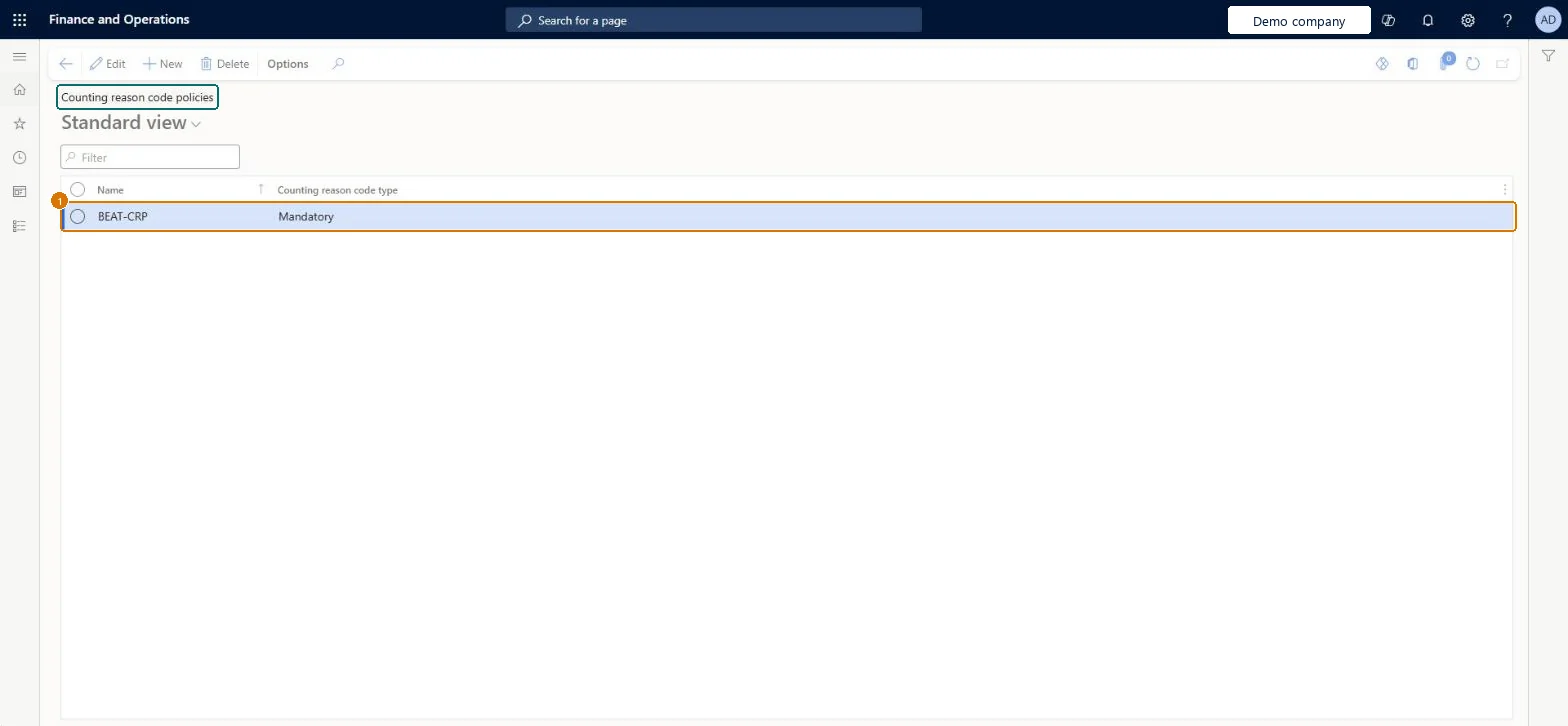
Use this page to control, for a warehouse or an item, whether a reason code must be given during counting and inventory adjustments.
Screen 1
Create a counting reason code policy
Go to Inventory management > Setup > Inventory > Counting reason code policies
Select New
Enter a name for the policy
Choose the counting reason code type: Mandatory or Optional
Select Save
Assign the policy to a warehouse (Warehouses page) or to an item (Released products page) so it applies during counting
1Name
BEAT-CRP
Counting reason code type
Mandatory
Show the full screen page title tab to open what to set or check
Steps from Microsoft
Go to Inventory management > Setup > Inventory > Counting reason code policies.
On the Action Pane, select New.
Enter a Name for the policy.
In the Counting reason code type field, select Mandatory or Optional.
Assign the policy to warehouses on the Warehouses page, or to products on the Released products page.
Assign a policy per warehouse and override on a product only where the item needs a different ruleA product with no policy follows its warehouse's policy, and a product policy overrides the warehouse, so warehouse-level setup keeps item maintenance small.
Reversible: Change or clear the policy on the warehouse or product; the change applies to later counts. Microsoft Learn
If you change it later
A policy set on a product overrules the policy set on its warehouse. Where the policy is Mandatory, a counting journal can't be completed until a reason code is given. Microsoft Learn
Technical architect
6Technical
Menu item
InventCountingReasonCodePolicyChecked in Dynamics 365
Form
InventCountingReasonCodePolicyChecked in Dynamics 365
Table
InventCountingReasonCodePolicyShown as “Counting reason code policies” in Record infoKey field: Name, InventCountingReasonCodeTypeChecked in Dynamics 365
Data entities
InventInventoryCountingReasonCodePolicyEntityInventory counting reason code policies Microsoft data model
Who can open it
PrivilegesMaintain inventory counting reason code policies InventCountingReasonCodePolicyMaintainView inventory counting reason code policies InventCountingReasonCodePolicyViewDutiesInquire into warehouse operation policies WMSWarehouseOperationPoliciesInquireEnable warehouse operation process WMSWarehouseOperationProcessEnableInquire into warehouse operation progress WMSWarehouseOperationProgressInquire8 security rolesMaterials manager InventMaterialsManagerQuality control clerk InventQualityControlClerkQuality control manager InventQualityControlManagerReceiving clerk InventReceivingClerkShipping clerk InventShippingClerkWarehouse planner WHSWarehousePlannerWarehouse manager WMSWarehouseManagerWarehouse worker WMSWarehouseWorkerChecked in Dynamics 365
Roles to set it up and use it
To set it up or change itWarehouse manager WMSWarehouseManagerTo use itQuality control manager InventQualityControlManagerMaterials manager InventMaterialsManagerQuality control clerk InventQualityControlClerkShipping clerk InventShippingClerkWarehouse worker WMSWarehouseWorkerGive people one of these roles. On this system, 8 roles can open this page.Checked in Dynamics 365
Actions on the page
Options: Personalize, Page options, ShareChecked in Dynamics 365
Checked in a working Dynamics 365 system, version 10.0.49: the menu item, form, table and security, the page, the demo records and the values in the screenshots.