About the examples: Examples and screenshots in this guide use BEAT, a demo company in a Dynamics 365 test environment. Use your own company's codes and values instead of copying them.
When to run it
When to run it
When transfer orders or backorders wait for stock and you only want to pick what is available at the shipping warehouse.
How often
On demand, whenever stock arrives for waiting transfer orders.
What the output shows
Picking lists for the transfer order lines with the Activate now quantities you released, reserved automatically. A line with nothing released usually had no Activate remainder or no stock left after Deduct released for picking.
Go to Inventory management > Periodic tasks > Release transfer order picking.
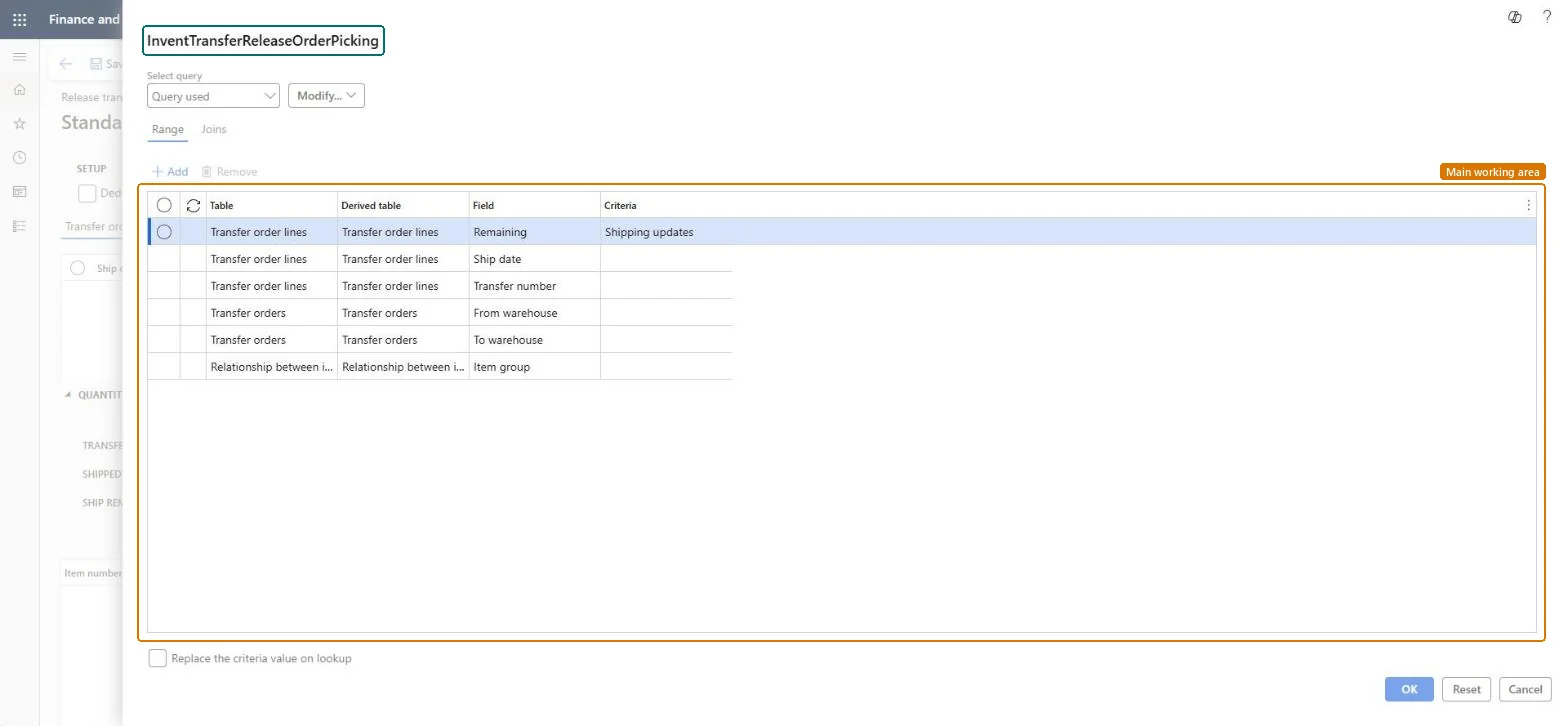
Fill in the query form to select the transfer orders and backorders to process, and select OK.
Select Deduct released for picking if lines whose stock is already on a picking list shouldn't be offered again.
On the Transfer order line tab, select a line and enter the quantity to ship in Activate now. It is reserved automatically and can't be more than the Activate remainder.
Select Recalculate to update the line, repeat for the other lines, and then select Release for pick to post the picking list.
Open the transfer order's picking list and check the quantities. With Picking route status Activated on the Transport tab of Inventory and warehouse management parameters, the picking lines must be updated by hand.
Partly: You can reduce picking list quantities later; whether the rest returns to the transfer order depends on End output inventory order. Microsoft Learn
If you change it later
Reserves the Activate now quantity and posts a picking list for each transfer order released. Microsoft Learn
Technical architect
5Technical
Menu item
InventTransferReleaseOrderPickingChecked in Dynamics 365
Form
InventTransferReleaseOrderPickingChecked in Dynamics 365
Table
InventTransferTableShown as “Transfer orders” in Record infoKey field: TransferIdChecked in Dynamics 365
PrivilegesMaintain transfer order releases for picking InventTransferReleaseOrderPickiMaintainView transfer order releases for picking InventTransferReleaseOrderPickingViewDutiesMaintain release of picking requests InventPickingRequestReleaseInquire into shipping progress InventShippingProgressInquireInquire into warehouse operation progress WMSWarehouseOperationProgressInquire7 security rolesMaterials manager InventMaterialsManagerQuality control clerk InventQualityControlClerkQuality control manager InventQualityControlManagerReceiving clerk InventReceivingClerkShipping clerk InventShippingClerkWarehouse manager WMSWarehouseManagerWarehouse worker WMSWarehouseWorkerChecked in Dynamics 365
Roles to set it up and use it
To set it up or change itWarehouse manager WMSWarehouseManagerShipping clerk InventShippingClerkTo use itQuality control manager InventQualityControlManagerMaterials manager InventMaterialsManagerQuality control clerk InventQualityControlClerkWarehouse worker WMSWarehouseWorkerReceiving clerk InventReceivingClerkGive people one of these roles. On this system, 7 roles can open this page.Checked in Dynamics 365
Actions on the page
Options: Personalize, Page options, Edit, ShareChecked in Dynamics 365