About the examples: Examples and screenshots in this guide use BEAT, a demo company in a Dynamics 365 test environment. Use your own company's codes and values instead of copying them.
When to run it
When to run it
When on-hand queries for items with tracking dimensions slow down because of many closed, zero on-hand entries.
How often
On demand or as a recurring batch job. Microsoft gives no fixed interval.
Batch settings
Run it as a recurring batch job so closed entries are removed regularly, and test it first in a test environment.
What the output shows
Fewer on-hand rows for items with tracking dimensions: closed entries whose quantities and cost values are all zero are deleted. On-hand for items without tracking dimensions is never touched. Gaps in past-date reports point to entries this job removed.
Go to Inventory management > Periodic tasks > Clean up > On-hand entries cleanup.
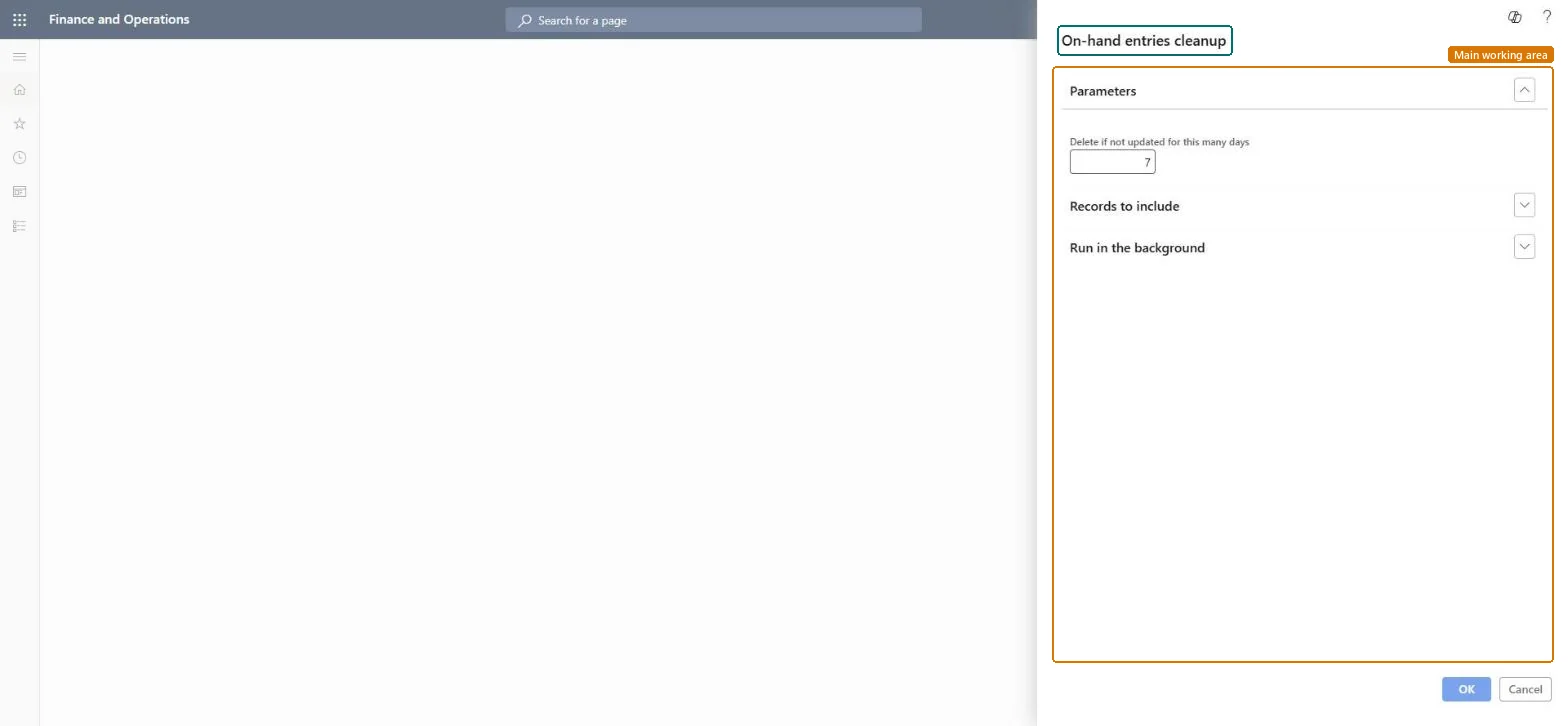
In Delete if not updated for this many days, enter how long a closed on-hand entry must stay unchanged before it's deleted (the default is 7). Entries that change during that period are kept.
Before you run it, agree with the people who use the Physical inventory by inventory dimension report, because the job can remove data that report needs for past dates.
Use Records to include to limit which on-hand entries are considered, and set batch options under Run in the background.
Afterwards, open on-hand for an item with batch or serial tracking: open quantities and values are the same, and only closed entries with zero quantity and cost are gone.
No: Deleted on-hand entries can't be restored, and reports for past dates can show incomplete data for the periods they covered. Microsoft Learn
If you change it later
Historical and "as of date" reports can show incomplete data for periods where on-hand rows were removed. Microsoft Learn
Technical architect
5Technical
Menu item
action:InventCleanupTrackingInventSumChecked in Dynamics 365
Form
SysOperationTemplateFormChecked in Dynamics 365
Roles to set it up and use it
To use itInformation technology manager SysServerITManagerGive people one of these roles. On this system, 1 role can run this page.Checked in Dynamics 365