About the examples: Examples and screenshots in this guide use BEAT, a demo company in a Dynamics 365 test environment. Use your own company's codes and values instead of copying them.
When to run it
When to run it
When you need physical on-hand quantities per dimension today or on a past date, for example for a count or an audit.
How often
On demand.
What the output shows
Physical inventory quantities per item and per dimension you switched on, as of the date you entered. On-hand cleanup routines remove closed zero-quantity records, so past-date results can miss a batch or location that has since dropped to zero.
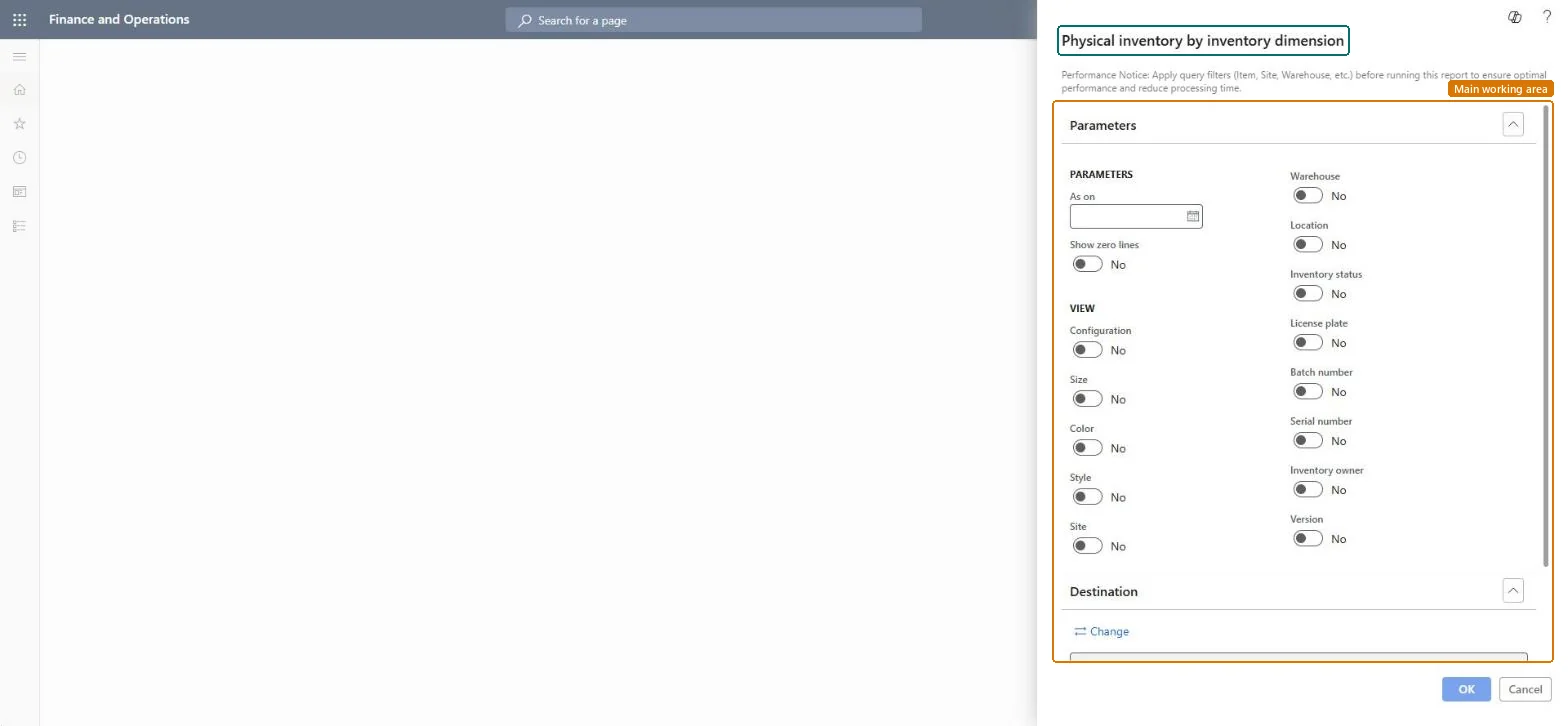
Go to Inventory management > Inquiries and reports > Physical inventory reports > Physical inventory by inventory dimension.
Apply filters such as Item, Site and Warehouse before you run it, as the notice at the top of the dialog advises, so the report doesn't read all on-hand records.
Enter the As on date to see physical inventory on a past date, and switch Show zero lines to Yes only if lines with zero quantity are needed.
Use Closed transactions if dimensions whose transactions are already closed should be included.
Under View, switch on the dimensions to break the figures down by, such as Warehouse, Location, Batch number or License plate.
Run the report and compare the quantity per dimension with what is physically there.
Runs the report for a past date instead of today.Microsoft Learn
Closed transactions
Includes dimensions whose transactions are already closed.Microsoft Learn
Solution architect
4Design impact
Can it be undone
Nothing to undo: The report only reads on-hand data. Note that cleanup routines can remove data it uses for past dates. Microsoft Learn
If you change it later
On-hand cleanup removes zero-quantity rows, so past-date results (As of date or Closed transactions) can miss dimensions that have since dropped to zero. Microsoft Learn
Technical architect
5Technical
Menu item
output:InventDimPhysChecked in Dynamics 365
Form
SysOperationTemplateFormChecked in Dynamics 365
Roles to set it up and use it
To use itQuality control manager InventQualityControlManagerWarehouse manager WMSWarehouseManagerMaterials manager InventMaterialsManagerProduction supervisor ProdProductionSupervisorAccounting manager LedgerAccountingManagerGive people one of these roles. On this system, 16 roles can run this page.Checked in Dynamics 365