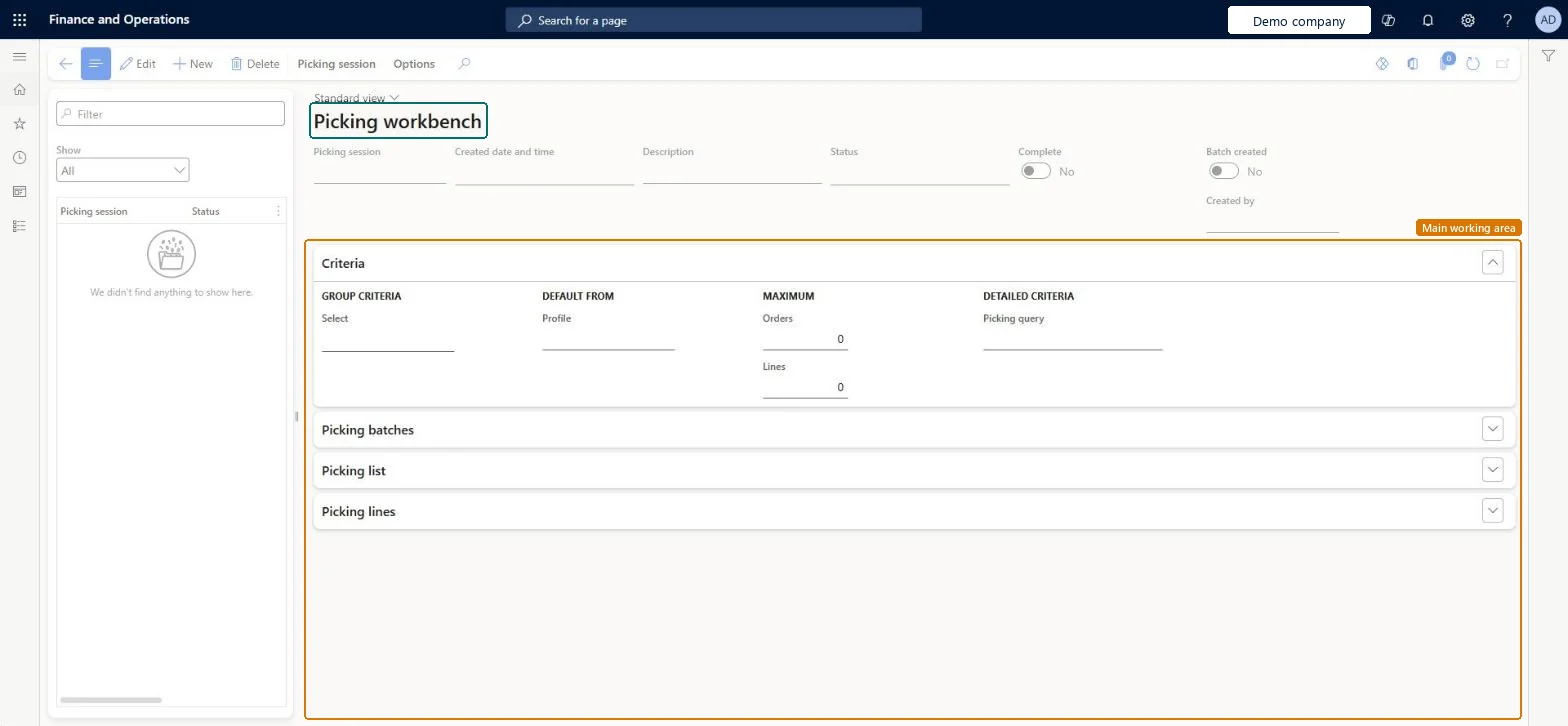
About the examples: Examples and screenshots in this guide use BEAT, a demo company in a Dynamics 365 test environment. Use your own company's codes and values instead of copying them.
Steps from Microsoft
Open the Picking workbench page.
Select New to create a new workbench session.
Optional: enter a Description for the session.
On the Criteria FastTab, enter the search criteria, or select a workbench profile in the Profile field.
Select Generate picking batches.
On the Batches FastTab, optionally select the user in the Assigned to field.
Select Print batch to print the picking lists in the batch.
Running the workbench clears any Deliver now quantity on the sales lines; picking is based on the quantity that can be reserved. Microsoft Learn
Technical architect
5Technical
Menu item
MCRPickingWorkbenchChecked in Dynamics 365
Form
MCRPickingWorkbenchChecked in Dynamics 365
Table
MCRPickingWorkbenchSessionShown as “Picking workbench sessions” in Record infoChecked in Dynamics 365
Who can open it
PrivilegesMaintain the picking workbench MCRPickingWorkbenchMaintainView the picking workbench MCRPickingWorkbenchViewDutiesInquire into picking processes MCRInventPickInquireMaintain the picking workbench MCRInventPickMaintain5 security rolesMCRTestUserRoleBuying agent TradeBuyingAgentSales clerk TradeSalesClerkWarehouse manager WMSWarehouseManagerWarehouse worker WMSWarehouseWorkerChecked in Dynamics 365
Roles to set it up and use it
To set it up or change itBuying agent TradeBuyingAgentSales clerk TradeSalesClerkTo use itWarehouse manager WMSWarehouseManagerWarehouse worker WMSWarehouseWorkerGive people one of these roles. On this system, 4 roles can open this page.Checked in Dynamics 365