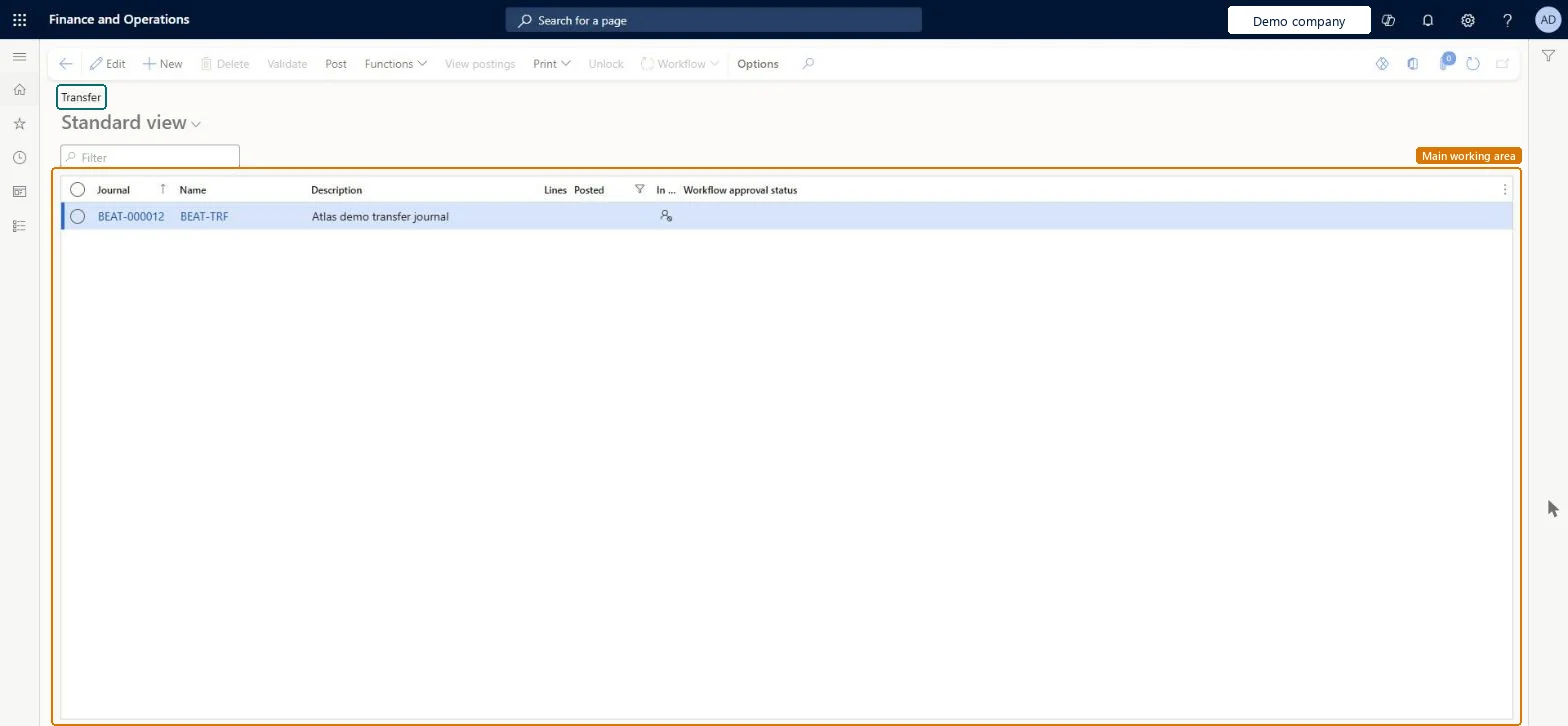
About the examples: Examples and screenshots in this guide use BEAT, a demo company in a Dynamics 365 test environment. Use your own company's codes and values instead of copying them.
Steps from Microsoft
Go to Inventory management > Journal entries > Items > Transfer.
On the Action Pane, select New, choose the journal name, and select OK.
On the Journal lines FastTab, select New and enter the Item number.
Enter the From site, To site, From warehouse and To warehouse.
Enter the From location and To location, and the Quantity.
Select Save.
On the Action Pane, select Post, and then select OK.
The stock moves at once and goods in transit aren't tracked; use a transfer order when you need that. Microsoft Learn
Technical architect
5Technical
Menu item
InventJournalTableTransferChecked in Dynamics 365
Form
InventJournalTransferChecked in Dynamics 365
Table
InventJournalTableShown as “Inventory journal table” in Record infoKey field: JournalId, JournalType, JournalNameId, DescriptionChecked in Dynamics 365
Data entities
InventInventoryAdjustmentJournalHeaderEntityInventory adjustment headers Microsoft data model InventInventoryCountingJournalHeaderEntityInventory counting journal headers Microsoft data model InventInventoryMovementJournalHeaderEntityInventory movement headers Microsoft data model ProjectItemJournalTableEntityProject item journal header Microsoft data model
Roles to set it up and use it
To set it up or change itRetail service RetailServiceWarehouse worker WMSWarehouseWorkerRetail store manager RetailStoreManagerTo use itQuality control manager InventQualityControlManagerWarehouse manager WMSWarehouseManagerMaterials manager InventMaterialsManagerQuality control clerk InventQualityControlClerkProduction supervisor ProdProductionSupervisorGive people one of these roles. On this system, 26 roles can open this page.Checked in Dynamics 365
Actions on the page
Options: Personalize, Page options, ShareChecked in Dynamics 365