About the examples: Examples and screenshots in this guide use BEAT, a demo company in a Dynamics 365 test environment. Use your own company's codes and values instead of copying them.
When to run it
When to run it
When the ledger trial balance and the inventory value don't match after inventory close, recalculation or a consistency check.
How often
At period end during reconciliation, and on demand when a difference appears.
What the output shows
Items and transactions where the inventory value and the general ledger value differ for the period. If nothing is listed but balances still differ, rebuild the trial balance for the account first, as Microsoft suggests.
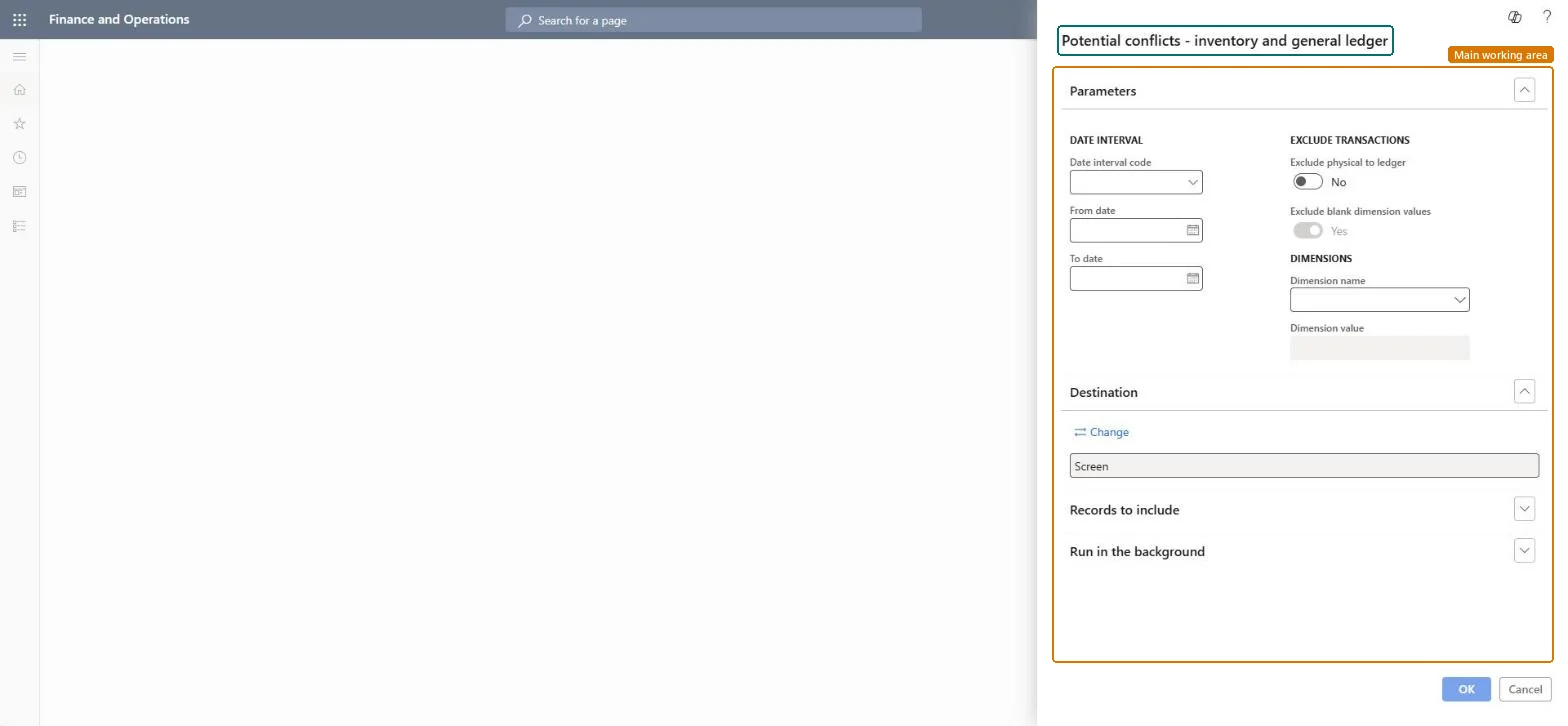
Go to Inventory management > Inquiries and reports > Inventory value reports > Potential conflicts - inventory and general ledger.
Select a Date interval code, or enter the From date and To date for the period you reconcile.
In Main account, limit the report to the inventory ledger accounts you are reconciling.
Switch Exclude physical to ledger to Yes to leave out physical transactions posted to the ledger, and Exclude blank dimension values to leave out transactions with empty dimension values.
Under Dimensions, select a Dimension name and enter the Dimension value to narrow the result, then run the report and note the items that cause differences.
For those items, run Inventory value report storage to trace the transactions behind each difference.
The ledger account whose transactions are included.Microsoft Learn
Exclude physical to ledger
Leaves out physical inventory transactions that were posted to the ledger.Microsoft Learn
Exclude blank dimension values
Leaves out transactions that have empty dimension values.Microsoft Learn
Solution architect
4Design impact
Can it be undone
Nothing to undo: The conflicts report only compares inventory and ledger data; it changes nothing. Microsoft Learn
Technical architect
5Technical
Menu item
output:InventLedgerConflictChecked in Dynamics 365
Form
SysOperationTemplateFormChecked in Dynamics 365
Roles to set it up and use it
To use itAccounting manager LedgerAccountingManagerInventory accountant clerk InventCostCostClerkInventory accountant InventCostAccountantChief executive officer CompanyChiefExecutiveOfficerAuditor AuditPolicyManagerGive people one of these roles. On this system, 9 roles can run this page.Checked in Dynamics 365