PAGE GUIDEWhat the page does and how to use it8 sections. Choose a role to highlight what matters to you.
Everyone
1What it is and why
What it is
A setup page where you define employment categories that match your workers, each linked to a worker type.
What you do here
Use this page to create the employment categories that can be used, for example, in benefit eligibility rules.
Example
For example, BEAT creates the categories FT-REG (worker type Employee, regular full time) and SEASONAL (Employee, seasonal); an eligibility rule with Use employment category = Yes and category FT-REG then offers the dental plan to the 52 regular employees and not to the 8 seasonal ones.
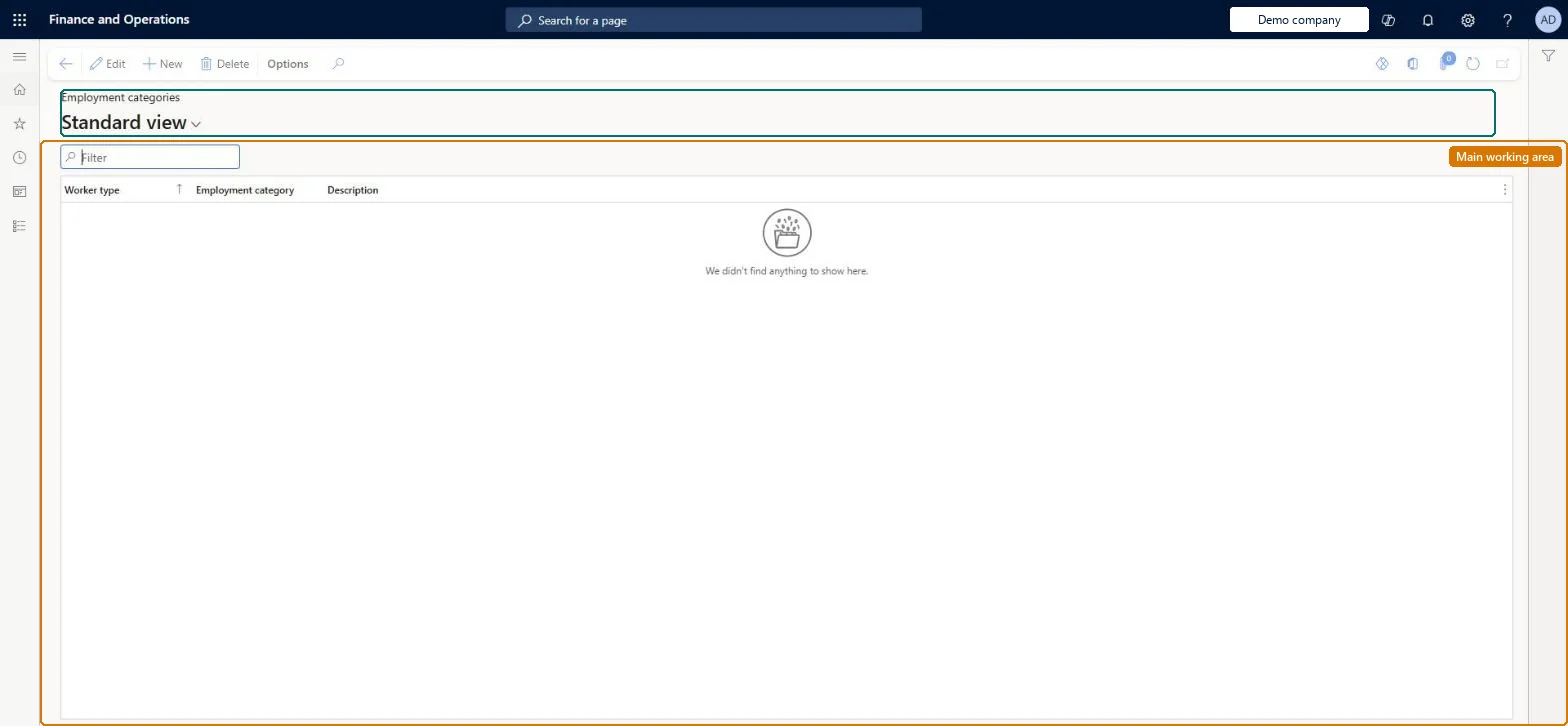
The page in Dynamics 365. page title tab to open what to set or check
About the examples: Examples and screenshots in this guide use BEAT, a demo company in a Dynamics 365 test environment. Use your own company's codes and values instead of copying them.
Setup steps on this page
Set up Employment categories
Use this page to create the employment categories that can be used, for example, in benefit eligibility rules.
Steps from Microsoft
Go to Human resources > Setup > Employment categories.
Select New.
Enter values for Worker type, Employment category and Description.
One employment category per worker type grouping that benefit eligibility rules need to tell apartEach category is tied to a worker type, and eligibility rules can use the employee's Employment category when Use employment category is set to Yes.
Shared: employment categories are not per company. Data management lists the Employment category entity as shared. Checked in Dynamics 365
Can it be undone
Hard to reverse: Employment categories are referenced by employment details and benefit eligibility rules, and a change on a worker creates a life event. Microsoft Learn
If you change it later
A new or updated employment detail with a different employment category creates a Worker eligibility change life event, so benefit eligibility is processed again for that worker. Microsoft Learn
Technical architect
6Technical
Menu item
BenefitEmploymentCategoryChecked in Dynamics 365
Form
BenefitEmploymentCategoryChecked in Dynamics 365
Table
BenefitEmploymentCategoryShown as “EMPLOYMENT CATEGORY” in Record infoKey field: EmploymentCategoryChecked in Dynamics 365
Data entities
HcmEmploymentCategoryEntityEmployment category Checked in Dynamics 365
Who can open it
PrivilegesMaintain employment categories BenefitEmploymentCategoryDutiesConfigure the employment categories BenefitEmploymentCategoryDuty2 security rolesHuman resource assistant HcmHumanResourceAssistantHuman resource manager HcmHumanResourceManagerChecked in Dynamics 365
Roles to set it up and use it
To set it up or change itHuman resource assistant HcmHumanResourceAssistantHuman resource manager HcmHumanResourceManagerGive people one of these roles. On this system, 2 roles can open this page.Checked in Dynamics 365
HcmEmploymentCategoryEntity data entity Checked in Dynamics 365
Data migration
HcmEmploymentCategoryEntity Employment category. Shared by all companies.Load order: Load with the Benefits management template, where Employment category comes first, before employment details and eligibility rules that use it.Microsoft Learn