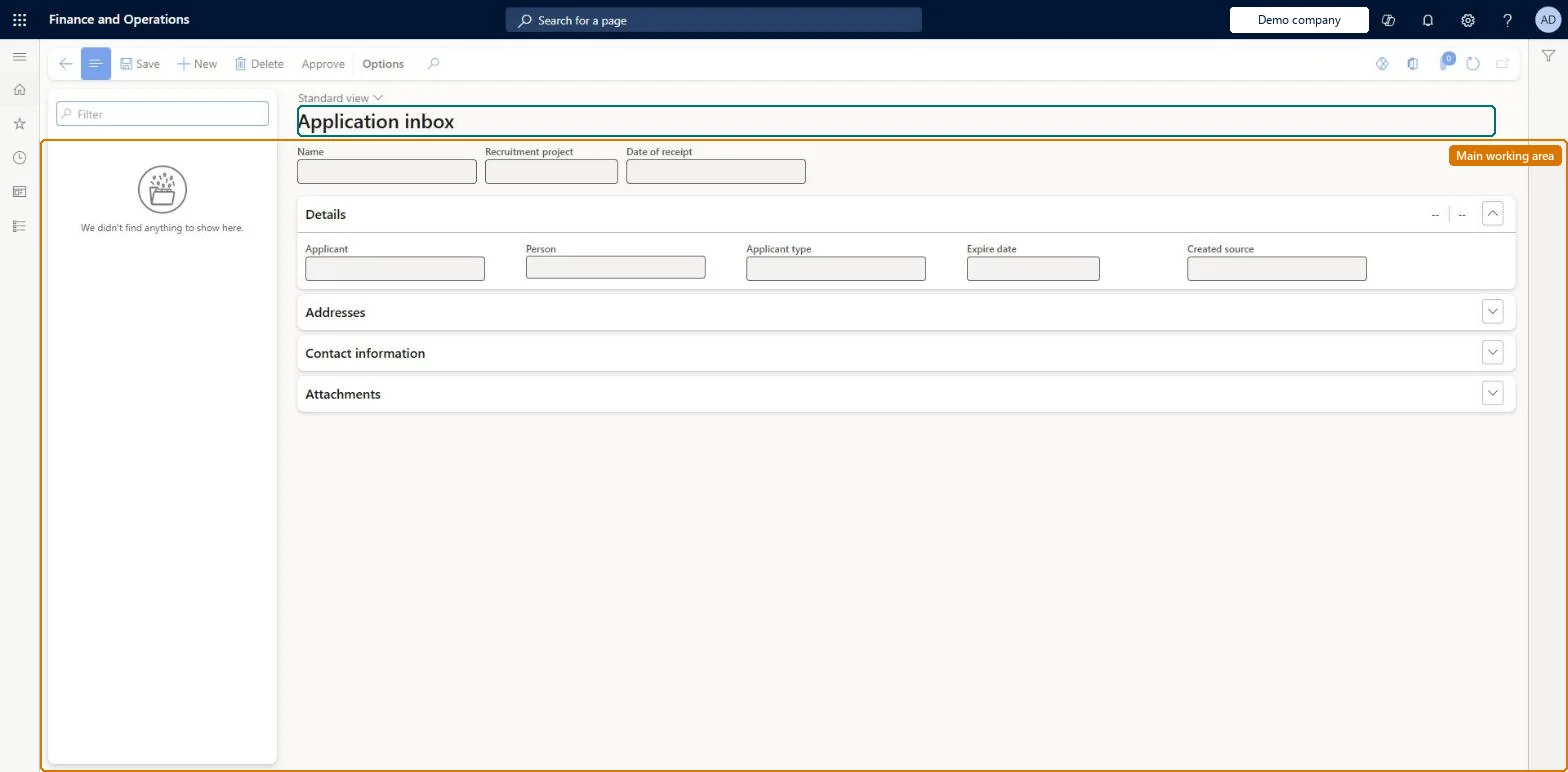
A page that holds incoming applications before they are approved, each with the applicant's name, the recruitment project, the date of receipt and where the application came from.
PAGE GUIDEWhat the page does and how to use it8 sections. Choose a role to highlight what matters to you.
Everyone
1What it is and why
What it is
A page that holds incoming applications before they are approved, each with the applicant's name, the recruitment project, the date of receipt and where the application came from.
What you do here
Use it to check each incoming application, complete the applicant details, and approve it or delete it.
Example
For example, on Monday the BEAT recruiter finds 9 entries in the inbox, deletes 1 duplicate, moves 2 from the general project to REC-0042, and approves the other 8.
The page in Dynamics 365. page title tab to open what to set or check
About the examples: Examples and screenshots in this guide use BEAT, a demo company in a Dynamics 365 test environment. Use your own company's codes and values instead of copying them.
Setup steps on this page
Screen the application inbox
Check incoming applications before they become applications on a project.
How to use it
Go to Human resources > Recruitment > Applications > Application inbox.
Use the Filter box to find an application in the list.
Select New and enter the Name, Recruitment project and Date of receipt.
On the Details FastTab, fill in Applicant, Person, Applicant type, Expire date and Created source, then expand Addresses, Contact information and Attachments as needed.
Select Save, then select Approve to approve the application, or Delete to remove it.
Source: Checked in Dynamics 365
Fields on the page
Field
What it means
Example
Recruitment project
The recruitment project the incoming application is for.Checked in Dynamics 365
REC-0042
Date of receipt
The date the application was received.Checked in Dynamics 365
3 November
Name
The name of the person who applied.Checked in Dynamics 365
Sara Thomas
Common errors and fixes
Message
What to do
An application sits on the general project instead of the advertised opening
Applications sent without a job ad go to the unsolicited-applications project from Human resources parameters. Change the Recruitment project on the entry before you approve it. Microsoft Learn
Test checklist
Create an inbox entry with Name, Recruitment project REC-0042 and today's Date of receipt.
Fill Applicant type and Expire date on the Details FastTab and save.
Check the entry is listed with the project and date you entered and that Approve is available.
Check the inbox daily: correct the Recruitment project of every entry, delete duplicates, then approve.An application counts for the opening of its recruitment project, and unsolicited applications land on the project set in Human resources parameters.
Recruiters and HR managers use it: the live security grants it to the Human resource manager and Recruiter roles. No Feature management feature is needed for this page.
Per company: inbox entries belong to the legal entity you are signed in to. Data management lists the Application basket entity as not shared. Checked in Dynamics 365
Can it be undone
Reversible: Entries can be corrected or deleted while they are in the inbox; check the recruitment project before approving. Microsoft Learn
If you change it later
Applications for a job ad are tied to the ad's recruitment project and unsolicited ones to the project set in Human resources parameters, so the project on each entry decides which opening the application counts for. Microsoft Learn
Technical architect
6Technical
Menu item
HRMApplicationBasketChecked in Dynamics 365
Form
HRMApplicationBasketChecked in Dynamics 365
Table
HRMApplicationBasketShown as “APPLICATION BASKET” in Record infoChecked in Dynamics 365
Data entities
HcmApplicationInboxEntityApplication basket Checked in Dynamics 365
Who can open it
PrivilegesMaintain application basket records HRMApplicationBasketMaintainView application basket records HRMApplicationBasketViewDutiesEnable recruitment process HcmRecruitmentProcessEnableInquire into recruitment process HcmRecruitmentProcessInquire2 security rolesHuman resource manager HcmHumanResourceManagerRecruiter HcmRecruiterChecked in Dynamics 365
Roles to set it up and use it
To set it up or change itRecruiter HcmRecruiterTo use itHuman resource manager HcmHumanResourceManagerGive people one of these roles. On this system, 2 roles can open this page.Checked in Dynamics 365
Actions on the page
(Action Pane without tabs): ApproveChecked in Dynamics 365
HcmApplicationInboxEntity data entity Checked in Dynamics 365
Data migration
HcmApplicationInboxEntity Application basket: the entries waiting in the inbox, per company.Load order: Learn's default Data management templates don't include this recruitment entity, so add it to your own project. Inbox entries are normally worked off before go-live; if you load them, load them after the recruitment projects they point to.Load first: HcmRecruitingProjectEntityMicrosoft Learn