PAGE GUIDEWhat the page does and how to use it8 sections. Choose a role to highlight what matters to you.
Everyone
1What it is and why
What it is
A report that prints the department records of Human resources, the operating units that represent functional areas such as sales or accounting.
What you do here
Use this report to print the departments you select and compare them with the organization chart.
Example
For example, after a reorganization BEAT prints the report for all 14 departments and finds that Logistics, merged into Operations, is still listed and still has 2 positions.
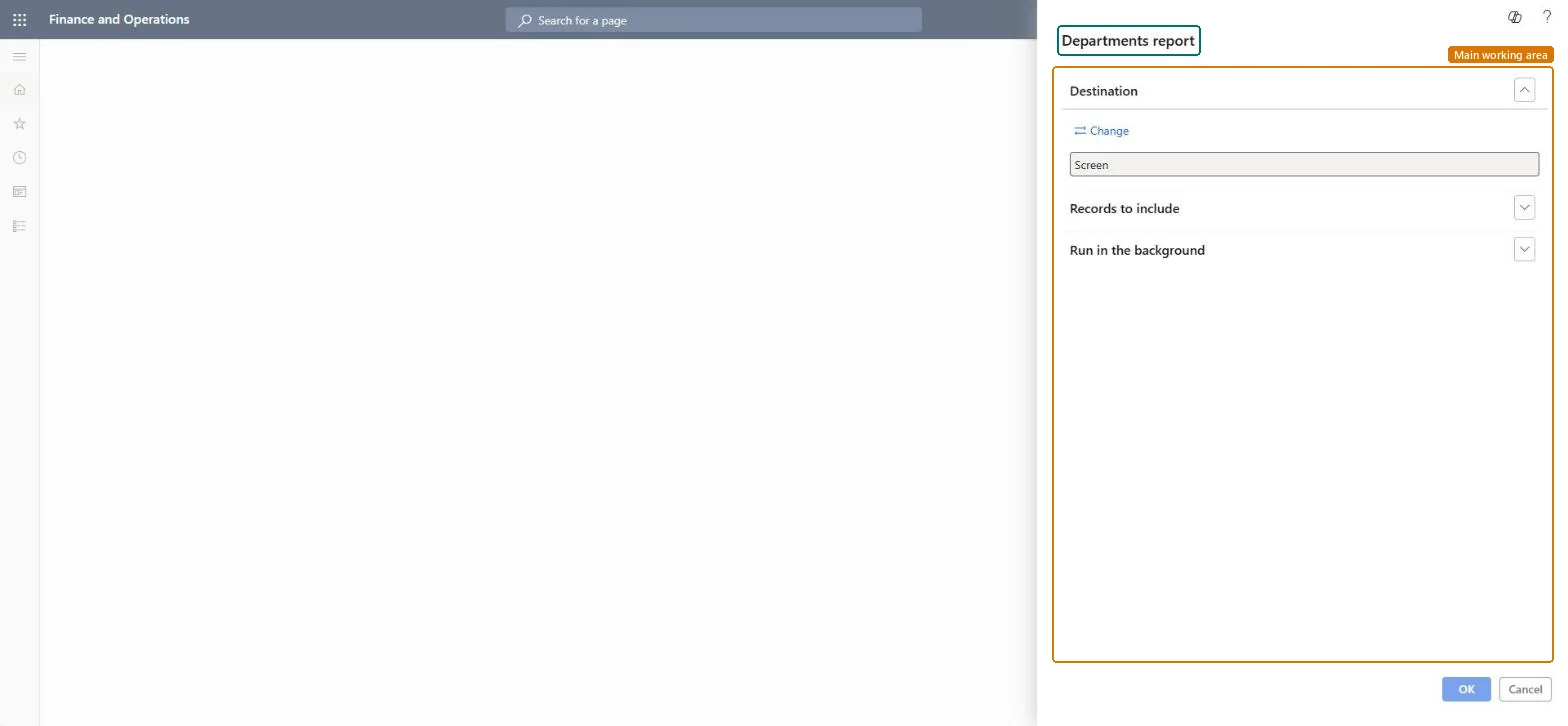
The page in Dynamics 365. page title tab to open what to set or check
About the examples: Examples and screenshots in this guide use BEAT, a demo company in a Dynamics 365 test environment. Use your own company's codes and values instead of copying them.
When to run it
When to run it
When you set up or clean up the department structure, or before you build reports that are grouped by department.
How often
On demand, after departments are created, renamed or retired.
What the output shows
A list of the department records you selected. A department you expect but don't see usually doesn't exist in Human resources or is excluded by your filter.
Check the departments in the system match the organization chart.
Steps from Microsoft
Go to Human resources > Departments > Departments report.
Before you run it, make sure the departments you want to see exist as operating units in Human resources, because the report lists those department records.
In Records to include, filter on the departments you need, for example the departments of one division.
The Destination shows Screen; select Change only when you want the list as a file or printout.
Read the list and compare it with your organization chart to find departments that are missing or no longer used.
It doesn't exist in Human resources, or the Records to include filter excludes it. Create it on the Departments page or clear the filter. Microsoft Learn
Test checklist
Create a department.
Run the report with no filter.
Check the new department is printed and the count matches the Departments page.
Run it after departments are created, renamed or merged, and compare it line by line with the approved chart.Positions, the department hierarchy and reports by department all read these department records.
On BEAT the page is run by Human resource manager, Human resource assistant, Compensation and benefits manager, Recruiter and Training manager; the full list is under the page's security roles. No Feature management feature is needed for this page.
Shared data: departments are operating units, which Data management lists as shared, so the report prints the same departments from any legal entity. Checked in Dynamics 365
Can it be undone
Nothing to undo: The report only reads department records; it changes nothing. Microsoft Learn
If you change it later
The report reads department records as they are; a department renamed or added after the run is on it only when it is run again. Microsoft Learn
Technical architect
6Technical
Menu item
HRMDepartmentsChecked in Dynamics 365
Form
SysOperationTemplateFormChecked in Dynamics 365
Roles to set it up and use it
To use itHuman resource manager HcmHumanResourceManagerHuman resource assistant HcmHumanResourceAssistantCompensation and benefits manager HcmCompensationAndBenefitsManagerRecruiter HcmRecruiterTraining manager HcmTrainingManagerGive people one of these roles. On this system, 7 roles can run this page.Checked in Dynamics 365
Developer
7Developer
Open it by URL
https://<your-environment>/?mi=HRMDepartments
Data migration
Load order: The Departments report has no data entity in Data management, so it can't be loaded from a file or a configuration template. It prints department records; load departments with the Operating unit entity and run the report in each environment.Microsoft Learn