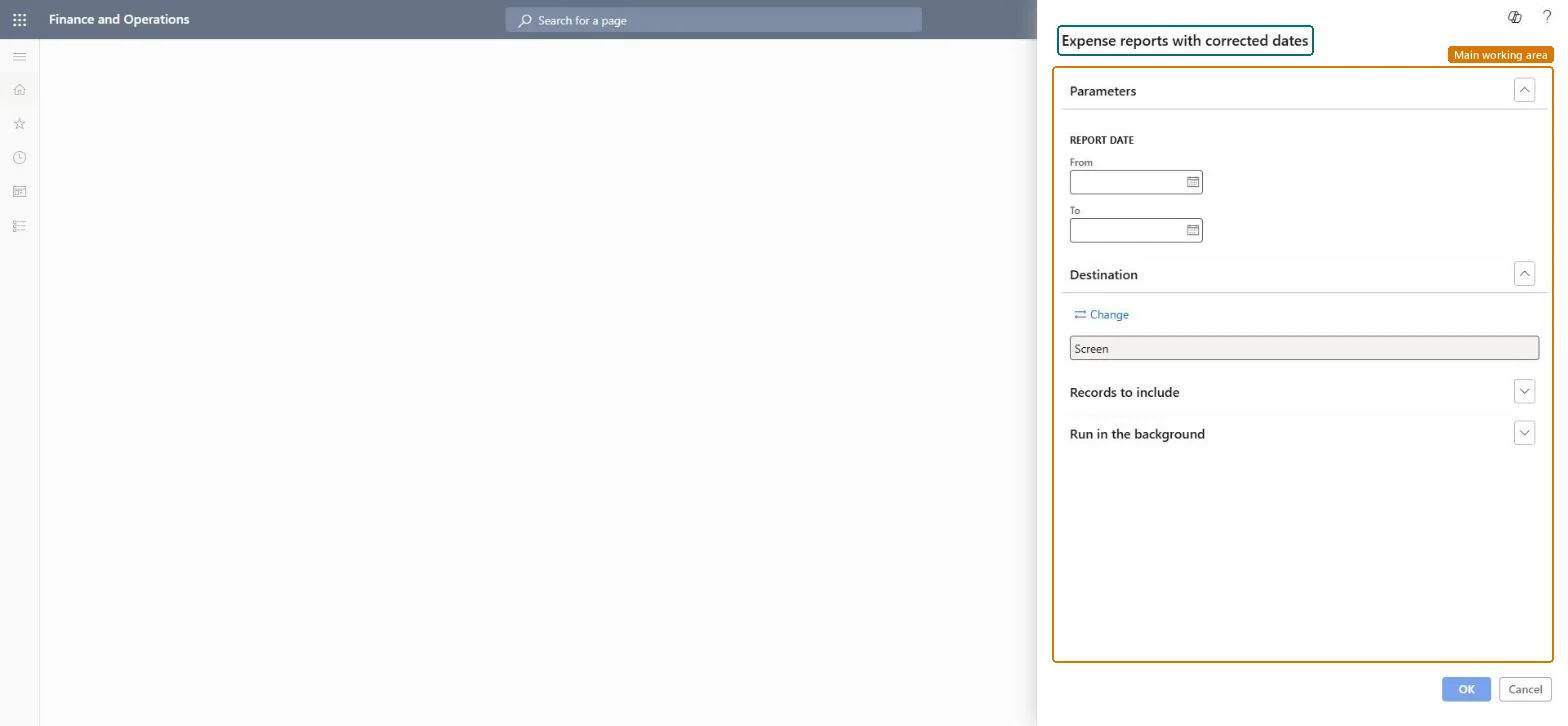
PAGE GUIDEWhat the page does and how to use it8 sections. Choose a role to highlight what matters to you.
Everyone
1What it is and why
What it is
A report that finds expense reports whose dates were changed.
What you do here
Use this report as an audit control: it lists expense reports whose accounting date was moved at posting because the period was on hold or closed, with the original date and the date of correction.
Example
For example, in March the January period is closed; posting moves an expense dated 28 January to 1 March, and this report shows the original 28 January date next to the date of correction for the auditor.
The page in Dynamics 365. page title tab to open what to set or check
About the examples: Examples and screenshots in this guide use BEAT, a demo company in a Dynamics 365 test environment. Use your own company's codes and values instead of copying them.
When to run it
When to run it
During expense audits, to find expense lines whose transaction dates were changed after entry.
How often
On demand, for example monthly or before an audit.
What the output shows
Expense reports with edited dates, showing the original transaction date and the date of correction. Many corrections by one employee, or dates moved into another period, are worth a closer look.
Run it monthly after period close and keep it with the close file.With Correct accounting date during posting on, an expense in a closed period posts in the next open one, so the ledger date differs from the transaction date.
In this system Employee and Contractor enter their own expenses, and Expense administrator sets up the module and processes documents. The expense mobile app needs the Employee role, a company on the user account and a link to an employee with active employment. The expense administrator runs this report; no Feature management feature is needed.
Per company: the report runs in the legal entity you are signed in to and reads that company's expense data. Microsoft Learn
Can it be undone
Nothing to undo: The report only reads expense data; it changes nothing. Microsoft Learn
If you change it later
Dates are corrected when Correct accounting date during posting is on and the period of the expense is on hold or closed: posting moves the accounting date to the next open period. Microsoft Learn
Technical architect
6Technical
Menu item
output:TrvExpReportCorrectedAccountingDateChecked in Dynamics 365
Form
SysOperationTemplateFormChecked in Dynamics 365
Roles to set it up and use it
To use itExpense administrator ExpenseAdministratorGive people one of these roles. On this system, 1 role can run this page.Checked in Dynamics 365
Load order: The report has no data entity in Data management, so it can't be loaded from a file or a configuration template. It reads posted or entered expense data and prints it; nothing on it is loaded or migrated. Run it in each environment after the data is there.Microsoft Learn