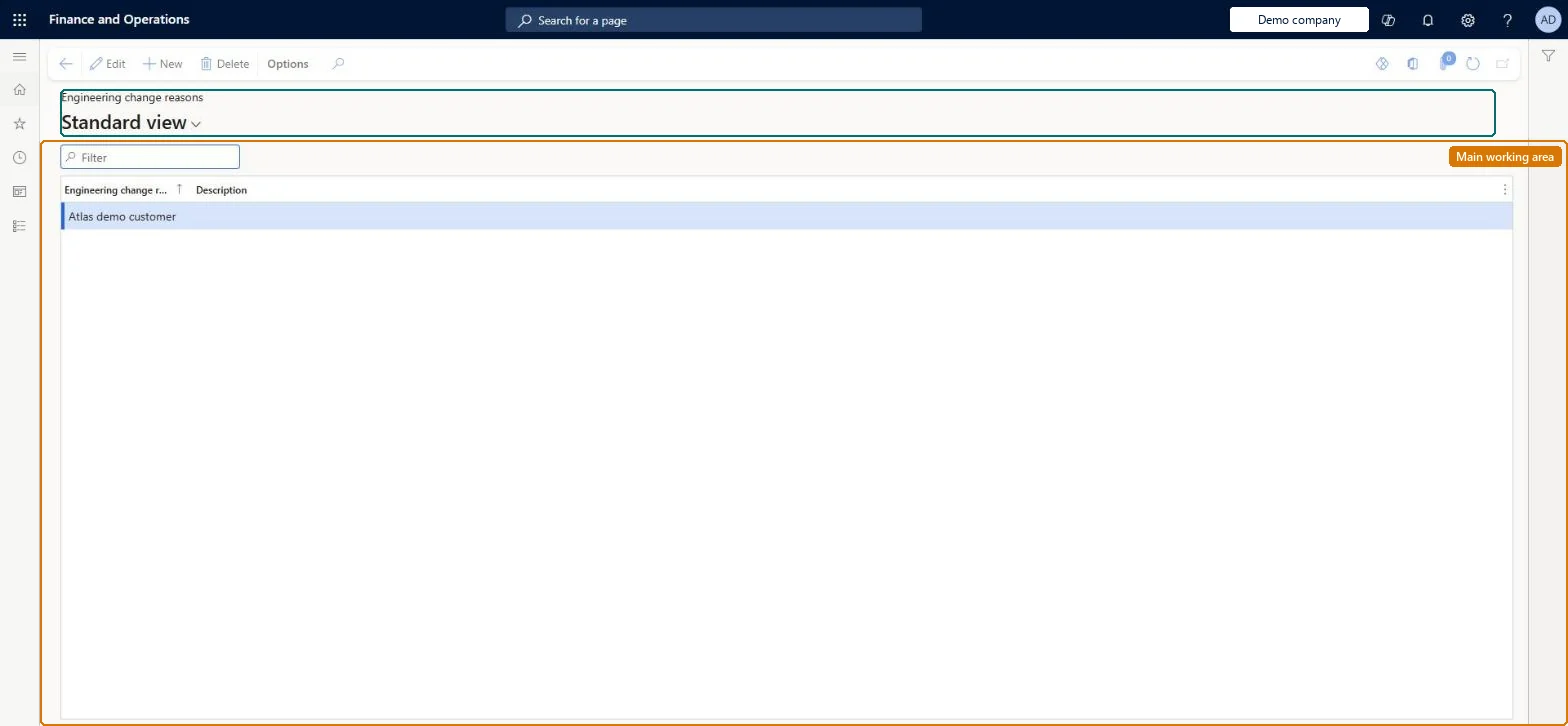
About the examples: Examples and screenshots in this guide use BEAT, a demo company in a Dynamics 365 test environment. Use your own company's codes and values instead of copying them.
Setup steps on this page
Set up Engineering change reasons
Use this page to add, edit, remove and order the reasons that engineers select for each affected product on a change order.
Steps from Microsoft
Go to Engineering change management > Setup > Engineering change management > Engineering change reasons.
Select New on the Action Pane to add a value.
Enter the value and its description.
Use Edit or Delete on the Action Pane to change or remove a value.
Use the Action Pane buttons to arrange the values in the order they should appear in drop-down lists.
Reversible: Values can be added, edited, removed and reordered at any time. They are picked per affected product on a change order in the Engineering change reasons field. Microsoft Learn
If you change it later
The order of the values on this page is the order they appear in the drop-down lists on change orders. Microsoft Learn
Technical architect
5Technical
Menu item
EngChgEcmReasonChecked in Dynamics 365
Form
EngChgEcmReasonChecked in Dynamics 365
Table
EngChgEcmReasonShown as “ENGINEERING CHANGE REASONS” in Record infoKey field: NameChecked in Dynamics 365
Data entities
EngChgEngineeringChangeReasonEntityEngineering change reasons Checked in Dynamics 365
Who can open it
PrivilegesMaintain engineering change reasons EngChgEcmReasonMaintainView engineering change reasons EngChgEcmReasonViewView engineering change requests EngChgEcmRequestViewDutiesInquire into engineering change management reference data EngChgEngineeringChangeManagementReferenceDataInquireMaintain engineering change master EngChgEngineeringChangeMasterMaintainInquire into engineering change request progress EngChgEngineeringChangeRequestProgressInquire2 security rolesProduct engineer EngChgProductEngineerProduct engineering manager EngChgProductEngineeringManagerChecked in Dynamics 365
Roles to set it up and use it
To set it up or change itProduct engineering manager EngChgProductEngineeringManagerTo use itProduct engineer EngChgProductEngineerGive people one of these roles. On this system, 2 roles can open this page.Checked in Dynamics 365
Developer
6Developer
Open it by URL
https://<your-environment>/?mi=EngChgEcmReason
Integrate with
EngChgEngineeringChangeReasonEntity data entity Checked in Dynamics 365