Transfer customer credit balances to a vendor account and refund through Accounts Payable in Dynamics 365 Finance
Menu item
action:CustOverPaym
Show what matters for
PAGE GUIDEWhat the page does and how to use it7 sections. Choose a role to highlight what matters to you.
Everyone
1What it is and why
What it is
A periodic job that creates reimbursement transactions for customers that have credit balances.
What you do here
Use this periodic task to move a customer's credit balance to a vendor invoice on the customer's vendor account, so the amount can be paid back through Accounts payable.
The page in Dynamics 365. page title tab to open what to set or check
About the examples: Examples and screenshots in this guide use BEAT, a demo company in a Dynamics 365 test environment. Use your own company's codes and values instead of copying them.
When to run it
When to run it
When a customer asks for a statement outside the regular cycle, or a collector needs one to discuss a disputed balance.
How often
On demand, per customer request.
What the output shows
A statement for the selected customer with the transactions of the period, the balance per currency and, if chosen, a due-until section and payment schedule details. If the balance differs from what the customer expects, look for open payments that are not yet settled.
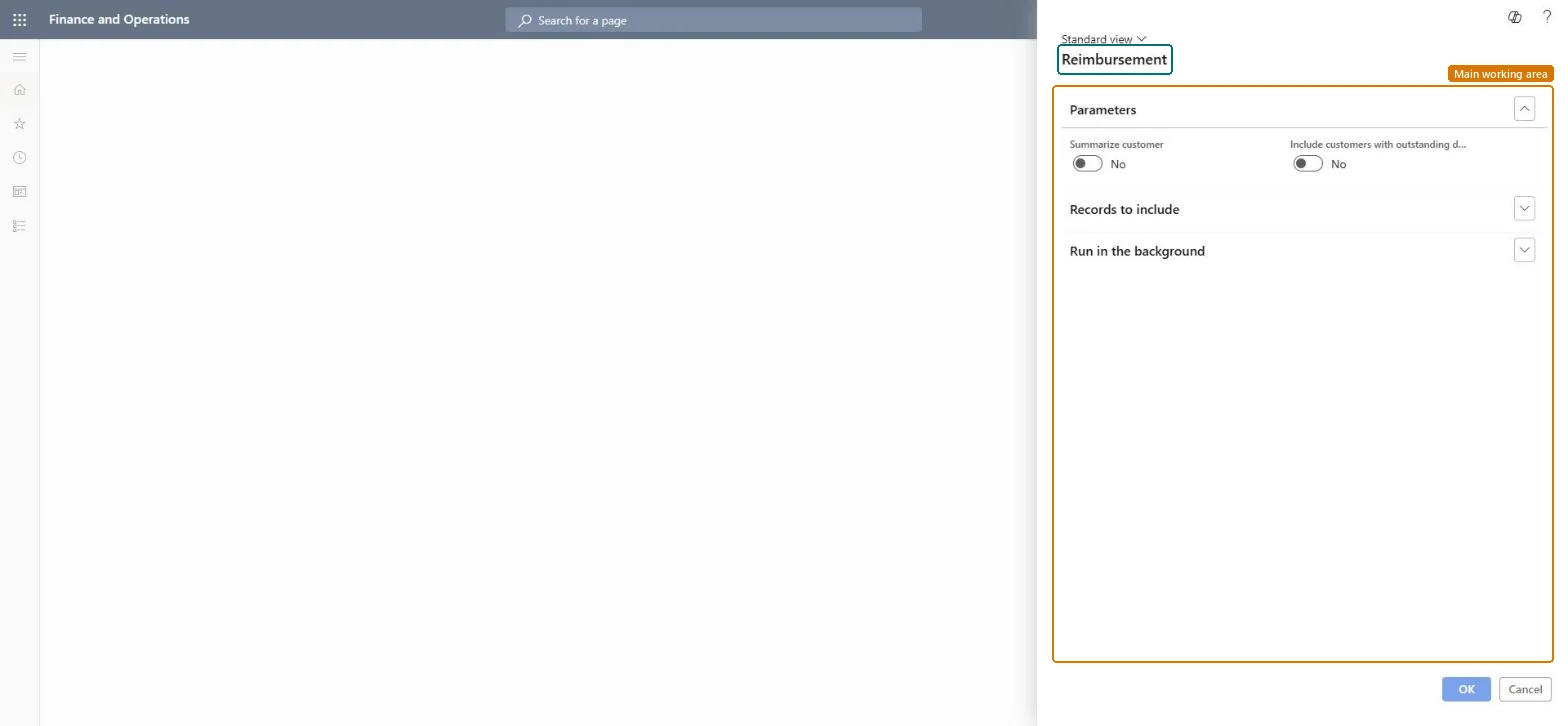
Go to Credit and collections > Periodic tasks > Reimbursement.
Filter on the one customer who asked for a statement, and enter the From date and To date they asked about. This is the same report as under Periodic tasks, used here for a single request.
Turn on Show payment schedule to print payment schedule installments in detail; otherwise Multiple is shown as the due date.
Use Show due until to add a separate section with the transactions due by a date, for example the next payment.
Set Show credit limit if the customer should see the limit, and print to screen first to check the balance before you send it.
Yes groups all transactions; No groups only transactions with similar ledger dimensions.Microsoft Learn
Include customers with outstanding debit transactions
Also selects customers who have unsettled debit amounts.Microsoft Learn
Solution architect
4Design impact
Can it be undone
Nothing to undo: The statement only reads the customer's transactions; it changes nothing. Microsoft Learn
If you change it later
The credit balance moves to the customer's vendor account as a vendor invoice; if the customer has no vendor account, a one-time vendor is created. Microsoft Learn
Technical architect
5Technical
Menu item
action:CustOverPaymChecked in Dynamics 365
Form
CustOverPaymChecked in Dynamics 365
Roles to set it up and use it
To use itCollections manager CollectionLetterCollectionsManagerCollections agent CollectionLetterCollectionsAgentGive people one of these roles. On this system, 2 roles can run this page.Checked in Dynamics 365