PAGE GUIDEWhat the page does and how to use it8 sections. Choose a role to highlight what matters to you.
Everyone
1What it is and why
What it is
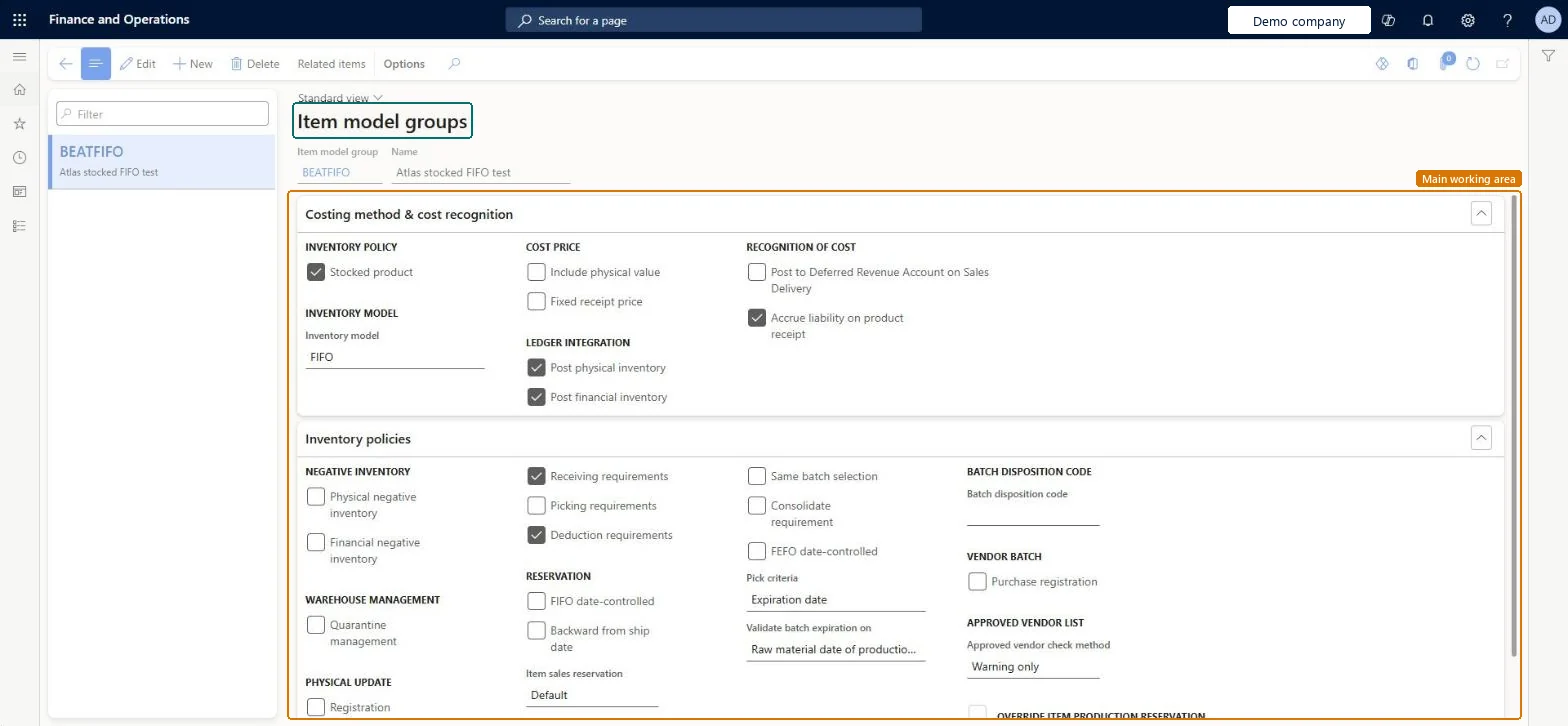
A setup page where you create item model groups, which control how items are handled on receipts and issues, how they're costed and how they post.
What you do here
Use this page to manage many items under one setup for stocking, costing method, negative inventory, ledger posting and reservation rules, so changes are made in one place.
Example
For example, a company clears Stocked product for shop supplies or services that aren't in its BOMs or formulas, so their cost is usually expensed.
The page in Dynamics 365. page title tab to open what to set or check
About the examples: Examples and screenshots in this guide use BEAT, a demo company in a Dynamics 365 test environment. Use your own company's codes and values instead of copying them.
Step by step, with screenshots
Set up Item model groups1 screen
Use this page to manage many items under one setup for stocking, costing method, negative inventory, ledger posting and reservation rules, so changes are made in one place.
Screen 1
Create an item model group
Go to Inventory management > Setup > Inventory > Item model groups
Select New
Enter the item model group code and name
Under Inventory policy, select Stocked product for items kept in inventory
Choose the inventory model (costing method), for example FIFO
Under Ledger integration, choose whether physical and financial inventory are posted
Set the negative inventory and reservation policies
Select Save
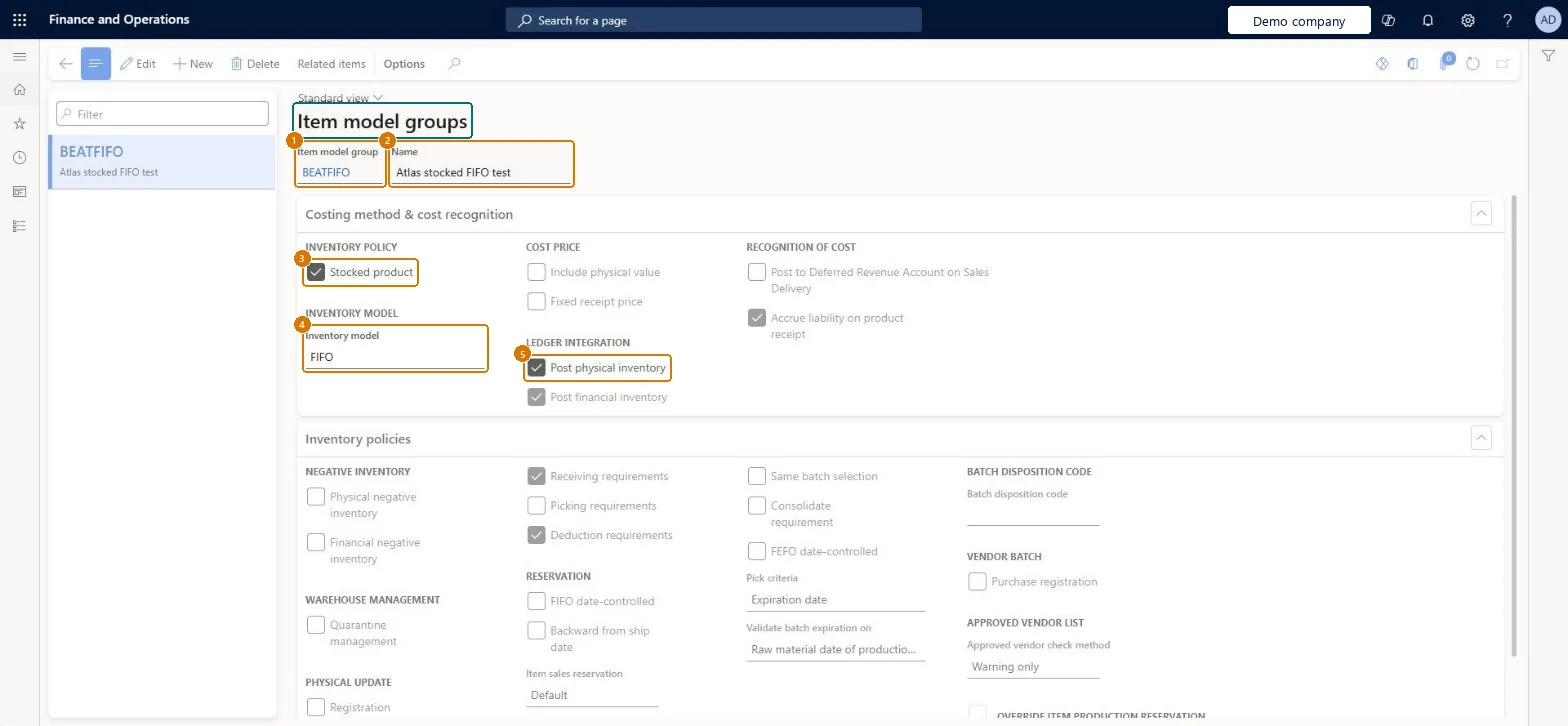
1Item model group
BEATFIFO
2Name
Stocked FIFO
3Stocked product
Yes
4Inventory model
FIFO
5Post physical inventory
Yes
Show the full screen page title tab to open what to set or check
Steps from Microsoft
Go to Cost management > Inventory accounting policies setup > Item model groups.
On the Action Pane, select New.
Enter the Item model group ID and a Name.
On the Costing method & cost recognition FastTab, select options such as Stocked product, Post physical inventory, Post financial inventory and Accrue liability on product receipt.
In the Inventory model field, select the costing method, such as FIFO.
On the Inventory policies FastTab, set policies such as Financial negative inventory and Quarantine management.
Inventory closing can't proceed because available physical on-hand inventory on item <Item> is currently negative, which isn't allowed according to its item model group
Review the item's transactions; either allow negative physical or financial inventory on the item model group if the business needs it, or post adjustments, then run a consistency check (Fix error) for the item. Microsoft Learn
Test checklist
Create a released product with the item model group and post a purchase order product receipt
Check the voucher: with Post physical inventory selected and Post product receipt in ledger on, a physical voucher is created
Invoice the purchase order and check the financial voucher posts to the inventory receipt account
Post a sales order invoice and check the issue cost (running average before close)
Run inventory close and check the issue is adjusted to the selected inventory model
Only as many item model groups as you have real combinations of inventory model and posting policy (for example one for standard cost, one for FIFO), each with Stocked product, Post physical inventory and Post financial inventory selected for stocked itemsLearn advises creating item model groups only as needed, because many items share one setup. It describes Post physical and Post financial inventory as typically enabled with Stocked product, and asks you to validate the costing model with a certified accountant.
One-way: Warning: after items have transactions you must run inventory closing before any change to their item model group. Moving average can't be changed to FIFO, LIFO or weighted average. Converting to standard cost goes through Standard cost conversions, which needs an inventory close one day before the transition that can't be canceled. Microsoft Learn
If you change it later
Clearing Post physical inventory stops physical movements of stocked products from posting to the ledger, whatever the packing slip and product receipt posting parameters say. Microsoft Learn
Technical architect
6Technical
Menu item
InventModelGroupChecked in Dynamics 365
Form
InventModelGroupChecked in Dynamics 365
Table
InventModelGroupShown as “Item model groups” in Record infoKey field: ModelGroupId, NameChecked in Dynamics 365
Data entities
InventInventoryPolicyEntityItem model group inventory policies Microsoft data model InventCostFlowAssumptionPolicyEntityCost flow assumption policies Microsoft data model
Roles to set it up and use it
To set it up or change itAccounting manager LedgerAccountingManagerAccounting supervisor LedgerAccountingSupervisorRental sales manager RentalSalesManagerRental purchasing manager RentalPurchasingManagerRental manager RentalManagerTo use itInventory accountant InventCostAccountantInventory accountant clerk InventCostCostClerkFinancial controller LedgerFinancialControllerChief financial officer CompanyChiefFinancialOfficerAuditor AuditPolicyManagerGive people one of these roles. On this system, 16 roles can open this page.Checked in Dynamics 365
Actions on the page
Options: Personalize, Page options, ShareChecked in Dynamics 365
InventInventoryPolicyEntity (Item model group inventory policies): loaded for each company, in Microsoft's default template 300 - Inventory.InventCostFlowAssumptionPolicyEntity (Cost flow assumption policies): loaded for each company, in Microsoft's default template 300 - Inventory.Load order: Microsoft's default template 300 - Inventory loads Item model group inventory policies at execution unit 1, level 40, sequence 10. Lower levels load first, and entities at the same level load in sequence order.Load first: Cost flow assumption policies, the default templates at lower levels (System setup to dependency bands 30 to 90)Microsoft Learn
Checked in a working Dynamics 365 system, version 10.0.49: the menu item, form, table and security, the page, the demo records and the values in the screenshots.