BeyondERP.Newsletter
Menu

Report page · Cost management

Adjustments

A report that shows all the adjustments made during inventory recalculation or inventory closing.

Business process
Finalize and close inventory in Dynamics 365 Finance
Menu item
output:InventSettlementAdjustment
Show what matters for
PAGE GUIDEWhat the page does and how to use it7 sections. Choose a role to highlight what matters to you.
Everyone

1What it is and why

What it isA report that shows all the adjustments made during inventory recalculation or inventory closing.
What you do hereUse this report to review the cost adjustments that inventory recalculation and closing have made.
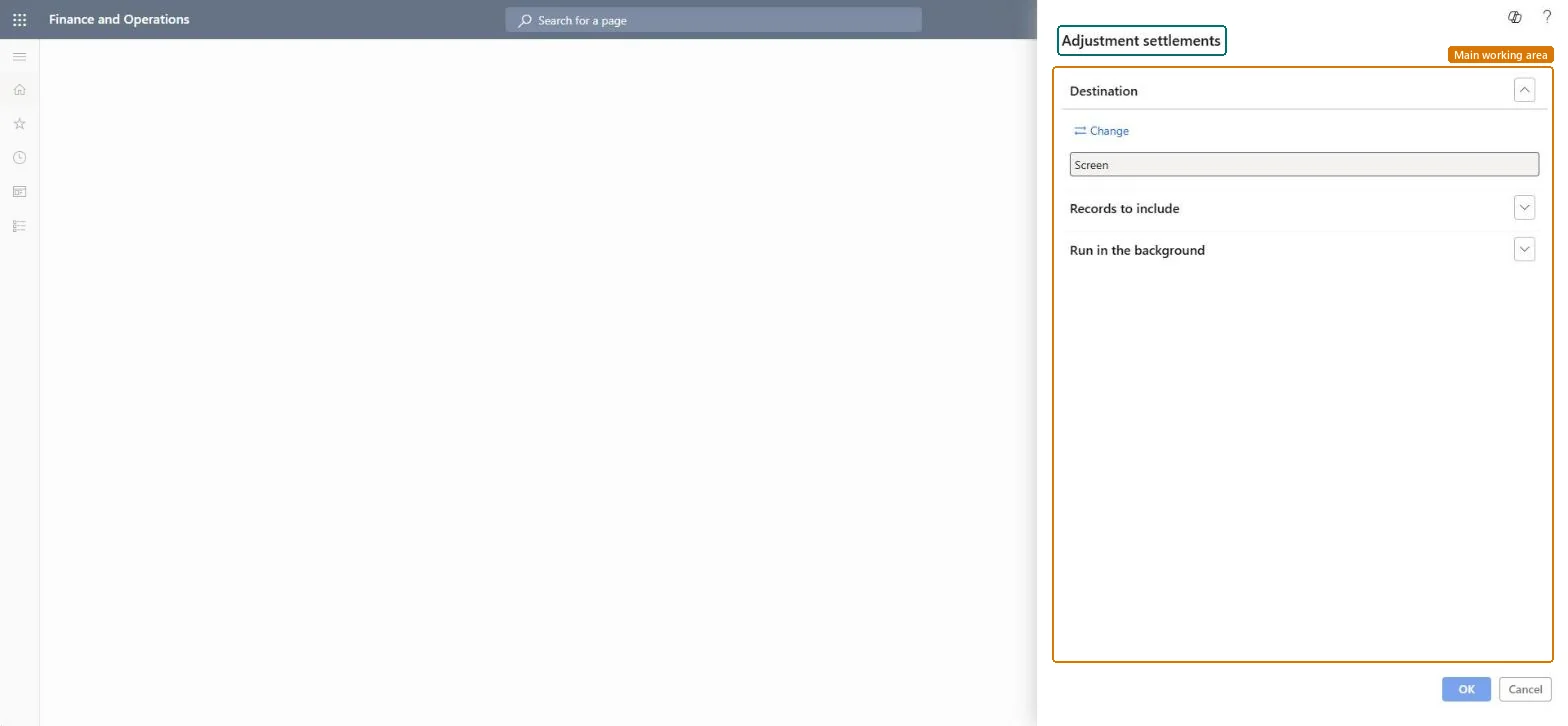
Adjustments page in Dynamics 365
The page in Dynamics 365. page title tab to open what to set or check
Functional consultant · Solution architect

2Where it fits

Business processClose financial periods › Finalize and post transactions › Finalize and close inventory in Dynamics 365 Finance
Menu pathCost management › Inquiries and reports › Inventory accounting - status reports › Adjustments
Set up firstClosing and adjustment Microsoft Learn
End user · Functional consultant

3How to do it

About the examples: Examples and screenshots in this guide use BEAT, a demo company in a Dynamics 365 test environment. Use your own company's codes and values instead of copying them.

When to run it

When to run itAfter each inventory close or recalculation, before you sign off the period's cost of goods sold.
How oftenMonthly, after inventory close, and after any recalculation during the month.
What the output showsThe cost adjustments that inventory close or recalculation made to issue transactions. Large unexpected adjustments usually point to backdated receipts, receipts with zero or wrong cost, or issues posted before receipts.

Source: Microsoft Learn

Steps from Microsoft

  1. Go to Cost management > Inquiries and reports > Inventory accounting - status reports > Adjustments.
  2. Run it after an inventory close or inventory recalculation has completed on the Closing and adjustment page.
  3. In the report parameters, select the closing or recalculation run, or the period, whose adjustments you want to see.
  4. Read each adjustment against the issue transaction it corrects; recalculation adjusts without settling, while inventory close also settles.
  5. Match the adjustment totals with the voucher of the close or recalculation, which you open from Closing and adjustment > Details > Voucher.

Source: Microsoft Learn

Solution architect

4Design impact

Can it be undoneNothing to undo: The report only lists adjustments; it changes nothing. To undo the adjustments themselves, cancel the closing or recalculation. Microsoft Learn
Technical architect

5Technical

Menu itemoutput:InventSettlementAdjustment Checked in Dynamics 365
FormSysOperationTemplateForm Checked in Dynamics 365
Roles to set it up and use itTo use itInventory accountant InventCostAccountantInventory accountant clerk InventCostCostClerkAccounting manager LedgerAccountingManagerGive people one of these roles. On this system, 3 roles can run this page.Checked in Dynamics 365
Developer

6Developer

Open it by URLhttps://<your-environment>/?mi=output:InventSettlementAdjustment
Everyone

7Sources