BeyondERP.Newsletter
Menu

Setup page · Cost accounting

Currency exchange rates

The page that holds exchange rates for currency pairs under each exchange rate type.

Used by
Budget manager, Chief financial officer, Compensation and benefits manager and 7 more roles
Business process
Develop currency policies
Menu item
ExchangeRate
Main table
ExchangeRateCurrencyPair
Data entity
ExchangeRateCurrencyPairEntity
Setup steps
1 on this page
Show what matters for
PAGE GUIDEWhat the page does and how to use it8 sections. Choose a role to highlight what matters to you.
Everyone

1What it is and why

What it isThe page that holds exchange rates for currency pairs under each exchange rate type.
What you do hereUse this page to select an exchange rate type, add currency pairs, and enter the rates that apply for each period.
ExampleFor example, a GBP-to-USD rate under the exchange rate type of the cost accounting ledger lets the ledger convert the UK company's costs into USD for the period.
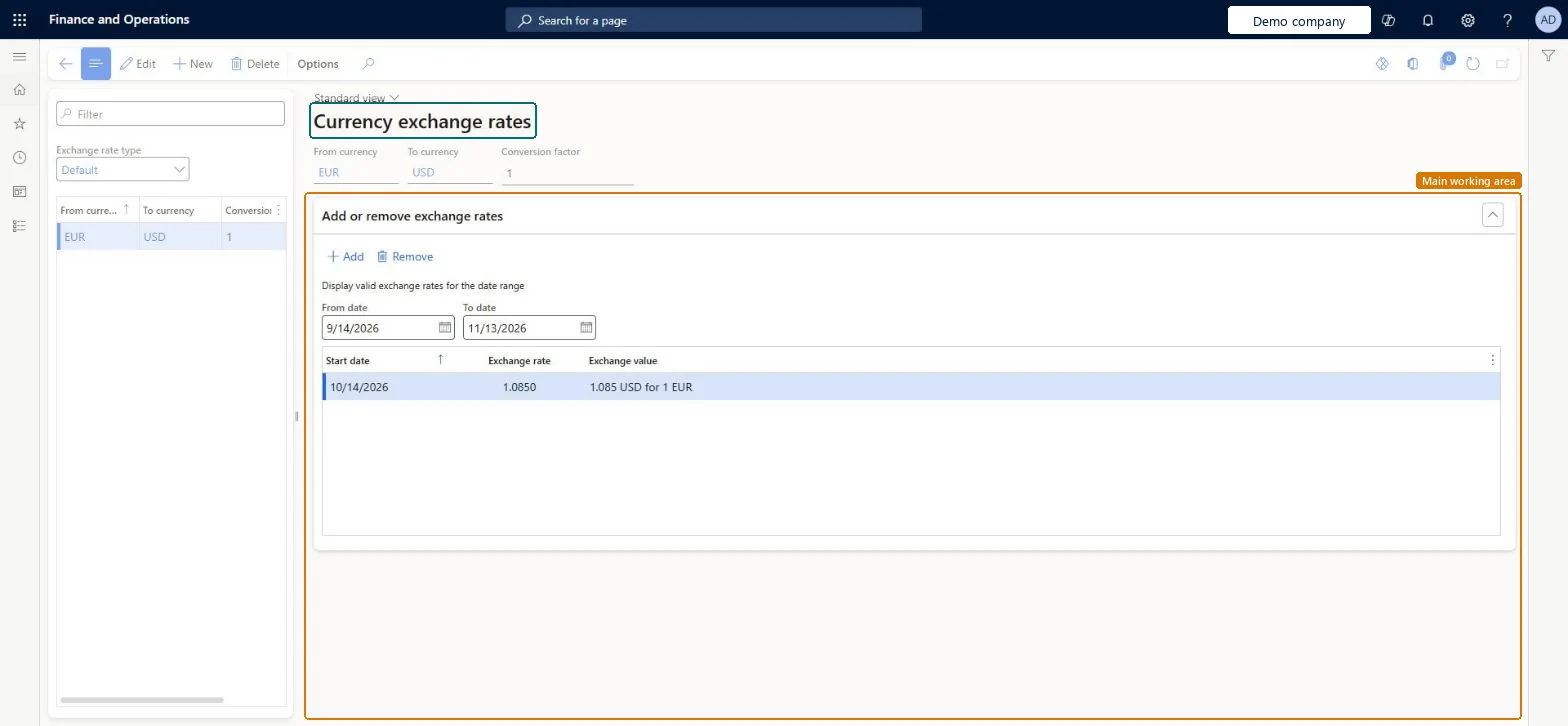
Currency exchange rates page in Dynamics 365
The page in Dynamics 365. page title tab to open what to set or check
Functional consultant · Solution architect

2Where it fits

End user · Functional consultant

3How to do it

About the examples: Examples and screenshots in this guide use BEAT, a demo company in a Dynamics 365 test environment. Use your own company's codes and values instead of copying them.

Step by step, with screenshots

Set up Currency exchange rates1 screen

Use this page to select an exchange rate type, add currency pairs, and enter the rates that apply for each period.

  1. Screen 1

    Enter the exchange rate

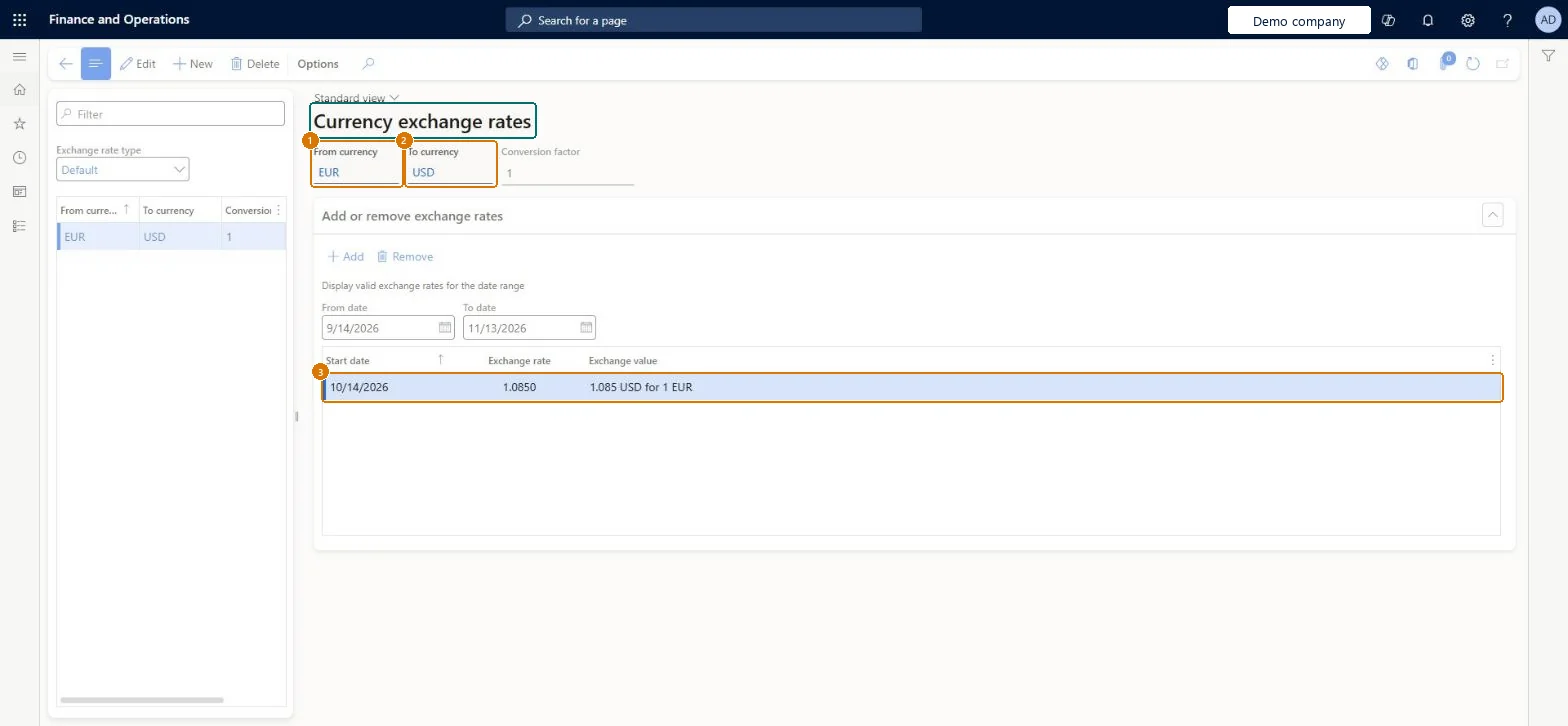
    Go to General ledger > Currencies > Currency exchange rates

    1. Select the Default exchange rate type
    2. Select New and enter the from and to currencies
    3. Under Add or remove exchange rates, select Add and enter the rate for 10/14/2026
    1From currencyEUR
    2To currencyUSD
    Exchange rate typeDefault
    Exchange rate1.0850
    Enter the exchange rate (zoomed on the outlined fields)
    Show the full screenEnter the exchange rate
    page title tab to open what to set or check

Steps from Microsoft

  1. Go to Cost accounting > Ledger setup > Currencies > Currency exchange rates.
  2. Select the Exchange rate type.
  3. Enter a new currency pair, or select the pair to change.
  4. Add a new line with a Start date and the rate, instead of changing an existing rate.
  5. In the Conversion factor field, enter how many units of the From currency the rate converts, usually 1 or 100.

Source: Microsoft Learn

Fields on the page

FieldWhat it meansExampleTable column
Exchange rate typeThe group of rates being maintained, such as buy, sell, spot or budget.Microsoft Learn Default
Start dateThe date a rate starts to apply; each transaction uses the latest rate dated on or before it.Microsoft Learn ValidFrom
Conversion factorHow many units of the From currency the rate converts to the To currency.Microsoft Learn ExchangeRateDisplayFactor
From currencyThe currency converted from, such as a legal entity's accounting currency.Microsoft Learn GBPFromCurrencyCode
To currencyThe currency converted to, such as the cost accounting ledger's currency.Microsoft Learn USDToCurrencyCode
Exchange rateHow many units of the To currency one unit (times the conversion factor) of the From currency is worth from the start date.Microsoft Learn 1.2650ExchangeRate

Common errors and fixes

MessageWhat to do
The reverse currency pair can't be addedA reverse pair, such as USD to GBP when GBP to USD exists, can't be entered for the same rate type. Use the existing pair. Microsoft Learn

Test checklist

  1. Enter a rate for each legal entity currency to the ledger currency under the ledger's rate type.
  2. Process source data for the period.
  3. Check a converted cost entry against the rate.

Source: Microsoft Learn

Functional consultant

4Setup decisions

Setup stepRecommended value and whyDecision, common mistake and test
Set up Currency exchange ratesAdd a new dated rate for each change rather than overwriting the old one; Conversion factor 1 or 100The system uses the latest start date before each transaction date, so keeping dated history keeps past rates traceable. Most organizations use a conversion factor of 1 or 100.How should exchange rates be kept up to date?Entering both directions of a pair (USD to EUR and EUR to USD) for one rate type. It is refused; the system calculates the reciprocal rate itself.Test: Rate converts legal entity costs

Feature management and licence

Licence or add-inCost accounting has four roles: Cost accounting manager (Activity licence), Cost accountant and Cost accountant clerk (Operations licence), and Cost object controller (Team members licence). In Cost accounting the rates are read when source data is processed. No Feature management feature needs to be turned on for this page.

Microsoft Learn

Solution architect

5Design impact

Shared or per companyShared: the same records are used by every legal entity. Microsoft data model
Can it be undoneReversible: A rate can be corrected, but a saved rate is used at once for new conversions in its date range; process the source data again to apply a corrected rate. Microsoft Learn
If you change it laterA saved rate is used at once for transactions in its date range, in every legal entity. A reverse pair, such as EUR to USD when USD to EUR exists, can't be entered for the same rate type. Microsoft Learn
Technical architect

6Technical

Menu itemExchangeRate Checked in Dynamics 365
FormExchangeRate Checked in Dynamics 365
TableExchangeRateCurrencyPairShown as “EXCHANGE RATE CURRENCY PAIR” in Record infoKey field: FromCurrencyCode, ToCurrencyCode, ExchangeRateType_NameChecked in Dynamics 365
Data entitiesExchangeRateCurrencyPairEntityExchange rate currency pair Microsoft data model
Who can open it

10 security roles. Select a role to see its duties and privileges.

  • RoleBudget managerBudgetBudgetManager
    • DutyEnable budget processBudgetBudgetProcessEnable
      • PrivilegeMaintain currency exchange ratesCurrencyExchangeRatesMaintain
    • DutyInquire into general ledger reference dataLedgerGeneralLedgerReferenceDataInquire
      • Privilegeexchange rate report -ViewCurrencyCurrentExchangeRates:CurrencyExchangeRatesView
  • RoleChief financial officerCompanyChiefFinancialOfficer
    • DutyInquire into general ledger reference dataLedgerGeneralLedgerReferenceDataInquire
      • Privilegeexchange rate report -ViewCurrencyCurrentExchangeRates:CurrencyExchangeRatesView
  • RoleCompensation and benefits managerHcmCompensationAndBenefitsManager
    • DutyEnable compensation processHcmCompensationProcessEnable
      • PrivilegeMaintain currency exchange ratesCurrencyExchangeRatesMaintain
  • RoleAccountantLedgerAccountant
    • DutyInquire into general ledger reference dataLedgerGeneralLedgerReferenceDataInquire
      • Privilegeexchange rate report -ViewCurrencyCurrentExchangeRates:CurrencyExchangeRatesView
  • RoleAccounting managerLedgerAccountingManager
    • DutyEnable general ledger processLedgerGeneralLedgerProcessEnable
      • PrivilegeMaintain currency exchange ratesCurrencyExchangeRatesMaintain
    • DutyInquire into general ledger reference dataLedgerGeneralLedgerReferenceDataInquire
      • Privilegeexchange rate report -ViewCurrencyCurrentExchangeRates:CurrencyExchangeRatesView
  • RoleAccounting supervisorLedgerAccountingSupervisor
    • DutyEnable general ledger processLedgerGeneralLedgerProcessEnable
      • PrivilegeMaintain currency exchange ratesCurrencyExchangeRatesMaintain
    • DutyInquire into general ledger reference dataLedgerGeneralLedgerReferenceDataInquire
      • Privilegeexchange rate report -ViewCurrencyCurrentExchangeRates:CurrencyExchangeRatesView
  • RoleFinancial controllerLedgerFinancialController
    • DutyInquire into general ledger reference dataLedgerGeneralLedgerReferenceDataInquire
      • Privilegeexchange rate report -ViewCurrencyCurrentExchangeRates:CurrencyExchangeRatesView
  • RoleRental managerRentalManager
    • DutyEnable general ledger processRentalLedgerGeneralLedgerProcessEnable
      • PrivilegeMaintain currency exchange ratesCurrencyExchangeRatesMaintain
  • RoleRental purchasing managerRentalPurchasingManager
    • DutyEnable general ledger processRentalLedgerGeneralLedgerProcessEnable
      • PrivilegeMaintain currency exchange ratesCurrencyExchangeRatesMaintain
  • RoleRental sales managerRentalSalesManager
    • DutyEnable general ledger processRentalLedgerGeneralLedgerProcessEnable
      • PrivilegeMaintain currency exchange ratesCurrencyExchangeRatesMaintain
Checked in Dynamics 365
Roles to set it up and use itTo use itInquire into general ledger reference data LedgerGeneralLedgerReferenceDataInquireGive people a role that holds these duties. On this system, 10 roles give access to this page.Checked in Dynamics 365
Developer

7Developer

Open it by URLhttps://<your-environment>/?mi=ExchangeRate
Integrate withExchangeRateCurrencyPairEntity data entity Microsoft data model
Data migrationExchangeRateCurrencyPairEntity (Exchange rate currency pair): shared by all companies.Load order: Microsoft's default template 010 - System Setup loads the Exchange rates entity at execution unit 1, level 10, sequence 20. Load currencies and exchange rate types first, because every rate is for a currency pair under one exchange rate type.Microsoft Learn
Table definitionExchangeRateCurrencyPair columns and relations Microsoft data model
Everyone

8Sources