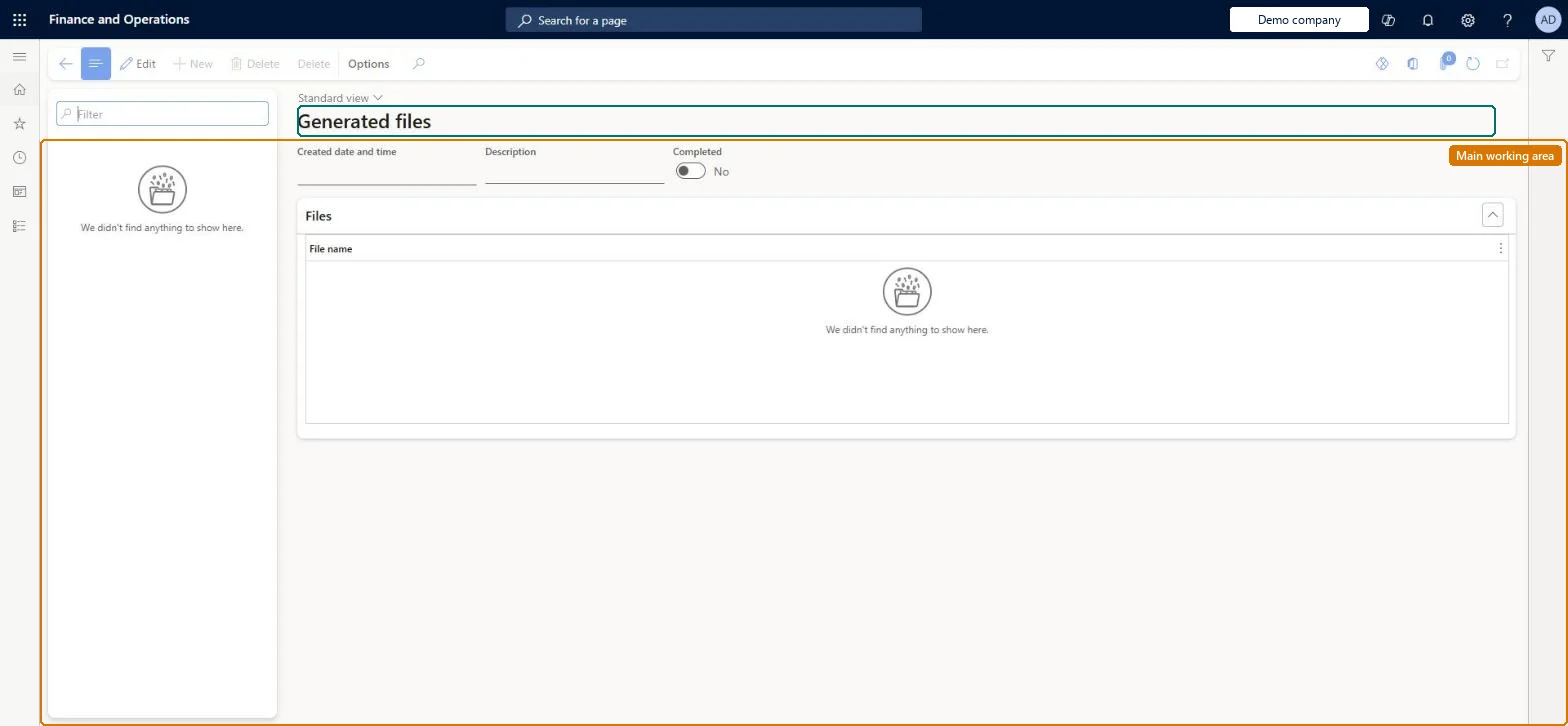
An inquiry page that lists the sets of files that batch jobs generated, with their created date and time, description and whether the set is completed, and the file names in each set.
PAGE GUIDEWhat the page does and how to use it8 sections. Choose a role to highlight what matters to you.
Everyone
1What it is and why
What it is
An inquiry page that lists the sets of files that batch jobs generated, with their created date and time, description and whether the set is completed, and the file names in each set.
What you do here
Use this page to find and open the files a batch job produced after the job has run, and to delete sets you no longer need.
Example
For example, a BEAT user runs an export in the background overnight. In the morning they open Generated files, select the set created at 02:15 with Completed set to Yes, and open the file from the Files list.
The page in Dynamics 365. page title tab to open what to set or check
About the examples: Examples and screenshots in this guide use BEAT, a demo company in a Dynamics 365 test environment. Use your own company's codes and values instead of copying them.
Setup steps on this page
Collect files that batch jobs produce
Find and open the files that batch jobs generated.
How to use it
Go to Common > Inquiries > Batch jobs > Generated files.
In the list pane, select the file set by its created date and time.
Check that Completed is Yes before you use the files.
Under Files, select a File name to work with the file; delete sets you no longer need.
Source: Checked in Dynamics 365
Fields on the page
Field
What it means
Example
Created date and time
When the file set was created.Checked in Dynamics 365
Open only sets with Completed = Yes and download files you must keepAn incomplete set may still be written by the job, and a deleted set is gone from the page.
On the live system, these roles can open the page: System user, TestEssentialsRole, Retail store IT, Retail service.
Checked in Dynamics 365
Solution architect
5Design impact
Shared or per company
Per user: each file set belongs to the user and batch job that produced it. Microsoft data model
Can it be undone
Hard to reverse: Deleting a set removes it; run the job again to produce the files again. Checked in Dynamics 365
If you change it later
Deleting a set removes it and its files from the page; to get the files again, run the job again. Checked in Dynamics 365
Technical architect
6Technical
Menu item
SysFileStoreChecked in Dynamics 365
Form
SysFileStoreChecked in Dynamics 365
Table
SysFileStoreShown as “COLLECTION OF GENERATED FILES” in Record infoKey field: DescriptionChecked in Dynamics 365
Who can open it
PrivilegesView generated files SysFileStoreViewDutiesUse basic functionality SysServerAXBasicMaintain6 security rolesAifTestSecRoleEventTestRoleRetail service RetailServiceRetail store IT RetailStoreITSystem user SystemUserTestEssentialsRoleChecked in Dynamics 365
Roles to set it up and use it
To use itSystem user SystemUserTestEssentialsRole Retail store IT RetailStoreITRetail service RetailServiceGive people one of these roles. On this system, 4 roles can open this page.Checked in Dynamics 365
Actions on the page
(Action Pane without tabs): DeleteChecked in Dynamics 365
Developer
7Developer
Open it by URL
https://<your-environment>/?mi=SysFileStore
Data migration
Load order: Generated files has no data entity in Data management. The sets are output of batch jobs and are not migrated; download what you need to keep.Checked in Dynamics 365