BeyondERP.Newsletter
Menu

Setup page · Organization administration

Electronic reporting jobs

An inquiry page that lists Electronic reporting formats run in batch, with their status, logs and generated files.

Business process
Administer system features
Menu item
ERFormatMappingRunJobTable
Show what matters for
PAGE GUIDEWhat the page does and how to use it7 sections. Choose a role to highlight what matters to you.
Everyone

1What it is and why

What it isAn inquiry page that lists Electronic reporting formats run in batch, with their status, logs and generated files.
What you do hereUse this page to check batch runs of Electronic reporting formats and to open the files, errors and warnings they produced.
ExampleFor example, after a long SAF Accounting Books report for Poland runs in batch, you find its log and the generated file here.
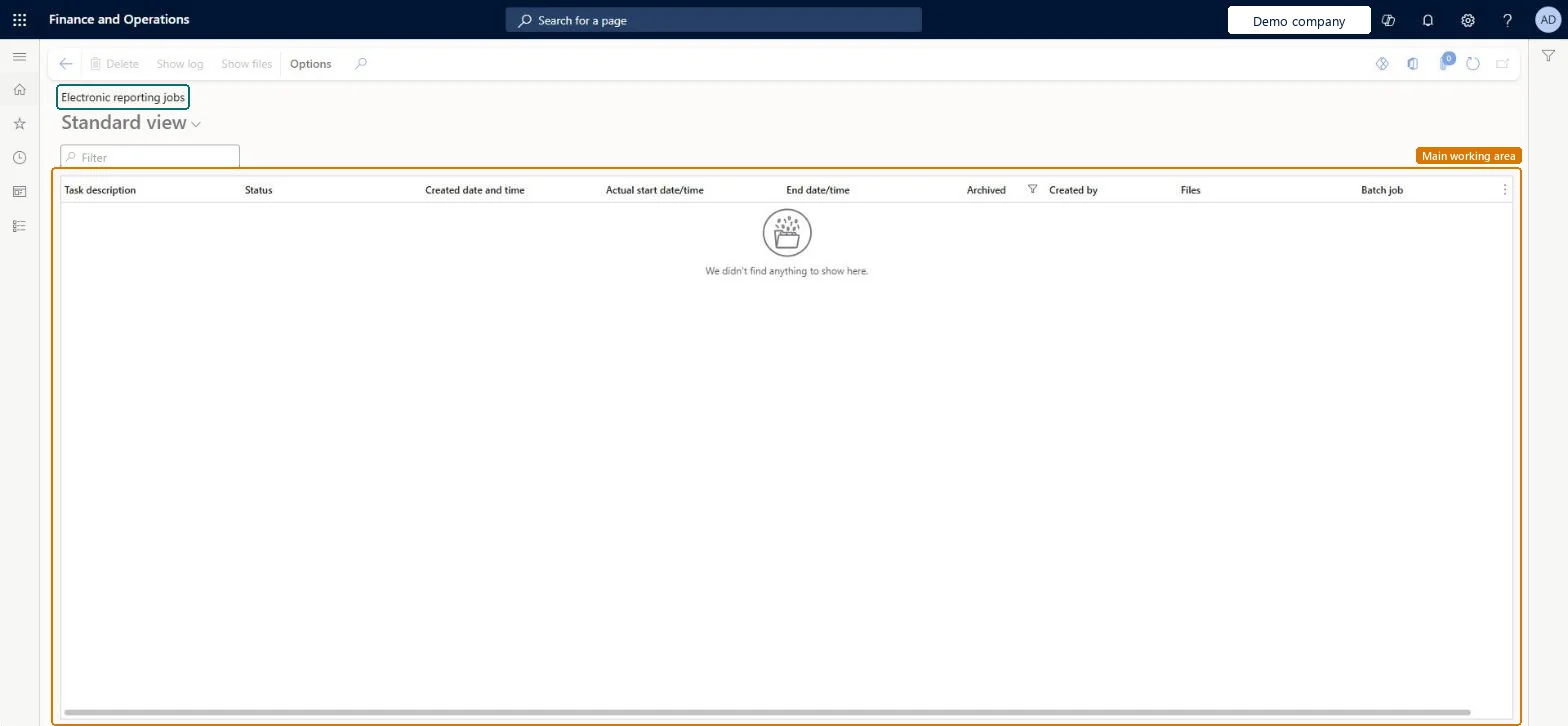
Electronic reporting jobs page in Dynamics 365
The page in Dynamics 365. page title tab to open what to set or check
Functional consultant · Solution architect

2Where it fits

Business processAdminister system features
Menu pathOrganization administration › Electronic reporting › Electronic reporting jobs
Set up firstDocument types Microsoft Learn
Related pagesElectronic reporting destination Microsoft Learn
End user · Functional consultant

3How to do it

About the examples: Examples and screenshots in this guide use BEAT, a demo company in a Dynamics 365 test environment. Use your own company's codes and values instead of copying them.

Steps from Microsoft

  1. Go to Organization administration > Electronic reporting > Electronic reporting jobs.
  2. Find the line for your job, and then select Show log to see any messages.
  3. Select Show files, find the file that you need, and then select Open.

Source: Microsoft Learn

Common errors and fixes

MessageWhat to do
The provided document type is not a File type.Set up, in the company where the format ran, the document types selected in the Job archive, Temporary, Baseline and Others fields of the Electronic reporting parameters. Microsoft Learn

Test checklist

  1. Run an ER format with Batch processing = Yes.
  2. Check the job status under Common > Inquiries > Batch jobs > My batch jobs.
  3. Open Electronic reporting jobs, select the job and select Show files.
  4. Open the generated file and check any errors or warnings listed.

Source: Microsoft Learn

Solution architect

4Design impact

Can it be undoneReversible: Inquiry page. Generated files are kept as attachments of the job records; a file is removed from storage only together with the job record it's attached to. Microsoft Learn
Technical architect

5Technical

Menu itemERFormatMappingRunJobTable Checked in Dynamics 365
FormERFormatMappingRunJobTable Checked in Dynamics 365
Roles to set it up and use itTo set it up or change itElectronic reporting functional consultant ERFunctionalConsultantElectronic reporting developer ERDeveloperSystem user SystemUserTestEssentialsRole Give people one of these roles. On this system, 4 roles can open this page.Checked in Dynamics 365
Actions on the pageOptionsChecked in Dynamics 365
Developer

6Developer

Open it by URLhttps://<your-environment>/?mi=ERFormatMappingRunJobTable
Everyone

7Sources