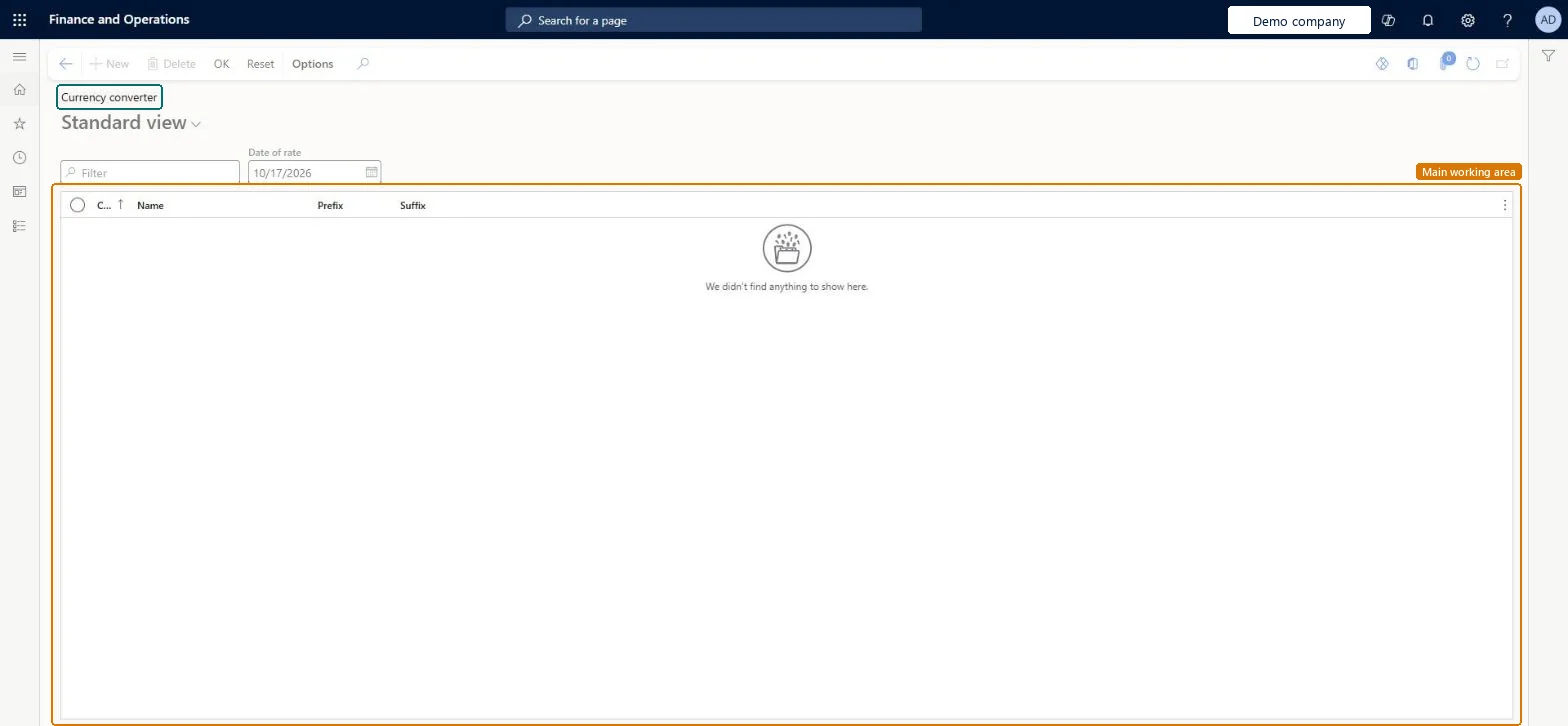
The page opens as Currency converter: a list of currencies with their code, name, prefix and suffix, a Date of rate field, and OK and Reset buttons. New and Delete are not available on it.
PAGE GUIDEWhat the page does and how to use it8 sections. Choose a role to highlight what matters to you.
Everyone
1What it is and why
What it is
The page opens as Currency converter: a list of currencies with their code, name, prefix and suffix, a Date of rate field, and OK and Reset buttons. New and Delete are not available on it.
What you do here
Use this page to select a currency and a date of rate and confirm with OK, or go back with Reset. Currencies themselves are added and changed on General ledger > Currencies > Currencies.
Example
For example, a BEAT user opens the Currency converter on 10/17/2026: Date of rate defaults to that date, and the grid lists the currencies with their code, name, prefix and suffix to choose from.
The page in Dynamics 365. page title tab to open what to set or check
About the examples: Examples and screenshots in this guide use BEAT, a demo company in a Dynamics 365 test environment. Use your own company's codes and values instead of copying them.
Setup steps on this page
Show amounts in another currency
Pick a currency and a date of rate in the currency converter.
How to use it
Go to Common > Common > Select currency.
Enter the Date of rate.
Select the currency in the list.
Select OK to apply it, or Reset to go back.
Source: Checked in Dynamics 365
Fields on the page
Field
What it means
Example
Date of rate
The date whose exchange rate is used.Checked in Dynamics 365
10/17/2026
Code
The currency code.Checked in Dynamics 365
GBP
Name
The currency name.Checked in Dynamics 365
Pound sterling
Prefix / Suffix
Text shown before or after amounts in this currency.Checked in Dynamics 365
£
OK / Reset
OK confirms the selection; Reset goes back to the first state.Checked in Dynamics 365
Common errors and fixes
Message
What to do
The list is empty
Check that currencies and exchange rates exist for the Date of rate on the Currencies and Currency exchange rates pages. Checked in Dynamics 365
Test checklist
Check that GBP is set up on Currencies with an exchange rate for the date you will use.
Open Select currency and enter that date as Date of rate.
Check that GBP is listed with its prefix and suffix, select it and select OK.
Open the page again, select Reset and check that the list is back to its first state.
On the live system, the page opened for the signed-in user.
Checked in Dynamics 365
Solution architect
5Design impact
Shared or per company
Shared: the currencies listed come from the shared currency table, the same in every legal entity. Microsoft data model
Can it be undone
Reversible: Select Reset to go back. Checked in Dynamics 365
If you change it later
The page adds or removes no currencies (New and Delete are unavailable); changes to the currency list are made on the Currencies page. Checked in Dynamics 365
Technical architect
6Technical
Menu item
SysCurrencySelectChecked in Dynamics 365
Form
SysCurrencySelectChecked in Dynamics 365
Table
CurrencyShown as “CURRENCY TABLE” in Record infoKey field: CurrencyCodeChecked in Dynamics 365
Data entities
CurrencyEntityCurrencies (only the currency list the converter shows; the selection itself isn't stored as setup) Microsoft data model
Actions on the page
(Action Pane without tabs): OK, ResetChecked in Dynamics 365
Developer
7Developer
Open it by URL
https://<your-environment>/?mi=SysCurrencySelect
Data migration
CurrencyEntity (Currencies): shared by all companies, in Microsoft's default template 010 - System Setup.Load order: Microsoft's default template 010 - System Setup loads Currencies at execution unit 1, level 10, sequence 10. Exchange rates follow with the exchange rate entities.Checked in Dynamics 365