Setup page · Cash and bank management
Reconciliation matching rule sets
A setup page where you group reconciliation matching rules that run in sequence during bank reconciliation.
- Used by
- Chief financial officer, Accountant, Accounting manager and 3 more roles
- Business process
- Establish matching rules for bank reconciliation in Dynamics 365 Finance
- Menu item
BankReconciliationMatchRuleSet- Main table
BankReconciliationMatchRuleSet- Data entity
BankReconciliationMatchRuleSetEntity- Setup steps
- 1 on this page
Show what matters for
Everyone
1What it is and why
| What it is | A setup page where you group reconciliation matching rules that run in sequence during bank reconciliation. |
|---|---|
| What you do here | Used to run a whole series of matching rules in one pass instead of one rule at a time. |
| Example | — |
Functional consultant · Solution architect
2Where it fits
| Business process | Define accounting policies › Define banking policies › Establish matching rules for bank reconciliation in Dynamics 365 Finance |
|---|---|
| Menu path | Cash and bank management › Setup › Advanced bank reconciliation setup › Reconciliation matching rule sets |
| Set up first | Reconciliation matching rules Microsoft Learn ↗ |
| Used next by | Bank accounts Microsoft Learn ↗Bank reconciliation Microsoft Learn ↗ |
| Related pages | — |
End user · Functional consultant
3How to do it
Step by step, with screenshots
Set up Reconciliation matching rule sets1 screen
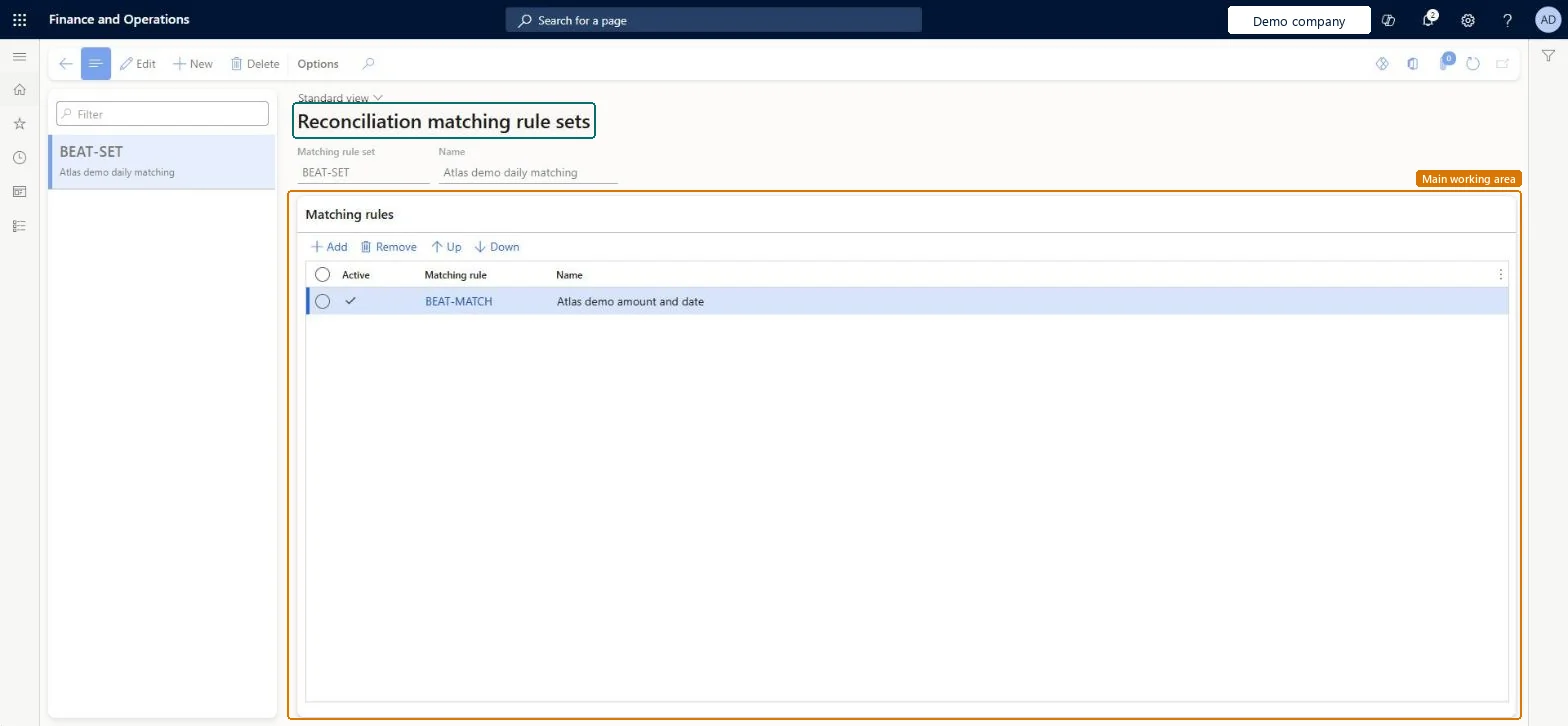
Used to run a whole series of matching rules in one pass instead of one rule at a time.
Screen 1
Create the matching rule set
Go to Cash and bank management > Setup > Advanced bank reconciliation setup > Reconciliation matching rule sets
- Select New, and enter the Matching rule set and Name
- In the Matching rules section, select Add and select the Matching rule
- Use Up and Down to order the rules
- Select Save
1Matching rule set BEAT-SET 2Name Atlas demo daily matching Matching rule BEAT-MATCH (Active) 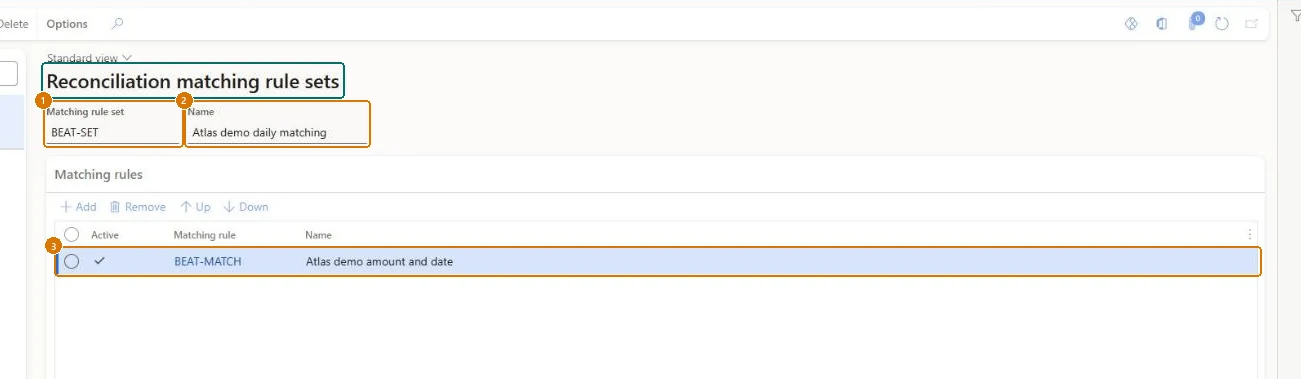
Show the full screen
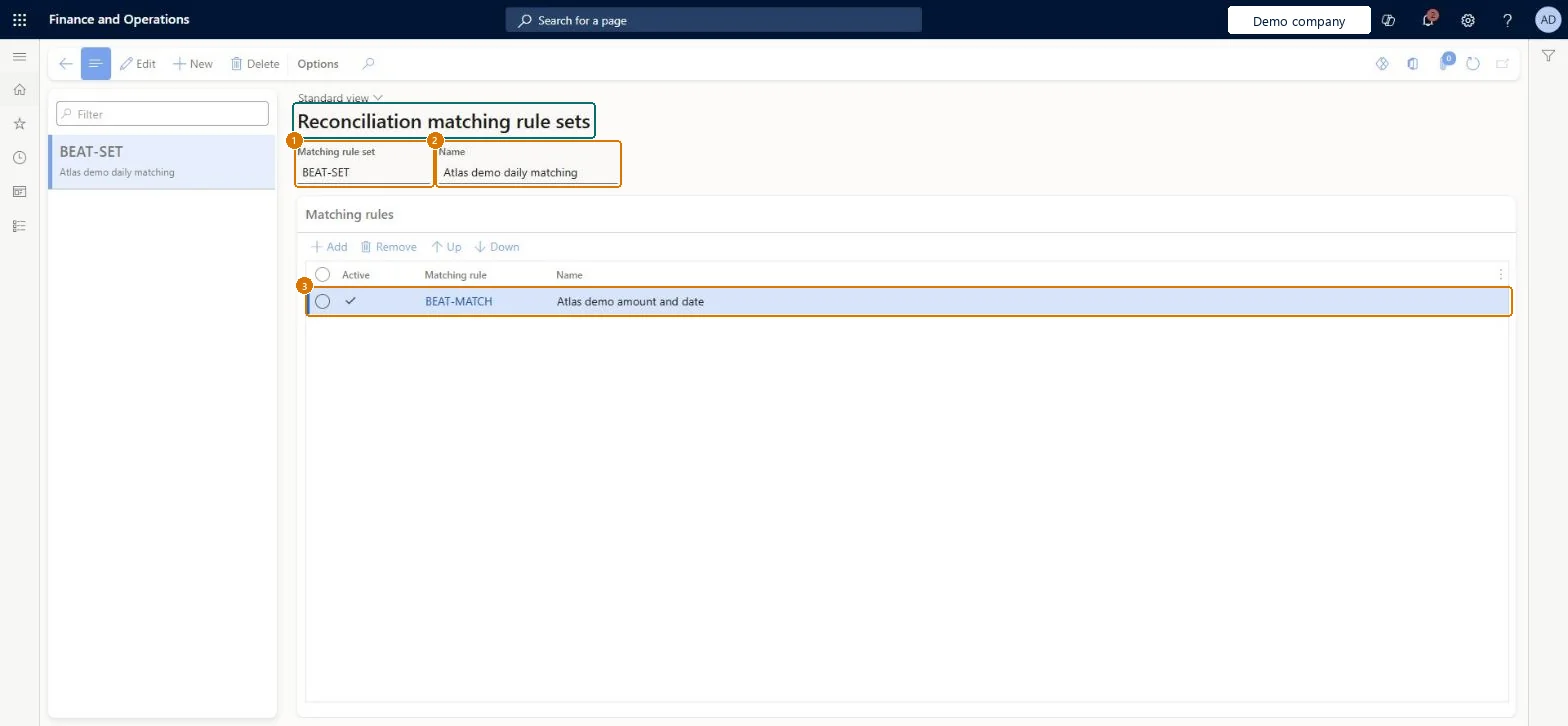
page title tab to open what to set or check
Microsoft's steps
- Go to Cash and bank management > Setup > Advanced bank reconciliation setup > Reconciliation matching rule sets.
- Select New, and enter a name and description.
- Add the matching rules in the order they should run.
- Select Save.
Source: Microsoft Learn ↗
Field guide
| Field | What it means | Worked example | Table column |
|---|---|---|---|
| Matching rule set | — | BEAT-SET | — |
| Name | — | Atlas demo daily matching | Name |
| Matching rule | — | BEAT-MATCH (Active) | — |
Functional consultant
4Setup decisions
| Setup step | Recommended value and why | Decision · common mistake · test |
|---|---|---|
| Set up Reconciliation matching rule sets | — | — |
Solution architect
5Design impact
| Shared or per company | Shared: the same records are used by every legal entity. Microsoft data model ↗ |
|---|---|
| Can it be undone | — |
| Feature or country | — |
| If you change it later | The rules run top to bottom, and with Reconcile after import the bank account's default set runs as soon as a statement is imported. Microsoft Learn ↗ |
Technical architect
6Technical
| Menu item | BankReconciliationMatchRuleSet Checked in Dynamics 365 |
|---|---|
| Form | BankReconciliationMatchRuleSet Checked in Dynamics 365 |
| Table | BankReconciliationMatchRuleSetShown as “Reconciliation matching rule sets” in Record infoKey field: SetIdChecked in Dynamics 365 |
| Data entities | BankReconciliationMatchRuleSetEntityReconciliation matching rule sets Microsoft data model ↗ |
| Who can open it | PrivilegesMaintain bank reconciliation matching rule set BankReconciliationMatchRuleSetMaintainView bank reconciliation matching rule set BankReconciliationMatchRuleSetViewDutiesInquire into bank account reconciliation status BankBankAcctReconStatusInquireEnable bank management process BankBankManagementProcessEnable6 security rolesChief financial officerCompanyChiefFinancialOfficerAccountant LedgerAccountantAccounting manager LedgerAccountingManagerAccounting supervisor LedgerAccountingSupervisorFinancial controller LedgerFinancialControllerTreasurer PaymTreasurer |
| Actions on the page | Options: Personalize, Page options, ShareChecked in Dynamics 365 |
Developer
7Developer
| Open it directly | https://<your-environment>/?mi=BankReconciliationMatchRuleSet |
|---|---|
| Integrate with | BankReconciliationMatchRuleSetEntity data entity Microsoft data model ↗ |
| Table definition | BankReconciliationMatchRuleSet columns and relations Microsoft data model ↗ |
Everyone
8Sources and checks
- learn.microsoft.com/dynamics365/finance/cash-bank-management/set-up-bank-reconciliation-matching-rules
- learn.microsoft.com/common-data-model/schema/core/operationscommon/tables/finance/bank/reference/bankreconciliationmatchruleset
- Checked in a working Dynamics 365 system, version 10.0.49: the menu item, form, table and security, the page, the demo records and the values in the screenshots.