About the examples: Examples and screenshots in this guide use BEAT, a demo company in a Dynamics 365 test environment. Use your own company's codes and values instead of copying them.
Steps from Microsoft
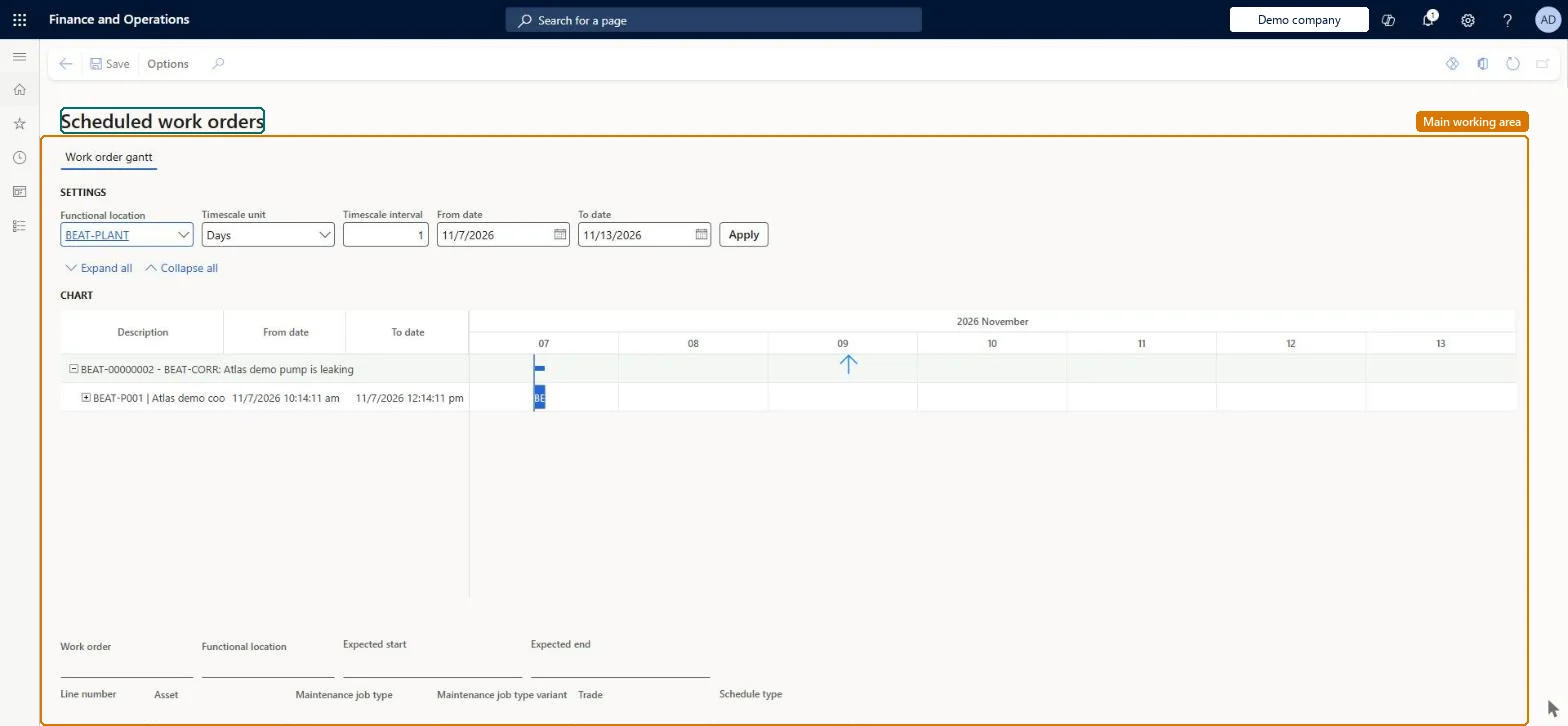
Go to Asset management > Work orders > Scheduled work orders gantt chart.
In the Settings section, set the functional location, time span, and time scale to show.
Section where you choose the functional location, time span, and time scale that the chart shows.Microsoft Learn
Solution architect
4Design impact
If you change it later
Changes you make by dragging work orders are kept only after you select Save. Microsoft Learn
Technical architect
5Technical
Menu item
EntAssetWorkOrderGanttChecked in Dynamics 365
Form
EntAssetWorkOrderGanttChecked in Dynamics 365
Data entities
EntAssetMaintenanceWorkOrderTableV2EntityAsset management work orders V2 Checked in Dynamics 365EntAssetMaintenanceFunctionalLocationEntityAsset management functional locations Checked in Dynamics 365EntAssetMaintenanceJobTypeEntityAsset management maintenance job types Checked in Dynamics 365EntAssetMaintenanceJobTradeEntityAsset management trades Checked in Dynamics 365EntAssetMaintenanceJobVariantEntityAsset management variants Checked in Dynamics 365EntAssetMaintenanceAssetV3EntityAssets entity view V3 Checked in Dynamics 365
Who can open it
PrivilegesWork order scheduling process EntAssetWorkOrderSchedulingProcessDutiesEnable work order scheduling process EntAssetScheduleWorkOrderProcessEnable2 security rolesMaintenance clerk EntAssetMaintenanceClerkMaintenance manager EntAssetMaintenanceManagerChecked in Dynamics 365
Roles to set it up and use it
To set it up or change itMaintenance manager EntAssetMaintenanceManagerMaintenance clerk EntAssetMaintenanceClerkGive people one of these roles. On this system, 2 roles can open this page.Checked in Dynamics 365